
WordPress Forms to Excel: 3 Methods Compared
Manual CSV export, Power Automate or Zapier middleware, and a direct plugin all get form data into Excel. They differ wildly on cost, speed, and what data survives the trip.
In This Guide
- The Short Answer: Which Method Should You Use?
- Why Excel Is Still the Destination Most Teams Want
- Method 1: Manual CSV Export From Your Form Plugin
- What Does Manual CSV Export Actually Lose?
- Method 2: Power Automate or Zapier Middleware
- How Much Maintenance Does Middleware Really Need?
- Method 3: Direct Plugin Sync to Excel Online
- What Does Direct Sync Cost Compared to Middleware?
- Side-by-Side: CSV vs Middleware vs Direct Sync
- How to Choose the Right Method for Your Site
- Frequently Asked Questions
The Short Answer: Which Method Should You Use?
If you need form data in Excel reliably and in real time, a direct plugin beats manual CSV export and middleware on cost, speed, and data fidelity. CSV export is fine for one-off snapshots. Power Automate and Zapier earn their keep only when you need multi-app workflows beyond Excel.
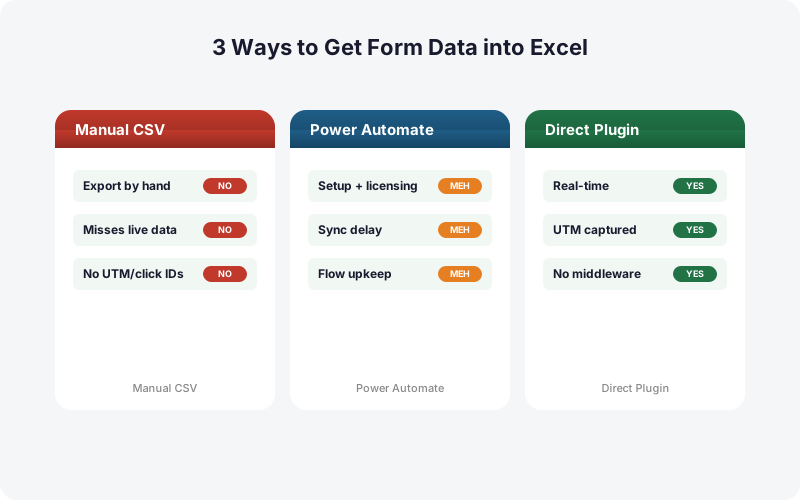
Here's the central trade-off. Manual CSV export misses live submissions between exports and silently drops marketing attribution like UTM tags and click IDs. Middleware (Power Automate, Zapier) adds recurring per-task fees plus ongoing upkeep. Direct sync writes each submission to your Excel workbook within seconds at a flat fee.
The rest of this post walks through each method honestly, with the cost and reliability math, so you can match the tool to your actual situation. Spoiler: most WordPress sites are better off with direct sync, but not all.
Why Excel Is Still the Destination Most Teams Want
Excel remains the default analysis surface for most businesses. Microsoft reported more than 400 million paid Microsoft 365 commercial seats (2024), and a large share of those organizations standardize reporting in Excel rather than Google Sheets.
That creates a recurring problem. Your WordPress forms collect leads, orders, and survey responses. Your finance, sales, and ops teams live in Excel on OneDrive or SharePoint. Something has to move data from one to the other.
The three methods in this post all solve that, but they solve it very differently. One copies a static file by hand. One routes data through a third-party cloud service. One writes directly into the workbook. The differences matter most when volume grows, when speed matters, or when you depend on marketing attribution data.
Method 1: Manual CSV Export From Your Form Plugin
Manual CSV export is the most common starting point because every major form plugin includes it. Contact Form 7 (2026) alone has 10+ million installs, and most plugins let you export entries to a CSV you then open in Excel. It's free and built in.
The workflow: log into WordPress, open your form's entries screen, filter a date range, click export, download the CSV, then open or import it into Excel.
Where it works. One-time reporting. A quarterly snapshot. A quick pull before a meeting. If you only need data occasionally and freshness doesn't matter, manual export is genuinely fine and costs nothing.
Where it breaks. It's a point-in-time snapshot. Submissions that arrive after your export simply aren't in the file. You have to remember to re-export, and the data is stale the moment you save it.
What Does Manual CSV Export Actually Lose?
Manual CSV export usually drops the data that's hardest to recover: marketing attribution. Most form plugins don't store UTM parameters or click IDs (GCLID, fbclid, msclkid) by default, so they never appear in the exported CSV. Without click IDs, you can't tie a closed deal back to the ad that produced it.
Manual entry and copy-paste also introduce errors. Research by Panko found manual data-entry error rates of 18 to 40 percent, with up to roughly 88 percent of spreadsheets containing errors (2016). Every manual export and re-import is another chance to misalign columns, paste into the wrong sheet, or duplicate rows.
In our own support tickets, the single most common Excel complaint isn't missing rows, it's missing UTM and click-ID columns discovered weeks later, after the ad-spend reconciliation has already shipped. By then the attribution is gone for good.
Manual export is free. The hidden cost is the data you never knew you lost.
Method 2: Power Automate or Zapier Middleware
Middleware tools sit between WordPress and Excel and move data automatically. The catch is licensing. Microsoft's Power Automate premium-connector licensing (2025) enforcement began April 1, 2025, and many real connectors require a premium plan plus documented per-flow run and throttling limits.
Zapier uses per-task metered pricing where one task equals one action. Its published pricing (2026) starts at 100 free tasks per month, with Professional from $19.99/month and Team from $69/month. Every submission you route to Excel consumes a task, so cost scales directly with form volume.
Where it works. Multi-step, multi-app workflows. "Form submits, write to Excel, post to Teams, create a CRM record, send a Slack ping." Middleware's app ecosystems are genuinely broad and worth paying for when your workflow spans many tools.
Where it strains. Pure WordPress-to-Excel. You're paying recurring fees and maintaining flows for a single-hop job a plugin does directly.
How Much Maintenance Does Middleware Really Need?
Middleware adds ongoing upkeep that the sticker price hides. Flows break when a connector updates, when authentication tokens expire, or when the source plugin changes its webhook payload. Someone has to notice, diagnose, and fix it, often after leads have already gone missing.
Power Automate's documented run and throttling limits (2025) mean high-volume forms can hit ceilings that silently delay or drop runs. You won't always get an alert, and reconciling what was lost is painful.
We've found the maintenance tax is the part teams underestimate most. A Zapier or Power Automate flow takes 15 to 30 minutes to build, then needs periodic babysitting. Multiply that across several forms or several client sites and the "set it and forget it" promise quietly evaporates.
Middleware isn't bad. It's overbuilt for a single-destination job.
Method 3: Direct Plugin Sync to Excel Online
A direct plugin removes the middle layer entirely. It writes each WordPress submission straight into an Excel workbook on OneDrive using the Microsoft Graph API, in real time, with no Zapier or Power Automate in the path. There's no per-task meter and no flow to maintain.
With SheetLink Forms, setup runs through Destinations, then Excel Online, then Connect Excel via OAuth (work or school M365), then pick your workbook and table and map fields. The refresh token is encrypted at rest with AES-256-GCM.
Reliability is built in. A retry queue uses exponential backoff (5 minutes, 30 minutes, 2 hours) with automatic retries and delivery logs, so a brief outage delays a row instead of losing it. It also captures UTM parameters and click IDs (GCLID, fbclid, msclkid) automatically, the exact data manual CSV drops.
It connects to 12 core form plugins (17 with the Pro tier), so the same direct path covers Elementor, Gravity Forms, WPForms, Fluent Forms, and more.
What Does Direct Sync Cost Compared to Middleware?
Direct sync is a flat fee, not a per-task meter. That's the structural difference. Against Zapier's per-task model (2026), where every Excel write consumes a metered action, a plugin's cost stays constant whether you process 50 submissions or 50,000.
SheetLink Forms offers a free mirror mode: one sync rule sends each submission to Google Sheets and simultaneously mirrors it into Excel Online, with no add-on and no recurring fee. If you want Excel as the sole destination, with no Google account in the loop, the Primary Destinations add-on is part of SheetLink Plus ($29/mo or $290/yr), which covers all sites on the account.
The core plugin is free on wordpress.org with no site limit, and premium tiers run $79/yr or $199 lifetime (Pro, 3 sites) or $199/yr or $499 lifetime (Agency, 25 sites). See full pricing for the breakdown. The point isn't that direct sync is always cheapest in month one, it's that the cost doesn't escalate with volume.
Side-by-Side: CSV vs Middleware vs Direct Sync
The table below lines up the three methods on the criteria that decide most real-world choices: real-time delivery, attribution capture, recurring cost, setup effort, ongoing maintenance, and whether data keeps flowing when you're away from your desk.
The row that surprises people is "Works without you at your desk." Manual CSV export fails it outright, because the method literally requires a human to click export. Both middleware and direct sync pass, but only direct sync does it without a recurring meter or a flow that can silently break. That single row reframes the decision from "which is cheapest" to "which keeps running on its own."
For a deeper Excel-versus-Sheets discussion, see Excel Online vs Google Sheets for WordPress form data.
How to Choose the Right Method for Your Site
Match the method to your actual need, not the marketing. Manual CSV export wins for genuinely occasional, one-off reporting where freshness and attribution don't matter and budget is zero. It's the right tool for a quarterly snapshot.
Middleware wins when Excel is one stop in a multi-app workflow. If a submission must also create a CRM record, post to Teams, and trigger an email sequence with conditional logic, Power Automate and Zapier earn their fees. That breadth is real value.
Direct sync wins the common case: you want every submission in Excel, in real time, with UTM and click IDs intact, at a predictable flat cost. For most WordPress sites collecting leads or orders, that's the job.
If going Google-free is the goal, see Microsoft 365 WordPress forms to Excel without Google and the step-by-step guide to sending submissions to Excel Online. For the full middleware cost math, read Make vs Zapier vs direct plugin true cost.
| Criteria | Manual CSV Export | Power Automate / Zapier | Direct Plugin Sync |
|---|---|---|---|
| Real-time delivery | No - point-in-time snapshot | Near real-time (webhook) or polled | Yes - seconds via Graph API |
| Captures UTM / click IDs | No - usually dropped | Only if you build it into the flow | Yes - automatic |
| Recurring cost | $0 (your time) | Per-task fees + premium licensing | Flat fee, no per-task meter |
| Setup effort | None - built in | 15-30 min per flow | ~5 min OAuth + field map |
| Ongoing maintenance | Re-export every time | Flows break on connector changes | Set once, retry queue self-heals |
| Works without you at your desk | No - needs a human click | Yes - until a flow breaks | Yes - automatic + retries |
Frequently Asked Questions
Does manual CSV export capture UTM parameters and click IDs?
Usually not. Most form plugins don't store UTM tags or click IDs (GCLID, fbclid, msclkid) by default, so they never appear in the exported CSV. Without click IDs you can't connect a closed deal back to the ad that produced it, and that attribution is unrecoverable later.
Is Power Automate free for connecting WordPress forms to Excel?
Often not. Microsoft's premium-connector licensing enforcement began April 1, 2025, and many real connectors require a premium plan plus documented per-flow run and throttling limits, per Microsoft Learn (2025). High-volume forms can hit those ceilings.
How does Zapier pricing work for sending forms to Excel?
Zapier uses per-task metered pricing where one task equals one action. Per Zapier (2026), the free plan covers 100 tasks per month, Professional starts at $19.99/month, and Team from $69/month. Every submission routed to Excel consumes a task, so cost scales with volume.
Is direct sync to Excel real time?
Yes. A direct plugin writes each submission to your Excel workbook on OneDrive via the Microsoft Graph API within seconds, with no middleware in the path. If Excel is briefly unavailable, a retry queue with exponential backoff (5 minutes, 30 minutes, 2 hours) delivers the row once the connection recovers.
Does mirroring submissions to Excel cost money?
No. SheetLink Forms includes a free mirror mode: one sync rule sends each submission to Google Sheets and simultaneously mirrors it into Excel Online, with no add-on and no recurring fee. Making Excel the sole destination requires Primary Destinations, part of SheetLink Plus ($29/mo).
Why is manual CSV export risky for data accuracy?
Because every manual export and re-import is a chance for human error. Panko's research found manual data-entry error rates of 18 to 40 percent, with up to roughly 88 percent of spreadsheets containing errors, per Panko (2016). Direct sync removes the copy-paste step entirely.
When is Power Automate or Zapier the better choice?
When Excel is one stop in a larger workflow. If a submission must also create a CRM record, post to Microsoft Teams, and trigger conditional email sequences, middleware's broad app ecosystems genuinely earn their cost. For a single WordPress-to-Excel hop, a direct plugin is simpler and cheaper.
How many form plugins does direct Excel sync support?
SheetLink Forms supports 12 core form plugins, including Elementor Pro, Contact Form 7, Gravity Forms, WPForms, Fluent Forms, and Forminator, and 17 with the Pro tier (which adds JetFormBuilder, Bricks, MetForm, Kali Forms, and HappyForms). The same direct path to Excel works across all of them without separate flows per form.
Is my Excel connection secure with a direct plugin?
Yes. SheetLink Forms connects to Excel Online through OAuth using the Microsoft Graph API, and the refresh token is encrypted at rest with AES-256-GCM. Delivery logs and automatic retries give you a record of every write, so you can verify nothing was silently dropped.
More Automation guides
Skip the Export Button and the Per-Task Meter
SheetLink Forms writes every WordPress submission straight into Excel Online in real time, UTM tags and click IDs included. Mirror mode is free.