
Excel Online vs Google Sheets: Which Should Hold Your Form Data?
Both spreadsheets can hold your WordPress form submissions. The right choice depends on your team's ecosystem - and with the free mirror mode, you may not have to choose at all.
In This Guide
- Excel Online or Google Sheets - What's the Short Answer?
- Which Handles Real-Time Collaboration Better?
- Which Has More Powerful Formulas and Analysis?
- Which Fits Your Ecosystem - Google Workspace or Microsoft 365?
- What Does Each Option Actually Cost?
- Which Works Better Offline and on the Desktop?
- Which Connects to Better BI and Reporting Tools?
- Which Offers Stronger Governance and Security?
- Why You Might Not Have to Choose at All
- Our Recommendation by Team Type
- Recap
- Frequently Asked Questions
Excel Online or Google Sheets - What's the Short Answer?
Pick the spreadsheet your team already lives in. Microsoft 365 reported 400M+ paid commercial seats (Microsoft, 2024), so if your org runs Outlook, Teams, and Power BI, Excel Online fits. Google-centric teams should stay in Sheets.
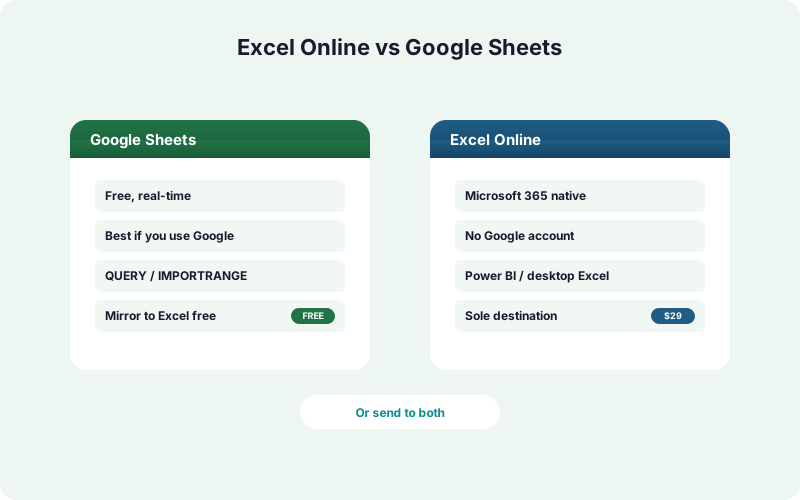
There's a third answer most comparisons miss: send each submission to both. SheetLink Forms ships a free mirror mode that writes one form entry into Google Sheets and Excel Online from a single rule. Mixed organizations don't have to pick a side.
The rest of this post walks through collaboration, formulas, ecosystem, cost, offline use, and governance so you can match the destination to your actual workflow. Want the setup mechanics? See sending WordPress form submissions to Excel Online.
Which Handles Real-Time Collaboration Better?
Both handle multi-user editing well, but Google Sheets was built collaboration-first and still feels smoother for many simultaneous editors. With WordPress powering roughly 43% of all websites (W3Techs, 2026), form data often flows to teams that need shared, live access.
Google Sheets shows live cursors, instant comment threads, and granular share links with zero install. Excel Online matches most of this through OneDrive and SharePoint co-authoring, and it's tightly woven into Teams chat and channels.
The practical difference is cultural. If your team already shares files over Google Drive links, Sheets removes friction. If sharing happens inside Teams and SharePoint, Excel Online keeps form data where people already collaborate. Neither is objectively better - the winner is whichever your team opens by default.
Which Has More Powerful Formulas and Analysis?
Excel has the deeper analytical engine, while Google Sheets wins on lightweight, web-native data tricks. This matters because 58% of finance leaders still use Excel as their primary tool (Rossum, 2024), often for analysis that web spreadsheets can't match.
Google Sheets shines with QUERY (SQL-style filtering) and IMPORTRANGE (pull live data across files). These are genuinely useful for routing form submissions into dashboards without scripts.
Excel counters with PivotTables, Power Query, Power Pivot, and a direct path into Power BI for full business-intelligence reporting. For heavy modeling, large datasets, or board-ready charts, Excel's tooling is in another league. For quick web-based lookups and cross-sheet pulls, Sheets is faster to set up. Building dashboards in Sheets? See Google Sheets dashboards for lead data.
Which Fits Your Ecosystem - Google Workspace or Microsoft 365?
Match the spreadsheet to your suite, because integration friction is the real cost over time. Microsoft 365's 400M+ paid commercial seats (Microsoft, 2024) mean Excel Online plugs into the same identity, storage, and apps your colleagues already use.
For Google Workspace teams, Sheets connects natively to Gmail, Drive, Looker Studio, and Apps Script. Your form data lands where your reporting and automation already live.
For Microsoft 365 teams, Excel Online connects to OneDrive, SharePoint, Teams, Power Automate, and Power BI through Microsoft Graph. SheetLink Forms writes rows directly via Graph, in real time, into a OneDrive workbook. If your stack is Microsoft-first, see routing Microsoft 365 forms to Excel without Google.
What Does Each Option Actually Cost?
Both spreadsheets are effectively free to receive form data - the cost difference lives in the SheetLink delivery method. Google Sheets needs only a free Google account; Excel Online needs a work or school Microsoft 365 license you likely already pay for.
With SheetLink Forms, Google Sheets delivery is free - connect with the one-click Google connect or the classic Apps Script webhook you deploy once. The free mirror mode also sends each submission to Excel Online at the same time, at no extra charge.
The only paid path is Excel-primary mode, unlocked by Primary Destinations, part of SheetLink Plus ($29/mo). That makes Excel Online the sole destination, with no Google Sheet and no Google account required. The core plugin is free; premium tiers from $79/yr or $199 lifetime unlock the rest. Full breakdown on pricing.
Which Works Better Offline and on the Desktop?
Excel wins decisively on offline and desktop power. The web versions of both tools need a connection, but Excel's installed desktop app gives you full offline editing, larger row limits, and faster handling of big datasets - one reason 90% of financial-ops firms still rely on spreadsheets (AutoRek via PR Newswire, 2025).
Google Sheets offers limited offline editing through Chrome, but it's web-first by design and caps out on very large files.
If your analysts download data and crunch it on a plane, the Excel desktop app is the clear pick. SheetLink Forms writes to the Excel Online workbook in OneDrive; that same file opens instantly in desktop Excel, so you get live form data plus full offline tooling. For Sheets-centric teams, the web-only model is rarely a real constraint.
Which Connects to Better BI and Reporting Tools?
Excel Online holds a clear edge for serious business intelligence through Power BI. Microsoft Graph and Power Query let you pipe form data into refreshable Power BI dashboards, which is valuable given how poor data quality drives real operational cost (IBM, 2024) when reporting relies on stale manual exports.
Google Sheets connects to Looker Studio (formerly Data Studio) for free, web-based dashboards that refresh on a schedule. It's quick and capable for marketing and lead reporting.
The split is familiar: Power BI for enterprise governance, drill-down, and large models; Looker Studio for fast, shareable web dashboards. Because SheetLink Forms can mirror to both spreadsheets for free, a data team can build the Power BI report while marketing keeps its Looker Studio view - off the same submissions.
Which Offers Stronger Governance and Security?
Both meet enterprise security bars, but governance again follows your ecosystem. Each suite carries SOC, ISO, and GDPR-aligned controls, audit logs, retention policies, and admin-level access management. The deciding factor is which admin console your IT team already operates.
Google Workspace centralizes Sheets governance in the Admin console with DLP, sharing restrictions, and Vault retention. Microsoft 365 governs Excel Online through Purview, sensitivity labels, and conditional access.
SheetLink Forms is built to respect either model. The Excel Online connection uses OAuth, and the refresh token is encrypted at rest with AES-256-GCM, so credentials never sit in plaintext. A retry queue (5 minute, 30 minute, 2 hour backoff) protects data during transient outages. For the connection walkthrough, see WordPress form to Excel.
Why You Might Not Have to Choose at All
The honest answer for many mixed organizations is: send form data to both. SheetLink Forms' free mirror mode delivers each submission to Google Sheets and Excel Online from a single sync rule, with no add-on and no extra cost. This is the one capability that turns a hard either-or into a both-and.
Why mirror? Marketing may live in Looker Studio off Sheets while finance builds Power BI off Excel. Or you're mid-migration from Google Workspace to Microsoft 365 and want a safe overlap. One rule, two destinations, zero duplicate setup.
When you're fully Microsoft and want Google out of the loop entirely, switch to Primary Destinations, part of SheetLink Plus ($29/mo), so Excel Online becomes the sole destination. Compare the trade-offs in Excel vs CSV export vs Power Automate.
Our Recommendation by Team Type
Google-centric teams should keep form data in Google Sheets. It's free, collaborative, and connects natively to the Workspace tools you already use. SheetLink's one-click Google connect takes about a minute, with the classic Apps Script webhook as the self-hosted alternative.
Microsoft 365 teams should send form data to Excel Online. With 400M+ paid M365 seats (Microsoft, 2024), Excel keeps data inside the identity, storage, and BI stack your colleagues live in - via Excel-primary mode for a Google-free path.
Mixed organizations should use the free mirror mode and send to both. Let each department report from the spreadsheet it prefers, off the same submissions. The point of this comparison isn't to crown a universal winner - it's to match the destination to your ecosystem, or refuse the choice entirely.
Recap
Neither spreadsheet is universally better - the right one is the one your team already opens. Google Sheets wins on web-native collaboration, QUERY/IMPORTRANGE, Looker Studio, and a free Google account. Excel Online wins on formula depth, desktop and offline power, Power BI, and Microsoft 365 fit.
For cost, both are free to receive data through SheetLink Forms. Google Sheets and the free mirror mode cost nothing extra; Primary Destinations (Google-free) is part of SheetLink Plus at $29/mo.
The most useful takeaway: you may not have to choose. The free mirror mode sends each WordPress submission to Google Sheets and Excel Online at once. Match the destination to your ecosystem, or send to both and let every team report from its own tool. Setup help lives in the Google Sheets setup guide and on the Excel Online page.
| Capability | Google Sheets | Excel Online |
|---|---|---|
| Cost to receive data | Free (Google account) | Work or school M365 |
| Real-time collaboration | Excellent, built-in | Strong via OneDrive + Teams |
| Formula power | QUERY, IMPORTRANGE | PivotTables, Power Query |
| Ecosystem fit | Google Workspace | Microsoft 365 (400M+ seats) |
| Desktop / offline | Limited (Chrome) | Full desktop app |
| BI tooling | Looker Studio | Power BI |
| SheetLink delivery method | Free one-click connect or Apps Script webhook | Graph API; free mirror or SheetLink Plus ($29/mo) primary |
Frequently Asked Questions
Is Excel Online or Google Sheets better for WordPress form data?
Neither is universally better - it depends on your ecosystem. Microsoft 365 teams should use Excel Online, given Microsoft's 400M+ paid seats (2024). Google Workspace teams should use Sheets. Mixed orgs can send to both with SheetLink Forms' free mirror mode.
Does sending form data to both spreadsheets cost extra?
No. SheetLink Forms' mirror mode is free and writes each submission to Google Sheets and Excel Online from one sync rule. There's no add-on required. Only Excel-primary mode - where Excel Online is the sole destination with no Google Sheet - requires SheetLink Plus at $29/mo.
Do I need a Microsoft 365 license to use Excel Online?
Yes. Excel Online delivery needs a work or school Microsoft 365 account; personal Outlook.com accounts are not supported by Microsoft's Excel API. SheetLink Forms connects that account via OAuth, then writes rows in real time through Microsoft Graph. A paid M365 license adds the desktop app, Power BI, and advanced governance features.
Which spreadsheet has more powerful formulas?
Excel has the deeper engine with PivotTables, Power Query, Power Pivot, and Power BI. Google Sheets counters with web-native functions like QUERY and IMPORTRANGE. For heavy modeling and large datasets, Excel wins; for quick cross-sheet pulls and lightweight analysis, Sheets is faster to set up.
How does SheetLink Forms keep the Excel connection secure?
The Excel Online connection uses OAuth, and the refresh token is encrypted at rest with AES-256-GCM, so credentials never sit in plaintext. A retry queue with 5-minute, 30-minute, and 2-hour backoff protects submissions during transient outages, and SheetLink respects both Google Workspace and Microsoft 365 governance models.
Can I move from Google Sheets to Excel Online later?
Yes. Many teams start in Google Sheets, then switch destinations as their stack changes. During a migration you can run the free mirror mode to write to both at once, then move to Excel-primary mode (part of SheetLink Plus, $29/mo) when you're ready to drop Google entirely. No form rebuilds needed.
Which works better offline?
Excel, clearly. Its installed desktop app gives full offline editing and faster handling of large files, which matters since 90% of financial-ops firms still rely on spreadsheets (2025). Google Sheets offers limited offline editing through Chrome but is web-first by design.
Which spreadsheet connects to better dashboards?
It depends on your reporting tool. Excel Online pipes into Power BI for enterprise BI; Google Sheets connects to Looker Studio for free web dashboards. Because SheetLink Forms can mirror to both for free, a data team can build Power BI while marketing keeps Looker Studio - off the same submissions.
Does SheetLink Forms capture marketing attribution either way?
Yes. Whether form data lands in Google Sheets, Excel Online, or both, SheetLink Forms captures UTM parameters and click IDs automatically. The attribution columns are populated identically across destinations, so your lead-source reporting stays consistent regardless of which spreadsheet your team chooses.
More Automation guides
Don't Choose - Send Form Data to Both
SheetLink Forms mirrors each WordPress submission to Google Sheets and Excel Online from one rule, for free. Or go Google-free with Excel-primary mode.