
Build a Free CRM in Google Sheets from WordPress Forms
Turn Google Sheets into a lightweight CRM that auto-populates from your WordPress forms. Includes formulas, templates, and automation tips.
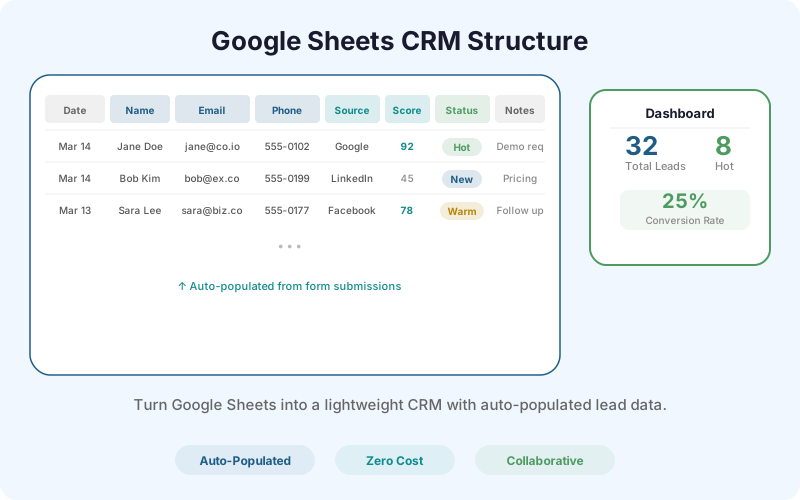
Why Google Sheets as a CRM?
Most small businesses don't need HubSpot. They don't need Salesforce. They need a place to track leads, see who needs follow-up, and know where each deal stands.
Google Sheets does all of this. It's free, collaborative, works on every device, and your team already knows how to use it. The problem with spreadsheet CRMs is data entry - manually typing lead information from emails is tedious and error-prone.
SheetLink Forms eliminates the data entry problem. Every WordPress form submission automatically becomes a row in your CRM spreadsheet. No copy-pasting from emails. No missed leads. The CRM populates itself.
CRM Sheet Structure
Start with these columns:
A: Date (auto-populated by SheetLink) B: Name C: Email D: Phone E: Source (UTM source or referrer) F: Page (which page the form was on) G: AI Score (if using the scoring add-on) H: Status (New, Contacted, Qualified, Proposal, Won, Lost) I: Notes (manual - your team adds context) J: Follow-up Date (manual - next action date) K: Owner (who on your team is handling this lead)
Columns A-G are auto-populated by SheetLink. Columns H-K are manual fields your team fills in as they work leads. This separation is key - automation handles intake, humans handle relationship management.
If you would rather not build this by hand, the free Google Sheets CRM template ships with exactly this column layout, the status dropdown, and the conditional formatting already applied. Make a copy and skip to the automation step.
Essential Google Sheets Formulas
Status aging formula: In column L, add a formula that calculates days since the lead arrived. =IF(H2="New", TODAY()-A2, ""). This tells you which new leads have been sitting untouched.
Duplicate detection: In column M, use COUNTIF to flag duplicate emails. =IF(COUNTIF(C:C, C2)>1, "DUPLICATE", ""). This catches repeat submissions from the same person.
Lead source summary: Create a separate tab called "Dashboard" with a pivot-style summary. =COUNTIF(Leads!E:E, "google") counts leads from Google. Build a row for each source to see which channels produce the most leads.
Conversion rate: =COUNTIF(H:H, "Won") / COUNTA(H:H) gives you an overall win rate. Break it down by source for channel-specific conversion rates.
Conditional Formatting for Visual Pipeline
Color-code your Status column to create a visual pipeline:
Select column H. Go to Format > Conditional formatting. Add rules: "New" = light blue, "Contacted" = yellow, "Qualified" = orange, "Proposal" = light green, "Won" = green, "Lost" = light red.
For the AI Score column (G), add a gradient: 0-39 = red, 40-69 = yellow, 70-100 = green. This gives your team an instant visual signal of lead quality.
For the Follow-up Date column (J), highlight cells where the date is today or past due in red. =AND(J2<>"" ,J2<=TODAY()). This ensures no follow-up falls through the cracks.
Automating the CRM with Apps Script
Google Sheets has a built-in scripting engine (Apps Script) that can automate CRM workflows:
Auto-assign leads: Write a script that assigns new leads to team members in a round-robin pattern. When a new row appears, the script fills the Owner column (K) with the next team member's name.
Slack notifications for hot leads: When the AI Score column shows 80+, trigger a Slack webhook that posts to your sales channel. The message includes the lead's name, email, score, and a link to the spreadsheet row.
Weekly digest email: Every Monday morning, send a summary email to your team: X new leads this week, Y leads need follow-up, Z leads in Proposal stage. Use Apps Script's time-based triggers.
Frequently Asked Questions
Can multiple team members edit the CRM at the same time?
Yes. Google Sheets supports real-time collaborative editing. Multiple team members can update lead statuses, add notes, and manage follow-ups simultaneously without conflicts.
When should I switch from a Sheets CRM to a real CRM?
Consider switching when you have more than 2,000 active leads, need automated email sequences, require advanced pipeline analytics, or have a sales team larger than 5 people. Until then, Google Sheets handles most small business CRM needs.
Can I import existing leads into the Sheets CRM?
Yes. If you have leads in another system (CSV, Excel, another CRM), import them into Google Sheets directly. New leads from SheetLink will be appended below your existing data as long as the column headers match.
More Automation guides
Auto-Populate Your CRM from WordPress Forms
Every form submission becomes a CRM row. No data entry. No missed leads.