
Google Sheets as a Notification Hub: Slack & Email Alerts from Form Submissions
The right alert at the right time changes everything. Here's how to drive Slack and email notifications from Google Sheets - with rules, debouncing, and templating.
Why Sheets Is the Right Center for Alerts
Most teams set up notifications from the form plugin directly. The form sends an email on submission. Maybe a Slack webhook fires too. Done.
This works at small scale and breaks at any real scale. Different leads need different alerts. Different teams need different escalation paths. Some submissions need debounced alerts (don't flood Slack with 50 messages from a bot run). Some need batched digests instead of per-event alerts.
Handling all this in the form plugin is messy. Handling it in Sheets is clean. Sheets is already where the data lives. Putting notification logic alongside the data means alerts respond to enriched, scored, routed leads - not raw form data.
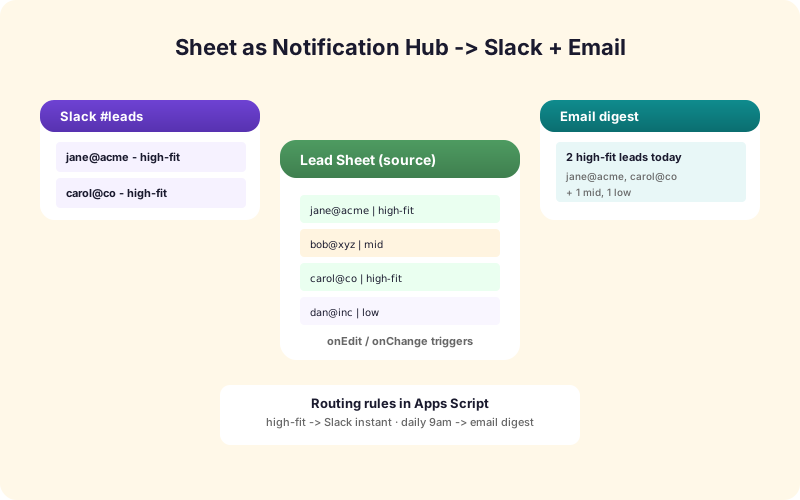
The pattern: form posts to Sheets via SheetLink Forms (one-click Google connect or the classic Apps Script webhook - the notification logic below works with either connection). Sheets-side rules evaluate each new row and trigger Slack/email/SMS notifications based on the rules. The form plugin stays simple. The notification logic stays separate and easy to change.
The Channels
Three notification channels cover almost every team need.
Slack - team-channel alerts. Format as a Slack Block Kit message with the lead summary, a link to the row, and quick-action buttons. Best for instant team awareness.
Email - individual alerts to specific people. The owner field on the row determines who gets the email. Format as a clean HTML template with the key fields.
SMS - reserved for genuinely urgent cases. High-value sales leads, security incidents, or after-hours emergencies. Use sparingly - SMS fatigue is real.
Most teams need Slack and email. SMS is layered in for high-value leads only.
Apps Script Triggers
The simplest implementation uses an Apps Script onChange trigger. When a new row is added to the sheet, the script runs.
The script reads the new row, evaluates rules ("is this an enterprise lead?" "is this from a high-value source?"), and posts to Slack via webhook or sends email via GmailApp.
This runs in your Google account, with no extra cost beyond Apps Script's free quota (which is generous for typical volumes). The whole setup is 50-100 lines of JavaScript.
The downside: Apps Script triggers have ~1 minute latency before they fire. For most notification use cases that's fine. For "instant" notifications, use the webhook approach instead.
Webhook-Based Notifications
The faster path: SheetLink Forms' notification engine fires Slack/email webhooks at submission time, not at row-write time.
This means notifications dispatch within 1-2 seconds of form submission. The Sheets row is still written for the audit trail, but the notification doesn't wait for Sheets.
The rules engine evaluates each submission against your notification rules and dispatches matching channels. Rules can reference enriched data from your AI lead scoring (so you can trigger only on high-quality leads) and from any of your form fields.
For most lead-gen scenarios, the webhook approach is the right default. The Apps Script trigger approach is better when you want notifications based on aggregate state (e.g., "alert when daily lead total exceeds 100"), not per-row events.
Notification Rules That Work
A few common rule patterns.
Per-source channel. Leads from "Demo Request" go to #sales-demos. Leads from "Contact Us" go to #general-inbound. Leads from "Press Inquiry" go to #pr.
Per-quality threshold. AI-scored 80+ leads ping Slack with @here mention. 50-79 score leads post to channel without mention. Below 50 don't notify - they're reviewed in batch.
Per-owner email. Leads with Owner = "Alice" email Alice. Owner = "Bob" emails Bob. Unassigned leads email a manager who assigns ownership.
Time-based escalation. A lead untouched after 1 hour pings the assigned rep. After 4 hours, pings their manager. After 24 hours, posts to a high-priority channel.
All four of these run as Sheets-side rules on the same data. The form plugin doesn't know or care.
Slack and Email Templates
A bad notification: "New lead!"
A good notification: a structured Block Kit message with lead name, company, AI score, source, and a button labeled "Open Row in Sheet."
For Slack, use Block Kit formatting. Include a header with lead summary, a section with key fields (Email, Phone, Score), and an action row with buttons: Open Sheet, Mark Contacted, Disqualify.
For email, use a clean HTML template with a header (lead name + score), a body (relevant fields), and a footer with action links. Test in major email clients - Outlook, Gmail, Apple Mail.
The template should be in code, not embedded in each rule. SheetLink Forms supports templating with mustache-style placeholders - one template per channel, used by all rules.
Debouncing and Batching
Two failure modes to design around.
Bot floods. If your spam filter is bypassed (or missing), a bot can submit 100 forms in 5 minutes and spam your team's channel into uselessness. Solution: rate-limit notifications per channel. If more than 5 alerts in 60 seconds, switch to a single "X new submissions" digest until the spike subsides.
Quiet-hour batching. Outside of business hours, don't send 50 individual alerts that pile up overnight. Switch to a single morning digest that summarizes the night's activity.
Both patterns require Sheets-side intelligence - knowing how many alerts have fired recently, knowing the current time vs. business hours. SheetLink Forms' notification engine handles both with built-in rate limits and quiet-hours rules.
Escalation Logic
Some leads don't get worked. The right pattern is automatic escalation.
A lead in New status for more than 1 hour: ping the assigned rep again with a louder alert.
A lead in Contacted status for more than 3 days with no follow-up logged: ping the rep's manager.
A lead in any state for more than 30 days with no resolution: post to a "stale leads" channel for cleanup.
This runs as a time-based Apps Script trigger - hourly, looks at the sheet, finds rows matching escalation criteria, fires the alerts. With a few rules, no lead gets lost in the cracks.
Beyond Notifications: Closing the Loop
The notifications fire when leads come in. The next step is closing the loop when leads are worked.
When a sales rep clicks "Mark Contacted" in the Slack notification, the row's Status field updates and the Last Touched timestamp gets stamped. This requires a small backend - either an Apps Script web app or a SheetLink Forms endpoint that handles the click.
With the loop closed, your sheet always reflects current state without manual updates. Notifications drive action; actions update the sheet; the next round of escalation uses the updated state.
This is the difference between "alerts that get ignored" and "alerts that drive a feedback loop." Worth the extra setup.
Recap
Sheets is the right hub for form-driven notifications because it's where the data lives. Slack, email, and SMS are the channels. Rules driven by lead source, quality score, owner, and time-since-create handle the routing.
Debounce bot floods, batch quiet-hour alerts, and add escalation for stale leads. Use Block Kit for Slack and clean HTML for email. Close the loop with action buttons that update the sheet on click.
With all of this in place, your team runs from Slack and email - confident the right alerts reach the right people at the right time, without the noise.
Frequently Asked Questions
Why notify from Sheets instead of from the form plugin directly?
Notifications driven from Sheets can use enriched and scored data. The form plugin only sees raw submission data. Sheets-side notifications also stay separate from form logic, making them easier to change without modifying the form.
How fast is a Sheets-driven notification?
Apps Script triggers fire within ~1 minute. For instant notifications (under 2 seconds), use SheetLink Forms' webhook-based notification engine which dispatches at submission time.
Can I send Slack notifications based on AI lead score?
Yes. Run AI scoring at submission time (SheetLink Forms' AI Lead Scoring add-on does this), then trigger different alert tiers based on score: 80+ pings Slack with @here, 50-79 silent post, below 50 no notification.
How do I prevent bot floods from spamming Slack?
Rate-limit notifications per channel. If more than 5 alerts in 60 seconds, switch to a single "X new submissions" digest until the spike subsides. SheetLink Forms' notification engine has this built in.
Can notifications include action buttons?
Yes. Slack Block Kit supports buttons that fire webhooks. Wire each button to an Apps Script web app or a SheetLink endpoint that updates the sheet row on click - "Mark Contacted" updates Status, etc.
How do I escalate stale leads?
A time-based Apps Script trigger runs hourly, finds rows matching escalation criteria (e.g., New status > 1 hour, Contacted status > 3 days), and fires the appropriate alert. Define rules per status and timeout.
Should I use email or Slack for new lead alerts?
Both. Slack for team-channel awareness (everyone sees it). Email for individual ownership (only the assigned rep gets it). For high-value leads, layer in SMS for urgency.
How do I batch quiet-hour alerts?
Configure quiet hours in your notification engine. Outside business hours, queue alerts and send a single morning digest summarizing overnight activity. Reserve immediate alerts for genuinely urgent cases.
More Automation guides
Drive Slack and Email From Sheets
SheetLink Forms' notification engine. Rules, debouncing, escalation, and templating - all driven by your sheet.