
Google Sheets Dashboards for WordPress Lead Data: Charts, SPARKLINE & Pivot Tables
You don't need Looker or Power BI. With charts, SPARKLINE, pivot tables, and conditional formatting, Sheets handles 90% of the dashboards a marketing team needs.
In This Guide
- Why Sheets Beats Looker for Most Teams
- Dashboard Architecture
- The 10 Metric Cards Every Lead Dashboard Needs
- SPARKLINE for Inline Trends
- Pivot Tables for Slice-and-Dice
- The Three Charts Every Dashboard Needs
- Conditional Formatting for At-A-Glance State
- Auto-Refresh and Scheduled Snapshots
- Sharing and Permissions
- Beyond Sheets: When BI Tools Become Worth It
- Recap
- Frequently Asked Questions
Why Sheets Beats Looker for Most Teams
Marketing teams keep being told they need Looker, Power BI, or Tableau. For most teams, this is overkill. The dashboards they actually look at - lead volume by source, conversion funnel by week, this month vs. last month - all run in Sheets in 30 minutes of setup.
Sheets has charts, pivot tables, SPARKLINE, conditional formatting, and QUERY. That covers 90% of what an internal marketing dashboard needs. The remaining 10% (real-time, multi-million-row, complex SQL joins) is genuinely BI-tool territory.
A Sheets dashboard wins on three things: it's free, your team already knows the tool, and it lives next to the underlying data so updates are instant. No data pipeline. No BI tool license. No "let me ping the data team." Just open the sheet.
Dashboard Architecture
A working Sheets dashboard has three parts.
Raw data tab(s): where the form submissions land. SheetLink Forms writes here. Don't touch this tab manually.
Aggregation tabs: QUERY-based sheets that pull subsets out of raw data - "Last 30 days," "This month by source," "Funnel summary." These get refreshed automatically when raw data changes.
Dashboard tab: the visual layer. Charts, SPARKLINE, pivot tables, key metric cards. Read-only for everyone except the dashboard owner.
The separation matters. Mixing raw data and dashboards on the same tab makes the sheet slow and breaks when someone accidentally edits a cell. Keep raw data clean, build aggregations on top, render visuals from aggregations.
The 10 Metric Cards Every Lead Dashboard Needs
Top of the dashboard tab: a row of 10 metric cards.
1. Total leads this week vs. last week - delta and percentage. 2. Total leads this month vs. last month. 3. Top source this week - by submission count. 4. Conversion rate - qualified / total - this week. 5. Average lead score - if using AI scoring. 6. Time-to-first-contact - average minutes from submission to first agent contact. 7. Open follow-ups - count of leads with status New or Contacted. 8. Spam quarantine - count of submissions filtered out. 9. Top page - which page generated most submissions. 10. AI score distribution - bar chart of score buckets.
Each is a single formula or a small chart. Together they tell the story of the week in 30 seconds.
SPARKLINE for Inline Trends
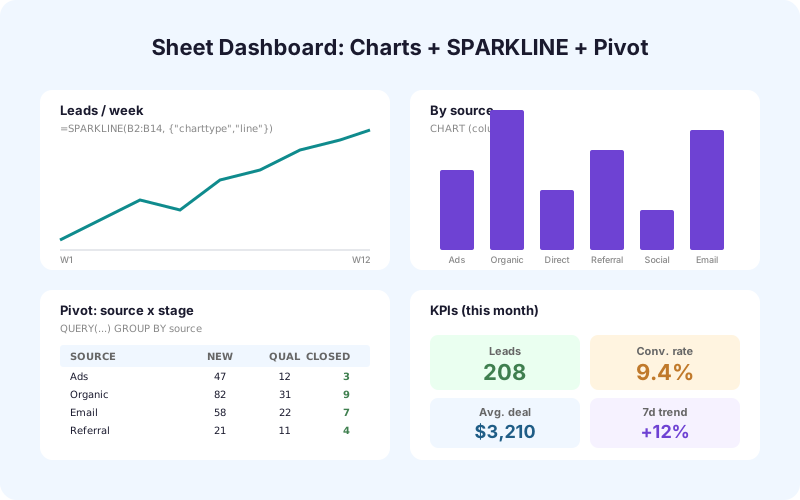
SPARKLINE is the underused superpower of Sheets. It puts a tiny chart inside a single cell.
A leads-by-source table can have a column showing the last 14 days of submissions per source as a sparkline:
=SPARKLINE(QUERY(Raw!A:E, "select count(B) where B = 'Google Ads' and A > date '"&TEXT(TODAY()-14,"yyyy-mm-dd")&"' group by A order by A asc"))
Now your source table shows not just totals but trend direction. A source with 100 leads/week trending up is doing better than a source with 200 leads/week trending down.
SPARKLINE supports line, bar, column, and winloss types. Use bar for stacked distributions, column for daily counts, winloss for "did we hit goal each day this month."
Pivot Tables for Slice-and-Dice
A pivot table is the right tool when you want to see counts/sums broken out by 2-3 dimensions.
Classic lead-data pivots:
- Leads by Source by Week. - Leads by Source by Quality (Qualified/Unqualified). - Leads by Page by Source. - Conversion rate by Quality and Source (with calculated field).
Build each pivot on a separate tab named after what it shows. The dashboard tab embeds them or charts them. When raw data updates, pivots refresh automatically.
The trick: don't put pivots on the dashboard tab. Pivots want full-tab real estate to show their headers and groups. Build them on dedicated tabs and reference them.
The Three Charts Every Dashboard Needs
Chart 1: Daily lead volume, last 30 days. A column chart with a 7-day moving average overlay. Shows volume and trend.
Chart 2: Source breakdown. A donut or stacked bar showing leads by source for the current period. Anyone glancing knows where leads come from.
Chart 3: Funnel. Total leads -> Qualified -> Demo -> Closed. Funnel chart or horizontal bar. Shows the drop-off at each stage.
Three charts is enough. Most dashboards have too many charts and the signal gets lost. If a chart isn't answering a specific question someone asks weekly, cut it.
Conditional Formatting for At-A-Glance State
Conditional formatting turns a number into a status.
Apply red fill when conversion rate drops below baseline. Apply green when total leads exceed last week. Apply yellow when time-to-first-contact exceeds 2 hours.
This is what makes a dashboard usable at a glance. The team manager doesn't need to read every number - they look for red. The agents don't need to scan every row - they look for the cells highlighted in their assigned color.
Apply conditional formatting in three places: metric cards (bg color based on threshold), aggregation tables (text color based on delta), and the raw data tab's Status column (color per status).
Auto-Refresh and Scheduled Snapshots
Google Sheets auto-recalculates formulas when raw data changes. That covers most refresh needs.
For metrics that don't reference live data (e.g., "this week vs. last week"), the formulas keep working as time advances - the date math handles it.
For scheduled snapshots ("send the dashboard as a PDF every Monday morning"), use a time-based Apps Script trigger. The script generates a PDF and emails it to the team. Combined with our guide on scheduled weekly lead digests, this gives you a fully automated weekly report.
For real-time wall displays (TV in the office showing live numbers), Sheets has a publish-to-web option that keeps a clean view URL refreshing every few minutes.
Sharing and Permissions
A dashboard is only useful if the right people can see it. The sharing model:
- Raw data tab: restricted to admins. Editors only. - Aggregation tabs: restricted to admins. Editors only. - Dashboard tab: view-only for the wider team. Comments allowed.
Use Sheets' Protect Sheet feature to lock the raw data and aggregation tabs even from people with edit access to the file. This prevents accidents.
For cross-team dashboards (sales + marketing + ops), consider one shared file with multiple dashboard tabs - one per team. Everyone sees their own dashboard plus the company-wide overview.
Beyond Sheets: When BI Tools Become Worth It
A Sheets dashboard hits limits when:
- Raw data exceeds ~500,000 rows (Sheets gets slow). - You need joins across multiple data sources (CRM + sheets + ad platform + product analytics). - You need user-level row-level security (different views for different employees).
At that point, BI tools (Looker, Metabase, Power BI) are worth the investment. But for most marketing teams managing under 10,000 leads per month from a handful of sources, Sheets covers 100% of dashboarding needs at zero incremental cost.
Don't outgrow Sheets prematurely. The teams that "need BI" usually need a better Sheet first.
Recap
A working Sheets dashboard has raw data tabs, aggregation tabs, and a dashboard tab. Ten metric cards plus three charts is the right amount of information for a weekly review. SPARKLINE for inline trends. Pivot tables for slice-and-dice. Conditional formatting for at-a-glance status.
This covers 90% of what marketing teams need. When you do outgrow it - hundreds of thousands of rows, complex joins, row-level security - that's a real signal you need BI tools. Until then, save the licensing budget and build the Sheets dashboard.
Frequently Asked Questions
Can Google Sheets really replace a BI tool?
For most marketing teams under 10,000 leads per month, yes. Sheets handles dashboards, pivots, charts, and conditional formatting at zero cost. BI tools become worth it only when you exceed Sheets' practical limits (data volume, multi-source joins, row-level security).
What's the best chart for a sales funnel?
A horizontal bar chart with progressively narrower bars works well. Some teams prefer a step chart that explicitly shows the drop-off rate at each stage. Sheets supports both via the chart customization options.
How do I auto-refresh the dashboard?
Sheets auto-recalculates formulas when raw data changes. For scheduled snapshots (PDF emailed weekly), use a time-based Apps Script trigger. For wall displays, publish to web with auto-refresh.
What is SPARKLINE useful for?
Inline mini-charts that fit in a single cell. Use them to show trends per row in a table. A leads-by-source table can have a sparkline column showing the last 14 days for each source.
Should I keep raw data and dashboards in the same sheet file?
Yes, but on separate tabs. Mixing raw data and visuals on the same tab causes performance issues and accidental edits. Use separate tabs for raw data, aggregations, and the dashboard view.
How do I share a dashboard with the team without giving them edit access?
Share the file as Viewer or Commenter. Use Protect Sheet to lock the raw data and aggregation tabs even for editors. The dashboard tab stays read-only for everyone except the dashboard owner.
How do I show this week vs. last week?
Use COUNTIFS with date math: COUNTIFS(date_column, ">="&TODAY()-7) for this week and COUNTIFS(date_column, ">="&TODAY()-14, date_column, "<"&TODAY()-7) for last week. Compute the delta as a separate cell with conditional formatting.
Can I build a dashboard that updates in real time?
Yes. SheetLink Forms writes to Sheets within seconds of form submission. Charts and pivots referencing the raw data refresh automatically. For wall displays, the publish-to-web view refreshes every few minutes.
More Lead Management guides
Build the Dashboard Your Team Will Actually Use
SheetLink Forms feeds the data. Charts, SPARKLINE, and pivot tables do the rest. No BI tool required.