
From Form Submission to Google Doc: Auto-Generating Proposals & Contracts
A WordPress form fills out a Google Doc template. The doc emails to the prospect. The deal moves forward without anyone copying and pasting.
The Document Generation Bottleneck
A consultancy sells project work. Each new client gets a 6-page proposal: scope, timeline, pricing, terms, signature page. The team uses a Google Doc template and copies/pastes the client name, project details, and pricing into it - by hand - for every prospect.
This is a 30-minute task per proposal. At 20 proposals a month, that's 10 hours of senior-team time spent copy-pasting. Multiply by a year and you're losing a quarter of an FTE to a task that should be automated.
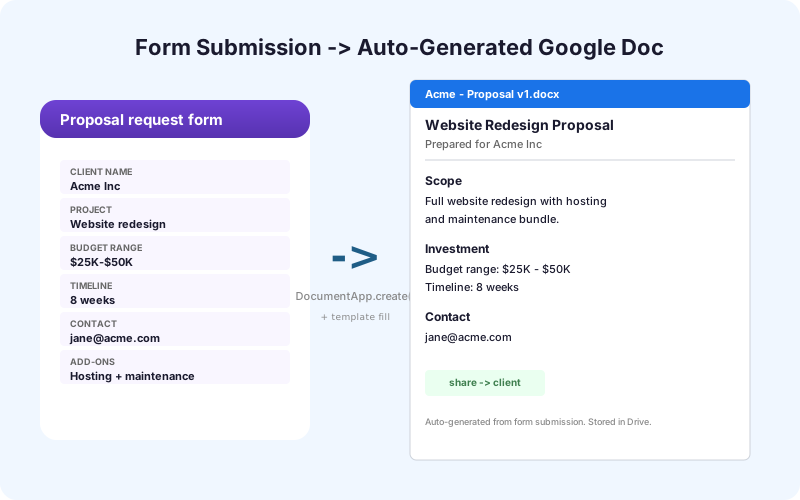
The pattern: WordPress form captures the project details. A script reads the submission, opens the Google Doc template, replaces placeholders with the form values, and emails the doc to the prospect. The 30-minute task becomes 5 minutes (review and send).
The Architecture
Three pieces.
The form - the project intake form on your WordPress site. Captures client name, project type, timeline, budget range, additional notes.
The Sheets bridge - SheetLink Forms writes the submission to a Google Sheet. Connect it with the one-click Google connect (v1.12.0) or the classic Apps Script webhook - the generator script below works with either. This is the trigger point.
The Apps Script generator - listens for new rows in Sheets. For each row, opens a Google Doc template, replaces placeholders ({{client_name}}, {{project_scope}}, {{total_price}}) with the row values, and saves a copy to a Drive folder. Optionally emails the doc.
The whole pipeline runs in your Google account. No third-party document automation SaaS. No Zapier, no Make. The Apps Script is 100-200 lines and handles every form on your site once it's set up.
Doc Templating With Apps Script
Google Docs has a programmatic API via Apps Script. The pattern:
1. Make a Google Doc template with placeholders like `{{client_name}}` and `{{project_total}}`. 2. Copy the template via DriveApp. 3. Open the copy with DocumentApp. 4. For each placeholder, find-and-replace with the form value. 5. Save and close.
The code looks like:
``` const template = DriveApp.getFileById(TEMPLATE_ID); const copy = template.makeCopy(`Proposal - ${clientName}`); const doc = DocumentApp.openById(copy.getId()); const body = doc.getBody(); body.replaceText('{{client_name}}', clientName); body.replaceText('{{project_total}}', total); doc.saveAndClose(); ```
This is the simplest form. For tables, lists, and conditional sections, you use DocumentApp's richer APIs.
Tables and Lists
Most proposals have a pricing table - line items with descriptions, quantities, unit prices, and totals. The form usually captures the line items as a repeater field.
In Apps Script, you can find a table in the doc body and append rows programmatically. The pattern:
``` const table = body.getTables()[0]; for (const item of lineItems) { const row = table.appendTableRow(); row.appendTableCell(item.description); row.appendTableCell(item.quantity); row.appendTableCell(item.unitPrice); row.appendTableCell(item.total); } ```
Most proposal templates have one table for line items, one for terms, and one for the signature block. Each is editable separately.
For lists (deliverables, exclusions, milestones), the same pattern applies with appendListItem instead of appendTableRow.
Pricing Calculations
A proposal usually shows subtotals, taxes, and grand totals. These can be calculated in the form (with WordPress form-builder calculation fields) or in the Apps Script (with JavaScript math).
The right place depends on where editing happens. If the form is the source of truth and pricing rules don't change, calculate in the form. If pricing rules change frequently or vary by client tier, calculate in the script (it's easier to update one script than rebuild the form).
Most teams calculate in the form for simple cases and in the script for complex tiered pricing. The script approach also lets you reference an external pricing sheet for current rates - separating the pricing data from the proposal generator.
Adding E-Signature
A generated proposal usually needs to be signed. Three integration options.
Send for signature via DocuSign or HelloSign API. The Apps Script POSTs the generated PDF to the e-sig API and the prospect gets a signing link via email. Most professional. Costs $20-50/month for the e-sig plan.
Send a signing link via PandaDoc or SignWell. Similar to above, less expensive options.
Just email the PDF. Prospect prints, signs, scans, returns. Cheapest, slowest, fits low-frequency workflows.
For most B2B sales teams, integrating with DocuSign or PandaDoc pays for itself in time saved. The Apps Script handles the API call after generating the doc.
Contracts vs. Proposals
Proposals are flexible documents - the prospect may negotiate terms. Contracts are locked - once signed, the terms are binding.
The generation flow is the same but the safeguards differ. For contracts, validate the form data more carefully (required fields, sane value ranges, jurisdiction-specific clauses). For proposals, accept more variance.
Many teams generate the proposal first (negotiable). Once accepted, a separate form captures the agreed terms and generates the contract from a different template - this time with tighter validation.
Keep the audit trail. Every generated doc should have a row in the Sheet noting: who triggered it, when, which template, what fields were filled, where the doc lives in Drive.
Common Gotchas
Three things that trip up teams.
Apps Script execution timeout. Generating a long doc can take 20-30 seconds. Apps Script has a 6-minute hard limit but for time-based triggers the practical limit is shorter. Watch for slow generation and consider chunking if you have very long templates.
Drive folder permissions. Generated docs inherit the template's sharing settings by default, which may be too open. Move generated docs to a properly-scoped folder and reset permissions explicitly.
Placeholder typos. A `{{client_anme}}` typo in your template means the placeholder never gets replaced - and the doc goes out with `{{client_anme}}` visible. Run a "find unreplaced placeholders" check at the end of generation and fail loudly if any remain.
Beyond Proposals: Onboarding, Reports, Invoices
The same architecture handles many use cases.
Client onboarding documents - a welcome packet with project specifics, key contacts, and access info. Generated from intake form.
Custom reports - monthly client reports with KPIs pulled from a Sheet. Generated on a schedule, not from a form.
Invoices - an invoice template populated from project completion data. Either form-driven or schedule-driven.
In each case, Sheets is the source of truth, the Apps Script is the generator, and the Doc is the output. Once the pattern is in place, adding new templates takes hours, not weeks.
Recap
WordPress form to Google Doc proposal generation is a solved problem. Form captures the data. Sheets bridges to Apps Script. Apps Script copies the template, fills the placeholders, and saves the doc. Optionally email or send for signature.
The code is ~200 lines and handles every form on your site once set up. The time savings - 25 minutes per proposal, sometimes more - pay back the setup in days. And the auto-generated docs are more consistent than hand-edited ones, which improves your team's professional appearance with every prospect.
Track conversion rate of generated docs over time. A simple metric: of proposals sent, what percentage convert to signed contracts? Pivot by template, by salesperson, by deal size. The answer reveals which templates are working and which need rewriting. Most teams generate proposals without ever measuring whether the proposal itself converts - the doc is treated as a deliverable, not a conversion asset. It's both.
Frequently Asked Questions
Can WordPress forms generate Google Docs automatically?
Yes. The pattern: form posts to Google Sheets via SheetLink Forms. An Apps Script triggers on new rows, copies a Google Doc template, replaces placeholders with form values, and saves the generated doc to Drive.
How do I add line items to the generated doc?
Use Apps Script's DocumentApp APIs. Find the line-item table in the template, then appendTableRow for each line item from the form's repeater field. Same pattern works for bulleted lists with appendListItem.
Can I auto-send the generated doc for e-signature?
Yes. Integrate with DocuSign, HelloSign, PandaDoc, or SignWell APIs from your Apps Script. The script POSTs the generated PDF and the prospect receives a signing link.
What's the difference between proposal and contract generation?
Proposals are flexible (prospect negotiates). Contracts are locked (binding terms). The generation flow is the same but contracts need stricter input validation and tighter audit logging.
Can I generate other doc types beyond proposals?
Yes. The same architecture handles client onboarding documents, custom reports, invoices, certificates, and any templated document. Different templates, same generator.
How do I prevent placeholder typos in templates?
Run a "find unreplaced placeholders" check at the end of generation. If any `{{...}}` patterns remain in the doc, fail loudly so you catch the typo before sending.
What about Apps Script execution time limits?
Apps Script has a 6-minute hard limit and a 30-second practical limit for time-based triggers. Watch for slow generation on long templates and consider chunking if you exceed the limit.
Do generated docs have correct sharing permissions?
They inherit the template's sharing by default, which may be too open. Move generated docs to a properly-scoped folder and reset permissions explicitly in the Apps Script.
Should I measure how well my generated proposals convert?
Yes. Track signed-contract rate per generated proposal, sliced by template, salesperson, and deal size. Templates with low conversion need rewriting. Most teams treat proposals as deliverables rather than conversion assets - measuring conversion changes that mindset.
More Automation guides
Auto-Generate Proposals From Forms
WordPress form -> Google Sheets -> Google Doc. SheetLink Forms is the bridge that makes it work.