
Excel Conditional Formatting for Lead Triage Boards
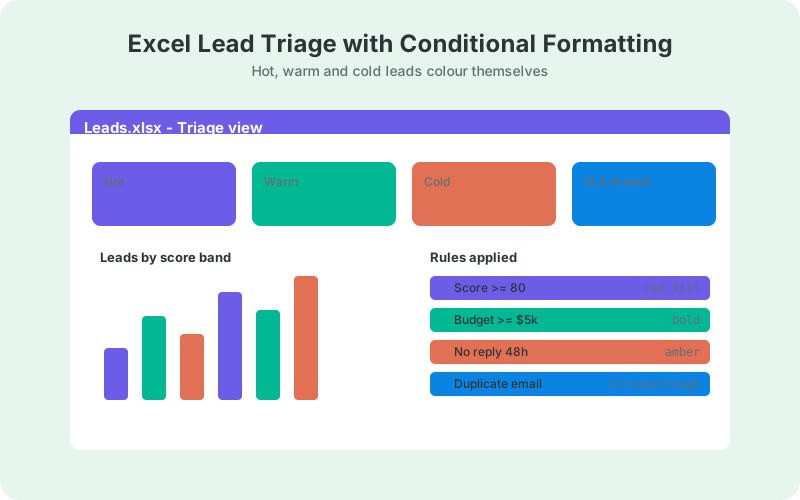
Your WordPress leads land in Excel Online in real time. Four conditional formatting rule families turn that table into a triage board - hot leads, SLA breaches, duplicates, and top performers.
In This Guide
- Why Use Excel Conditional Formatting for Lead Triage?
- How Do Leads Get Into Excel in Real Time?
- How Do You Prepare the Lead Table for Formatting?
- How Do You Add a Conditional Formatting Rule in Excel Online?
- How Do You Highlight Hot Leads?
- How Do You Catch SLA Breaches at 48 Hours?
- How Do You Flag Duplicate Leads?
- How Do You Spotlight Your Top 10 Leads?
- What About Rule Order and Performance?
- Build the Triage Board in 20 Minutes
- Frequently Asked Questions
Why Use Excel Conditional Formatting for Lead Triage?
Conditional formatting turns a flat lead table into a triage board: hot leads glow green, overdue follow-ups turn red, and duplicates get flagged the moment they arrive. Excel is the natural place to build it - a peer-reviewed study of job postings found Excel remains the most-required spreadsheet application among employers (Rebman et al., ISEDJ, 2023), so your team already knows the tool. The same study found roughly half of employers had a strong spreadsheet requirement, which is exactly why a spreadsheet board beats asking everyone to learn a new SaaS.
The prerequisite is live data. A triage board built on a weekly CSV export triages last week's leads, which defeats the point. This guide assumes your WordPress form submissions land in an Excel Online workbook in real time, then walks through four rule families: hot-lead thresholds, SLA-breach alerts, duplicate flags, and top-N highlighting.
Everything below works in Excel Online in the browser. No macros, no VBA, no desktop-only features - just rules the whole team sees the second the workbook opens.
How Do Leads Get Into Excel in Real Time?
SheetLink Forms mirrors WordPress form submissions to an Excel Online workbook in your OneDrive via Microsoft Graph, and the mirror destination is free. You connect your Microsoft account once through OAuth, pick a workbook, and every new submission appends a row within moments of the visitor clicking submit. Failed deliveries go into an automatic retry queue, so a hosting hiccup delays a lead instead of losing it.
The plugin captures 12 major form plugins - Contact Form 7, WPForms, Gravity Forms, Elementor Pro, and others - plus useful metadata per row: timestamp, page URL, and UTM parameters. That metadata is what several of the triage rules below key on. Setup takes a few minutes; the step-by-step Excel Online guide and the getting started docs cover it end to end.
If your team lives fully in Microsoft 365 and wants Excel as the only destination with no Google in the loop, that's available as a paid add-on. For triage purposes, the free mirror is plenty.
How Do You Prepare the Lead Table for Formatting?
Convert the incoming range to a real Excel table first: select the data, open Insert, choose Table. Tables auto-extend conditional formatting to new rows, so a lead arriving at 2 a.m. gets painted by your rules without anyone reopening rule settings. Skipping this step is the top reason triage boards quietly rot.
A workable triage table needs these columns: timestamp, name, email, phone, message, source page or UTM source, a lead score or budget field, and a replied-at column your team fills in when they respond. The replied-at column is the one people forget to plan for, and it powers the SLA rule below - if nobody records replies, nothing can measure response time.
Capacity won't be your problem: an Excel worksheet holds 1,048,576 rows by 16,384 columns, with up to 32,767 characters per cell (Microsoft, Excel specifications and limits, 2026). Years of lead flow fit comfortably in one sheet.
How Do You Add a Conditional Formatting Rule in Excel Online?
Select the range you want to format, open the Home tab, choose Conditional Formatting, then New Rule. Excel Online offers the same core rule types as desktop: cell-value comparisons, top/bottom rankings, color scales, data bars, and the workhorse for triage, "Use a formula to determine which cells to format".
Formula rules evaluate against the first cell of your selection and repeat across the range. Dollar-sign anchoring decides the behavior: lock the column ($G2) and leave the row relative, and the rule can color an entire row based on one column's value. That single mechanic powers every rule in the next four sections.
To change a rule later, select the range again and open Conditional Formatting, then Manage Rules. Excel Online shows the rules applying to your current selection; desktop Excel can list the whole sheet's rules, which is handy for auditing a board someone else built. Microsoft's official conditional formatting examples and guidelines document the rule types, precedence, and formula patterns in more depth than any third-party tutorial - worth a bookmark.
How Do You Highlight Hot Leads?
A hot-lead rule paints the whole row green when a score or budget field crosses your threshold. Select the full table body (say $A2:$I5000), add a formula rule, and use =$G2>=70 for a simple score threshold, or =AND($G2>=70, $H2>=5000) to require both a 70-plus score and a 5,000-plus budget before the row lights up.
Where does the score come from? If your form asks for budget, timeline, or company size, a weighted formula computed in a helper column works well - our no-AI lead scoring formula guide translates directly to Excel functions. Teams that want scores computed automatically at delivery time can add AI scoring later, but a hand-built score is more than enough to triage on.
Pick loud fills for hot rows and keep everything else subtle. A board where a third of the rows are highlighted communicates nothing, so tune the threshold until hot means the top slice you'd genuinely call first.
How Do You Catch SLA Breaches at 48 Hours?
An SLA rule flags any lead with no reply after 48 hours. With timestamps in column A and replied-at in column I, select the table body and add the formula rule =AND($I2="", NOW()-$A2>2) with a red fill. NOW() minus a timestamp yields elapsed days, so 2 equals 48 hours; use 1 for a stricter 24-hour service level.
Slipped follow-ups are a quiet revenue leak, not a cosmetic problem. In a survey of 602 CRM users, respondents reported an average of 16 sales opportunities lost per quarter to poor-quality CRM data (Validity, 2025) - and unworked, aging lead rows are precisely how data rots. A red row that shames the backlog every morning is a cheap countermeasure.
Note that NOW() is volatile: it updates when the workbook recalculates, not continuously. In a live-mirrored workbook that people open all day, that's effectively real time. For measuring response times over history rather than flagging today's backlog, see tracking lead response time.
How Do You Flag Duplicate Leads?
A duplicate rule highlights any row whose email already exists in the table. Select the body and add the formula rule =COUNTIF($C:$C, $C2)>1 (email in column C) with an amber fill. Both copies light up, so whoever triages can merge notes and keep the earlier timestamp as the true first-contact date.
Excel also ships a built-in shortcut: Conditional Formatting, Highlight Cells Rules, Duplicate Values. It's fine for a quick pass on a single column, but the formula version colors the entire row and extends further - =COUNTIFS($C:$C, $C2, $F:$F, $F2)>1 flags duplicates only within the same source, which separates a returning prospect from an accidental double submission.
Duplicates aren't just noise. They split conversation history across rows, inflate per-form counts, and cause two reps to call the same person. Flag them the day they arrive and dedupe weekly, rather than confronting a thousand-row cleanup at quarter end.
How Do You Spotlight Your Top 10 Leads?
Top-N highlighting ranks a column and formats its best values automatically: select the score column, choose Conditional Formatting, Top/Bottom Rules, then Top 10 Items. As new leads arrive, membership updates on its own - a lead that made the top 10 yesterday silently drops out when ten better ones land today.
Two refinements turn it into a working queue rather than decoration. First, keep its formatting visually distinct from your fills - a bold border or font color rather than another background - so the signals stack instead of fighting. Second, pair it with a data bar on the same score column for an instant visual ranking across the whole table.
This rule set is what turns Excel into a morning ritual: open the workbook, work the red rows first, then the top-10 borders, then everything else. For rolling summaries beyond daily triage, PivotTables over the same lead table handle the reporting side without touching your rules.
What About Rule Order and Performance?
Rules evaluate in the order listed under Manage Rules, and when two rules format the same cell, the higher-priority one wins. Put your loudest signal on top - most teams order SLA red above hot green above duplicate amber - and reach for Stop If True only when you explicitly want lower rules suppressed for matching rows.
Microsoft's guidelines document doesn't impose a numeric rule limit, but restraint pays anyway. Four or five rule families stay readable at a glance; fifteen turn the board back into the noise you were escaping.
For performance, bound your ranges. Formula rules applied to $A2:$I20000 cost far less than whole-column references, and full-column COUNTIF duplicate checks are the usual suspect when a big workbook starts to crawl. If the table grows past a couple hundred thousand rows, archive older leads to a second sheet - long before the worksheet's row ceiling is ever in sight.
Build the Triage Board in 20 Minutes
The whole setup is four rules on one live table: hot-lead green, SLA red, duplicate amber, top-10 border. If leads already mirror into Excel Online, you can build it in about twenty minutes and the team can triage from it the same day.
Start with the SLA rule, because it changes behavior fastest, then add scoring once you've watched a week of data. One habit keeps the board honest: make filling the replied-at column part of replying, since every rule above degrades if that column lies.
From there, the same table feeds Excel Online dashboards for managers, and there's a longer list of things that get easier once form data lives in Excel. The board is just the first payoff of having the data arrive in real time.
Frequently Asked Questions
Does conditional formatting work in Excel Online?
Yes. Excel Online supports the core rule types including formula-based rules, top/bottom rules, color scales, and data bars, all managed from the Home tab in the browser. Rules created in desktop Excel also keep rendering and evaluating when the same workbook is opened online.
Do conditional formatting rules apply to new rows automatically?
They do if your data is formatted as an Excel table. Tables extend formatting, formulas, and rule ranges as rows append, so live-mirrored submissions get painted on arrival. With a plain range, you'd have to widen each rule's applied range by hand as data grows.
How many conditional formatting rules can I have in Excel?
Microsoft's official guidelines don't publish a numeric rule limit, and modern Excel supports far more rules than any triage board needs. In practice, keep it to four or five rule families. Readability, not the software, is the limiting factor for a board people scan daily.
How do I highlight an entire row instead of one cell?
Use a formula rule with the column locked and the row relative. Select the whole table body, then a formula like =$G2>=70 colors every cell of any row where column G meets the threshold. The dollar sign before the letter, not the number, is what makes it work.
What formula flags leads with no reply in 48 hours?
Use =AND($I2="", NOW()-$A2>2), where column A holds the submission timestamp and column I is replied-at. NOW() minus a timestamp returns elapsed days, so 2 means 48 hours. The highlight clears itself the moment someone records a reply in column I.
How do I flag duplicate emails in Excel?
Use the formula rule =COUNTIF($C:$C,$C2)>1 with email in column C, which highlights every row sharing an address. The built-in Duplicate Values rule works too but only colors that one column. The formula version extends to multi-column matching with COUNTIFS.
Do I need Power Automate to get WordPress leads into Excel Online?
No. SheetLink Forms mirrors submissions from 12 major form plugins straight into a OneDrive workbook via Microsoft Graph, free, with no per-run fees. Power Automate remains an option, but it's a paid, per-flow approach to the same append-a-row job.
Will conditional formatting slow down a large lead workbook?
Usually not at triage scale. Slowdowns come from formula rules over whole columns, especially COUNTIF duplicate checks across hundreds of thousands of rows. Bound each rule's applied range to your realistic table size and archive old leads periodically, and performance stays fine.
More Lead Management guides
Mirror WordPress leads to Excel Online free
SheetLink Forms mirrors form submissions to your OneDrive workbook in real time - no Power Automate flows, no per-run fees.