
A Simple Lead-Scoring Formula in Google Sheets (No AI)
Score your WordPress leads with a transparent, rules-based formula in Google Sheets. No AI, no black box - just weighted fields you can read and trust.
In This Guide
- What Is Rules-Based Lead Scoring (and Why Skip AI)?
- Which Lead Fields Should You Score?
- How Do You Assign Point Weights to Each Field?
- How to Score One Field With the IFS Function
- How Do You Combine Scores With SUMPRODUCT?
- How to Bucket Leads Into Hot, Warm, and Cold
- How Do You Color-Code Scores With Conditional Formatting?
- How to Sort and Filter Leads by Score Automatically
- How Do You Feed WordPress Leads Into the Sheet in Real Time?
- When Should You Use the AI Lead Scoring Add-On Instead?
- Frequently Asked Questions
What Is Rules-Based Lead Scoring (and Why Skip AI)?
Rules-based lead scoring assigns points to a lead based on fields you choose, then totals them into one number. With WordPress powering ~43% of all websites (W3Techs, 2026), most lead data already lands in forms. A simple formula turns those fields into priority.
The appeal of the no-AI approach is transparency. You can read every point on the scorecard and explain exactly why a lead scored 78 instead of 40. There's no model to retrain, no guessing, and nothing to pay for monthly.
We still think AI scoring has its place for high volume. But for most small teams, a handful of weighted rules in Google Sheets beats anything fancier. It's free, it's auditable, and you own it.
Which Lead Fields Should You Score?
Score the fields that actually predict a sale, usually four to six of them. Budget, lead source, job role, and geography are the classic four. Spreadsheets are forgiving here, but they're also error-prone: Panko found up to ~88% of audited spreadsheets contain errors (Panko, 2008), so keep your rules few and clear.
In our experience, more fields rarely means a better score. Each extra field adds weight you have to justify and a column you have to maintain. Four good signals beat ten noisy ones.
Pick fields your forms already capture. If your WordPress form delivers budget, source, role, and country into the sheet automatically, the scoring formula has clean inputs from the moment a lead arrives. Garbage in, garbage score.
How Do You Assign Point Weights to Each Field?
Assign each field a maximum point value that reflects how strongly it predicts a deal, then split those points across the field's possible values. A common split puts budget at 40 points, source at 30, role at 20, and geography at 10, totaling 100. That ceiling keeps scores readable.
Here's a simple weighting table to start from:
Budget: Over $10k = 40, $5k-$10k = 25, Under $5k = 10.
Source: Referral = 30, Organic = 20, Paid ad = 12, Cold = 5.
Role: Decision-maker = 20, Influencer = 12, Individual = 5.
Geography: Primary market = 10, Secondary = 6, Outside = 2.
These numbers aren't sacred. Adjust them after a month of real data. The point is that every weight is visible and defensible, which is something a trained model can't offer you.
How to Score One Field With the IFS Function
Use IFS to convert a text field into points by testing conditions in order and returning the first match. It replaces messy nested IF statements with one clean, readable line. Since spreadsheets carry roughly a 3.9% average cell error rate per Panko (2016), fewer nested functions means fewer mistakes.
Say budget lives in column D. This formula scores it:
=IFS(D2="Over $10k",40, D2="$5k-$10k",25, D2="Under $5k",10, TRUE,0)
The final TRUE,0 acts as a catch-all so blank or unexpected values score zero instead of throwing an error. Repeat the pattern for each scored field in its own helper column.
Why split fields into helper columns first? Because debugging one field is easy. Debugging a 60-character mega-formula at 9pm is not.
How Do You Combine Scores With SUMPRODUCT?
Use SUMPRODUCT to total your helper columns into one final score in a single cell. It multiplies and sums arrays in one pass, which is cleaner than chaining additions. With Google Sheets supporting up to 10,000,000 cells per spreadsheet (Google Workspace Updates, 2022), you have plenty of room for helper columns.
If your four scored fields sit in columns F through I, the total is simple:
=SUMPRODUCT(F2:I2)
That just adds the four helper values. SUMPRODUCT shines when you want to apply a second weight array on the fly:
=SUMPRODUCT(F2:I2, {1,1,1,1})
Swap the {1,1,1,1} for {2,1,1,0.5} to double budget's influence and drop geography's, without touching the per-field formulas. One row to tune, every lead recalculates.
How to Bucket Leads Into Hot, Warm, and Cold
Bucket the final score into hot, warm, and cold tiers with a single IFS so sales reps see a label, not just a number. A label drives action faster than a raw figure. Given that many SMBs still run leads in spreadsheets rather than a dedicated CRM, this label often becomes the de facto priority system.
If your final score is in column J, this assigns a tier:
=IFS(J2>=70,"Hot", J2>=40,"Warm", TRUE,"Cold")
Set the thresholds where they fit your funnel. A 70/40 split works for many teams, but a high-volume site might raise the hot bar to 80 to keep the queue manageable.
The beauty of this line is honesty. A rep can ask why a lead is warm and you can point to the exact field that fell short. Try explaining that with a neural network.
How Do You Color-Code Scores With Conditional Formatting?
Conditional formatting paints hot leads green, warm leads yellow, and cold leads gray so the priority order is obvious at a glance. No formula needed, just rules on the tier column. This visual layer matters because 10M+ businesses use Google Workspace (Google Workspace Blog, 2025), and most reps scan rather than read.
Select your tier column, open Format then Conditional formatting, and add three rules: Text is exactly Hot turns the cell green, Warm turns it amber, Cold turns it gray. Apply the fill to the whole row with a custom formula like =$K2="Hot" if you want the entire lead highlighted.
Color does the triage your eyes can't do across hundreds of rows. A sales manager opening the sheet sees the green band first and works top to bottom. That single design choice can lift response speed on your best leads.
How to Sort and Filter Leads by Score Automatically
Wrap your scored range in a SORT or QUERY function on a second tab so the highest-scoring leads always float to the top, automatically, as new rows arrive. This avoids manual re-sorting every morning. Real-time delivery from your forms is what makes the live view possible.
On a fresh tab, this keeps a always-sorted view:
=SORT(Leads!A2:K, 10, FALSE)
That sorts the whole Leads range by column 10 (the score), descending. For a filtered hot-only list, QUERY is cleaner:
=QUERY(Leads!A2:K, "select * where K = 'Hot' order by J desc")
Because SheetLink Forms writes each WordPress submission to the sheet in real time, these views update the instant a lead converts. No scheduled poll, no 15-minute lag. Pair this with a live Sheets dashboard and your whole funnel is one tab away.
How Do You Feed WordPress Leads Into the Sheet in Real Time?
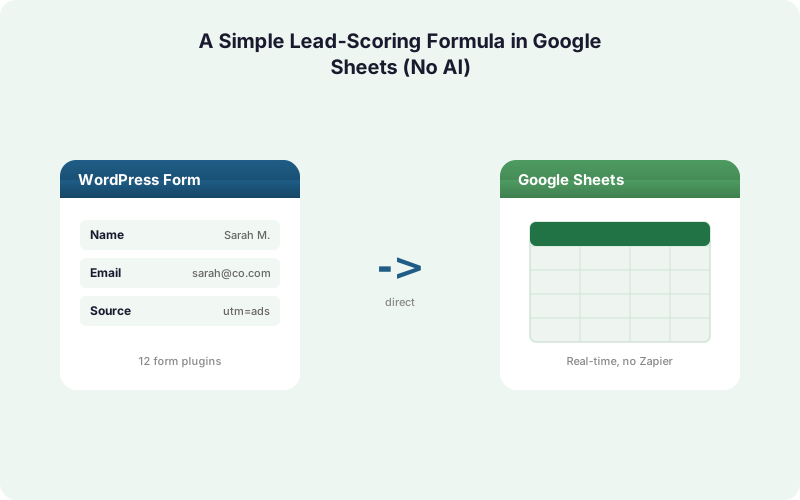
Send form submissions straight from WordPress to Google Sheets with a direct plugin, so every new lead lands as a row your formula scores instantly. No Zapier task fees, where the Free tier caps at 100 tasks per month with 1.25x overage (Zapier, 2026) and costs climb with volume.
SheetLink Forms connects 12 major form plugins, including Gravity Forms, WPForms, Fluent Forms, and Elementor Pro (17 with the Pro tier), to a sheet via one-click Google connect (or a classic self-hosted Apps Script webhook). Setup takes about a minute following the Google Sheets setup guide.
Capture matters too. The plugin auto-records UTM and click IDs, so you can score by marketing source without asking the lead a single question. Want the same data in Excel? Excel Online delivery mirrors it for free, or runs as the sole destination on a paid plan.
When Should You Use the AI Lead Scoring Add-On Instead?
Choose the AI add-on when your volume is high, your fields are many, and the patterns are too subtle to write by hand. For everyone else, the free formula approach wins on transparency and cost. There's no monthly fee and nothing to second-guess.
The manual formula and AI Lead Scoring, part of SheetLink Plus ($29/mo), solve different problems. The formula is auditable and free; AI finds correlations across dozens of signals you'd never weight by hand. Many teams start manual, then graduate to AI only when the spreadsheet rules stop keeping up.
There's no wrong door here. If you can explain your best leads with four fields, stay manual. If your data is noisy and high-volume, the add-on earns its keep. Either way, the sheet is the same and your data path stays the same.
| Aspect | Manual Formula (No AI) | AI Lead Scoring Add-On |
|---|---|---|
| Cost | Free (built-in functions) | SheetLink Plus, $29/mo |
| Transparency | Every point is readable | Model-driven, less visible |
| Best for | Few clear signals, low-mid volume | Many signals, high volume |
| Setup effort | IFS + SUMPRODUCT, ~30 min | Toggle on, auto-scores |
| Maintenance | Edit weights yourself | Adapts to data automatically |
Frequently Asked Questions
Do I need any add-on to build this lead-scoring formula?
No. The entire scoring system uses built-in Google Sheets functions: IFS, SUMPRODUCT, SORT, and conditional formatting. You only need a way to get WordPress leads into the sheet in real time, which the free SheetLink Forms version handles via one-click Google connect or the classic Apps Script webhook.
Is IFS or nested IF better for scoring fields?
IFS is better for scoring. It tests conditions in order and returns the first match without the deep nesting that nested IF requires. Fewer parentheses means fewer errors, which matters since Panko (2016) measured a ~3.9% average cell error rate in spreadsheets.
How many fields should a lead score include?
Usually four to six. Budget, source, role, and geography cover most B2B funnels. More fields add maintenance and noise without much accuracy gain. Start with four weighted signals you can explain, then add only fields that demonstrably change which leads convert.
Why use SUMPRODUCT instead of just adding columns?
SUMPRODUCT lets you apply a second weight array on the fly, so you can re-tune the influence of each field in one cell without editing every per-field formula. For a plain total, simple addition works too, but SUMPRODUCT scales better as your model grows.
Can I score leads by their marketing source automatically?
Yes. SheetLink Forms auto-captures UTM parameters and click IDs like GCLID and fbclid on every submission. Those values land in your sheet as columns, so an IFS rule can award points by source - referral, organic, or paid - without the lead ever filling in that field.
Will the sorted view update when new leads arrive?
Yes. A SORT or QUERY formula on a second tab recalculates automatically whenever a new row is added. Because the plugin writes each WordPress submission in real time, the highest-scoring leads float to the top the instant they arrive, with no manual re-sorting or scheduled poll lag.
Does this work with Excel instead of Google Sheets?
Yes, with minor syntax tweaks. Excel uses the same IFS and SUMPRODUCT functions. SheetLink Forms delivers to Excel Online via Microsoft Graph in real time, and its free mirror mode can write to both Google Sheets and Excel from one rule. See the Excel Online page for setup details.
When is the AI Lead Scoring add-on worth it over a manual formula?
When volume is high, fields are many, and predictive patterns are too subtle to weight by hand. The manual formula stays free and fully transparent. AI Lead Scoring, part of SheetLink Plus ($29/mo), finds correlations across dozens of signals. Many teams start manual and upgrade only when the rules stop keeping up.
More Lead Management guides
Feed Your Lead Score in Real Time
SheetLink Forms delivers every WordPress submission straight to Google Sheets the instant it's submitted. No Zapier task fees, no middleware, no poll lag.