
Track WordPress Lead Response Time in Google Sheets
Every form submission gets a real-time timestamp. Add a 'first contacted' column and a few formulas, and you can measure response time, flag slow leads, and chart the trend, all inside the sheet you already use.
In This Guide
- Why Does Lead Response Time Decide Whether You Win the Deal?
- How Does SheetLink Timestamp Each Lead in Real Time?
- What Columns Do You Need to Measure Response Time?
- Which Formula Calculates Response Time in Minutes?
- How Do You Flag Leads That Missed the 5-Minute Window?
- How Do You Track Your Team's Average Response Time?
- How Do You Break Down Response Time by Rep or Source?
- How Do You Chart the Response-Time Trend Over Weeks?
- Can You Cut Response Time, Not Just Measure It?
- Should You Track Response Time in Sheets or a CRM?
- Frequently Asked Questions
Why Does Lead Response Time Decide Whether You Win the Deal?
Speed wins deals. Contacting a web lead within 5 minutes instead of 30 makes you roughly 100x likelier to reach the person and about 21x likelier to qualify them, per the MIT and InsideSales study published in Harvard Business Review (2011).
The problem is that almost nobody hits that mark. In a study of 114 B2B companies, Workato (2019-2020) found the average email reply landed at 11 hours 54 minutes and the average phone callback at 14 hours 29 minutes. Essentially none responded within 5 minutes.
That gap is the opportunity. If most competitors take half a day, the team that answers in minutes wins the lead before anyone else even opens the email. To beat the average, you first have to measure it, and a spreadsheet is the cheapest place to start.
How Does SheetLink Timestamp Each Lead in Real Time?
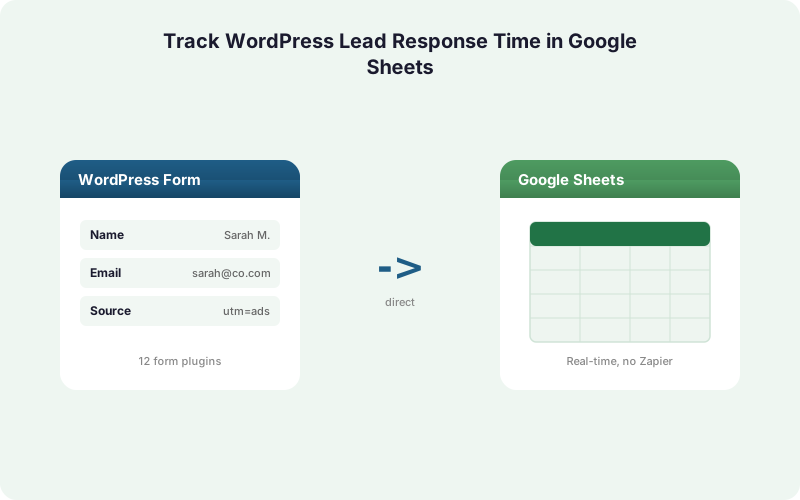
Every measurement starts with an accurate arrival time. SheetLink Forms writes each WordPress submission directly into Google Sheets within a second or two of the user hitting submit, with no Zapier or middleware in between. That direct path is what makes the timestamp trustworthy enough to build response-time math on top of.
When a form submits, the plugin writes the row over your Google connection - the one-click Google connect (pick your sheet in the Google file picker) or a classic Apps Script webhook you deploy once. Set up the connection in our Google Sheets setup guide, then map a column to the submission time. Because delivery is instant, the arrival timestamp in your sheet reflects when the lead actually came in, not when a polling tool happened to check.
Why does the direct path matter for response-time tracking? Polling-based automations can lag 5 to 15 minutes. If your arrival timestamp is already 10 minutes stale, every response-time number you calculate is wrong by that much. SheetLink avoids that drift entirely.
Need the full walkthrough first? Read our complete guide to WordPress forms in Google Sheets.
What Columns Do You Need to Measure Response Time?
You need two timestamps and a gap between them. SheetLink fills the first automatically; you add the second by hand or via a script. With those two values in place, every response-time formula becomes simple subtraction.
Set up these columns in your lead sheet:
Submitted At - the arrival timestamp SheetLink writes when the form submits. This is your zero point.
First Contacted At - the moment a rep first emails or calls the lead. The rep types this in, or you trigger it from a button or status change.
Response Time - a formula column that subtracts Submitted At from First Contacted At.
Status Flag - a formula column that labels each lead Fast, OK, or Slow against your target.
Keep Submitted At as a real date-time value, not text. If your form sends a string, wrap it in DATEVALUE plus TIMEVALUE so the math works. SheetLink can also capture UTM and click IDs into extra columns, which is handy for the attribution slicing we cover later.
Which Formula Calculates Response Time in Minutes?
The core calculation is one subtraction. Google Sheets stores date-times as numbers where 1 equals a full day, so subtracting two timestamps gives you a fraction of a day. Multiply by 1440 (minutes per day) to get clean minutes, which is the unit the 5-minute speed-to-lead rule from HBR (2011) is built around.
Assuming Submitted At is in column B and First Contacted At is in column C, the response time in minutes is:
=(C2-B2)*1440
That returns minutes elapsed. For hours, multiply by 24 instead. To guard against blank rows, wrap it so empty cells stay quiet:
=IF(OR(B2="",C2=""),"",(C2-B2)*1440)
If you would rather see a readable duration like 0:04:30, skip the multiplier and format the result cell as Duration under Format, Number. The raw subtraction =C2-B2 already holds the elapsed time; formatting just changes how it reads.
How Do You Flag Leads That Missed the 5-Minute Window?
Flagging turns raw numbers into action. Since beating 5 minutes makes contact roughly 100x likelier per HBR (2011), the most useful column labels each lead against that threshold so a manager can scan the sheet and spot every miss in seconds.
Use a nested IF on the response-time column (assume it is column D, in minutes):
=IF(D2="","Pending",IF(D2<=5,"Fast",IF(D2<=30,"OK","Slow")))
This reads: blank means not yet contacted, 5 minutes or under is Fast, up to 30 is OK, anything slower is Slow. Adjust the cutoffs to match your sales motion.
Then add conditional formatting so slow leads jump out. Select the status column, open Format, Conditional formatting, and set a red fill for cells equal to Slow and a green fill for Fast. Now anyone glancing at the tab sees the problem rows instantly, no formula reading required. For routing leads to different owners before they go slow, see conditional routing for WordPress forms.
How Do You Track Your Team's Average Response Time?
One slow lead is noise; the average is the signal. The Workato benchmark of nearly 12 hours for email gives you something concrete to beat, so a rolling team average shows whether you are anywhere near competitive. A single cell at the top of your sheet does the job.
For the overall average response time in minutes, use AVERAGE on the response-time column:
=AVERAGE(D2:D)
To see the median instead, which is less skewed by one forgotten lead, swap in MEDIAN. To count how many leads you handled inside 5 minutes, use COUNTIF:
=COUNTIF(D2:D,"<=5")
Divide that by your total lead count for a fast-response rate as a percentage. Comparing your number against the 11h54m and 14h29m figures from Workato (2019-2020) usually shows there is huge room to win, which is exactly the point of measuring it.
How Do You Break Down Response Time by Rep or Source?
Averages hide who is fast and who is slow. Slicing response time by rep or lead source tells you where to coach and which channels deserve more budget. A pivot table or a AVERAGEIF formula turns one number into a per-owner scoreboard in minutes.
If rep names live in column E, the average for one rep is:
=AVERAGEIF(E2:E,"Dana",D2:D)
For a cleaner view across everyone, build a pivot table: rows by rep, value as the average of the response-time column. Add lead source as a second dimension if SheetLink is capturing it.
This is also where attribution pays off. SheetLink can capture GCLID, fbclid, and msclkid automatically, and the Google Ads Help docs (current) explain how that click ID ties a lead back to its campaign. Slice response time by source and you may find your fastest replies go to your worst-performing channel. For the full setup, read our post on UTM and GCLID attribution for WordPress forms.
How Do You Chart the Response-Time Trend Over Weeks?
A trend line tells you whether you are improving. Plotting weekly average response time turns a static benchmark into a feedback loop, which matters in a CRM market that Grand View Research (2024) values near $73.4 billion precisely because response speed drives revenue.
First, group leads by week. Add a helper column with =WEEKNUM(B2) against the Submitted At date. Then build a small summary table using AVERAGEIF per week number, or use a pivot table with the week as rows and average response time as the value.
Select that summary table, choose Insert, Chart, and pick a line chart. Set the week as the X axis and average minutes as the Y axis. Drop a horizontal target line at 5 minutes so the gap to the goal is visible at a glance.
Want a richer dashboard with sparklines and pivots? Our guide to Google Sheets dashboards for lead data goes deeper.
Can You Cut Response Time, Not Just Measure It?
Measuring is step one; getting the lead in front of a rep faster is the payoff. Since data decays around 22.5% per year per HubSpot (citing MarketingSherpa), a lead sitting in an inbox loses value by the hour, so the routing that follows the timestamp matters as much as the timestamp itself.
SheetLink's Multi-CRM Routing add-on fans each submission out to HubSpot, Salesforce, Pipedrive, Zoho, Mailchimp, and ActiveCampaign at the same time it writes to Sheets, with conditional routing by field value and no per-task fees. The lead lands in the rep's CRM the moment it arrives, not after a nightly sync.
Why does that beat a Zapier fan-out? Zapier meters every action as a task, so sending one lead to six CRMs burns six tasks per lead, per Zapier pricing (2026). Instant fan-out direct from the form skips both the cost and the polling delay. Compare the math in our breakdown of Make vs Zapier vs a direct plugin.
Should You Track Response Time in Sheets or a CRM?
Start in Sheets, graduate to a CRM when volume demands it. A spreadsheet costs nothing, takes an afternoon to build, and gives you a transparent log you fully control. With companies running an average of 106 SaaS apps in 2024 per BetterCloud via Statista (2024), adding one more tool before you have proven the metric is rarely the right first move.
The sheet is ideal when you have one team, a few hundred leads a month, and want to validate that faster response actually closes more deals. It is also the easiest place to experiment with thresholds and flags.
Move to a dedicated CRM when reps need automated reminders, when you outgrow manual first-contact entry, or when several teams touch the same lead. Even then, SheetLink can feed both at once, so you keep the Sheets audit trail while the CRM handles workflow. Our look at running a Google Sheets CRM for WordPress covers the middle ground.
| Column | Source | Example Value | Formula |
|---|---|---|---|
| Submitted At | SheetLink (auto) | 2026-06-22 09:01:00 | None |
| First Contacted At | Rep entry | 2026-06-22 09:04:30 | None |
| Response Time (min) | Formula | 3.5 | =(C2-B2)*1440 |
| Status Flag | Formula | Fast | =IF(D2<=5,"Fast","Slow") |
Frequently Asked Questions
How fast should I respond to a web lead?
Within 5 minutes. The MIT and InsideSales study in Harvard Business Review (2011) found that contacting a lead within 5 minutes instead of 30 makes you roughly 100x likelier to reach them and about 21x likelier to qualify the lead. Treat 5 minutes as your target threshold.
What formula converts a timestamp gap into minutes in Google Sheets?
Subtract the two timestamps and multiply by 1440. Google Sheets stores dates as day numbers, so =(C2-B2)*1440 returns minutes elapsed between Submitted At in B2 and First Contacted At in C2. Multiply by 24 instead if you prefer hours, or format the raw subtraction as a Duration.
How does SheetLink make sure my arrival timestamp is accurate?
SheetLink writes each submission directly to Google Sheets within a second or two, with no Zapier or polling middleware. Polling tools can lag 5 to 15 minutes, which would skew every response-time calculation. Direct delivery means the Submitted At value reflects when the lead truly arrived.
How do I flag leads that responded too slowly?
Use a nested IF on the response-time column, such as =IF(D2<=5,"Fast",IF(D2<=30,"OK","Slow")), then add conditional formatting to fill Slow rows red. Workato (2019-2020) found average B2B email replies took nearly 12 hours, so most teams will see plenty of red at first.
Can I see average response time per sales rep?
Yes. Use AVERAGEIF against a rep-name column, for example =AVERAGEIF(E2:E,"Dana",D2:D), or build a pivot table with reps as rows and average response time as the value. This shows exactly who is fast and who needs coaching, without scrolling every row.
Does tracking response time cost extra with SheetLink?
No. Google Sheets delivery is free in SheetLink Forms, and the timestamp plus formula work happens entirely inside Sheets. You only pay for add-ons like Multi-CRM Routing if you want to fan leads out to HubSpot, Salesforce, or other CRMs at the same time.
How do I chart my response-time trend over time?
Add a helper column with =WEEKNUM(B2), summarize average minutes per week with AVERAGEIF or a pivot table, then insert a line chart with weeks on the X axis. Add a horizontal line at 5 minutes so the gap to your speed-to-lead target stays visible.
Can SheetLink push leads to my CRM instantly, not just Sheets?
Yes. The Multi-CRM Routing add-on fans each submission to HubSpot, Salesforce, Pipedrive, Zoho, Mailchimp, and ActiveCampaign at the same moment it writes to Sheets, with no per-task fees. That instant fan-out beats a nightly CRM sync and helps you hit the 5-minute window.
More Lead Management guides
Timestamp Every Lead the Second It Arrives
SheetLink Forms writes each WordPress submission straight into Google Sheets in real time, so your response-time math is always accurate. No Zapier, no per-task fees.