
WordPress Form Data Backup: Own Your Entries in a Spreadsheet
Your form entries table is a single point of failure. A real-time spreadsheet copy in your own Google account is a continuous, queryable backup - here is the setup and the recovery drill.
In This Guide
- Your Form Entries Are One Table Away From Gone
- Why Is Your Form Entries Table a Single Point of Failure?
- What Actually Wipes Out Form Data?
- What Counts as a Real WordPress Form Data Backup?
- How Does a Continuous Spreadsheet Copy Work?
- No Backup vs Database Backup vs Continuous Sheet Copy
- Does Google Sheets Have the Capacity and History for This?
- What Does a Recovery Drill Look Like?
- How Do You Set Up the Continuous Copy?
- Data Ownership and Compliance for the Backup Copy
- Run the Drill Before You Need It
- Frequently Asked Questions
Your Form Entries Are One Table Away From Gone
Every WordPress form entry you have ever collected probably lives in one database table on one host. Only 27% of WordPress professionals have a plan for recovering from a breach, yet 64% have experienced at least one (Melapress, 2025). A WordPress form data backup that updates continuously closes that gap.
The simplest version is a real-time spreadsheet copy: every submission lands in a Google Sheet in your own account the moment it arrives. If the site goes down, gets hacked, or a migration goes sideways, your leads are still sitting in your Drive - queryable, current, and intact.
This guide covers what can go wrong, what a real backup needs to look like, how the continuous copy works, and how to run a recovery drill so the plan is tested before you ever need it.
Why Is Your Form Entries Table a Single Point of Failure?
Because everything depends on one database on one server. Form plugins store entries in WordPress database tables, which live on your hosting account, which is administered by whoever holds server access. One failed update, one compromised admin account, or one botched migration touches every entry at once.
Some form plugins make this worse by default. Contact Form 7, for example, does not store entries in the database at all unless you add a storage plugin - if the notification email fails, the submission is simply gone. Plugins that do store entries tie those records to their own tables, which uninstall routines can drop without much ceremony.
None of this is an argument against database storage. It is an argument against the database being the only place the data exists. Backups are about independent failure modes, and a second copy on the same server shares every failure mode with the first.
What Actually Wipes Out Form Data?
Host failures, plugin data loss, botched migrations, and breaches. Data theft and loss ranks among the top concerns for WordPress professionals at 53%, just behind site availability (Melapress, 2025). These are not exotic failure modes; they are the ordinary hazards of running a site for years.
- Host failure or account suspension - the database becomes unreachable, sometimes permanently
- Plugin uninstall or update bugs - entry tables get dropped or corrupted
- Migrations - entries collected between the database export and the DNS switch vanish
- Breaches - attackers delete or encrypt data, or you wipe and rebuild without a clean copy
- Human error - a bulk delete in the wrong environment, with no undo
The migration case deserves emphasis because nobody notices it in time. Entries submitted after you exported the database but before the new site went live fall into a gap that only surfaces when a lead calls asking why nobody replied.
What Counts as a Real WordPress Form Data Backup?
A real backup is off-server, current, queryable, and tested. If your only copy sits on the same hosting account, it fails with the host. If it is a week old, you lose a week of leads. If it is a .sql dump, you cannot read it without a restore. If it has never been tested, it is a hope, not a plan.
Each criterion maps to a failure it prevents. Off-server survives the host. Current survives the timing gap between backups. Queryable means the business keeps running while the site is down - you can still answer "who submitted this week?" Tested means you know the answer is yes before the outage, not during it.
Traditional site backups tick the off-server box and miss the other three by design. They are built to restore a whole site eventually, not to answer "give me every lead from March" while the site is still down.
How Does a Continuous Spreadsheet Copy Work?
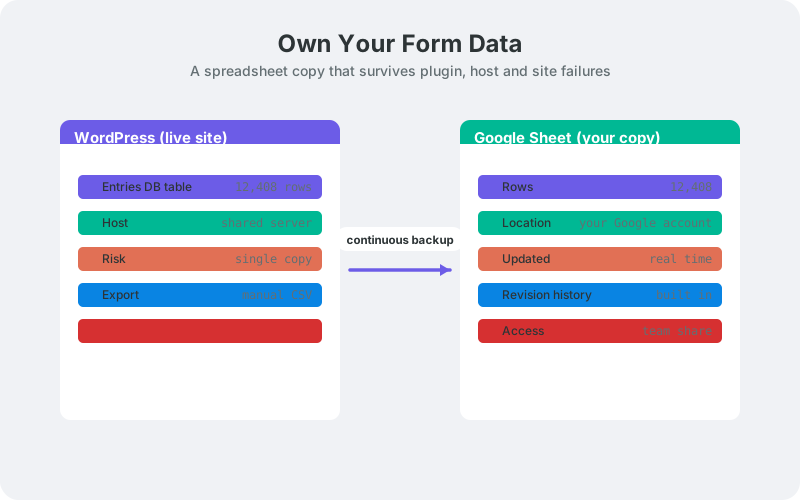
Each submission is pushed to a Google Sheet the moment it arrives - through the one-click Google Sheets connection (v1.12.0) or via a webhook-style call to a small Apps Script receiver deployed in your own Google account. One submission, one new row, in real time. The copy is continuous because it never batches: there is no gap between "last backup" and "now".
The ownership detail matters as much as the freshness. The sheet sits in your Drive and submissions travel straight from your server to Google, so no third-party service holds your data in transit on the Sheets path. The classic receiver route keeps even authentication inside your own Google account. If your host or your plugin vendor disappears tomorrow, the spreadsheet does not.
It is also a working copy, not a cold one. You can filter it, chart it, and share it - the same sheet you would recover from doubles as your lead list. The full pattern is covered in our complete guide to WordPress forms to Google Sheets.
No Backup vs Database Backup vs Continuous Sheet Copy
The three postures differ mainly in how much data you lose and how fast you can act afterward. No backup loses everything. A periodic database backup loses everything since the last run and needs a full restore before you can read it. A continuous sheet copy loses almost nothing and is readable immediately. The table below shows the comparison.
The right answer for most sites is both: keep database backups for full-site disaster recovery, and keep the sheet copy for the form data specifically. They fail in different ways, which is exactly what you want from redundancy. The sheet also covers the case backups structurally cannot: entries that arrive between backup runs.
Does Google Sheets Have the Capacity and History for This?
Yes, for almost every site. A single Google Sheet holds up to 10 million cells (Google Drive Help). With a 20-column form, that is roughly 500,000 submissions in one file before you would even think about splitting by year.
Version history adds a second layer of protection. Sheets keeps a revision trail, so if someone deletes rows in the backup itself, you can restore the sheet to any earlier point in time. In effect, your backup has its own backup, and it also shows who changed what.
For genuinely high-volume sites, rotate by year and move old rows out. The process in archiving old WordPress form submissions to Google Sheets keeps the live sheet fast without losing a single record.
What Does a Recovery Drill Look Like?
A recovery drill is 30 minutes of pretending the worst already happened. You verify the sheet is current, prove you can answer business questions from it alone, and rehearse getting entries back into a rebuilt site. Only 27% of WordPress professionals have a recovery plan (Melapress, 2025) - a tested drill puts you in that minority.
- Submit a test entry on the live site and confirm the row appears in the sheet within seconds
- Close wp-admin and answer three questions from the sheet alone: leads this week, leads from your biggest campaign, timestamp of the latest entry
- Export the sheet to CSV and confirm the file opens clean
- Rehearse the restore path: could you re-import that CSV into a fresh install, or hand it to sales as-is?
- Check the delivery log for failed rows and clear them
Put the drill on a quarterly calendar. The first run almost always finds something: a renamed field, a column mismatch, a form that was never connected.
How Do You Set Up the Continuous Copy?
Install a sync plugin, connect Google Sheets - one-click Connect Google (about a minute) or the classic Apps Script receiver in your own Google account (about 15 minutes end to end) - and map your forms. SheetLink Forms handles this for 12 major form plugins, sending each submission to your sheet in real time with no Zapier and no per-task fees.
The Google Sheets setup guide walks through the receiver deployment step by step. Failed deliveries - a timeout, a brief Google hiccup - go into an automatic retry queue with exponential backoff, so a temporary outage does not punch silent holes in the backup.
For the backup-specific angle, including how teams structure the sheet for recovery rather than reporting, see the WordPress form data backup use case.
Data Ownership and Compliance for the Backup Copy
You own the data at both ends: the WordPress database and the Google Sheet sit in accounts you control, with no intermediary processor on the Sheets path. That simplifies the data-processing story considerably, but a backup full of personal data still needs the same care as the original.
Regulators are not slowing down - EUR 1.2 billion in GDPR fines were issued in 2025 alone (DLA Piper, 2026). So restrict the sheet's sharing to people who need it, and fold it into your retention policy: when you delete a contact's data from WordPress, delete their rows from the backup too.
Our guide to GDPR-compliant form data in Google Sheets covers consent logging, DSAR exports, and retention schedules for exactly this setup.
Run the Drill Before You Need It
Set up the live copy this week, then schedule the first recovery drill for next month. The setup takes minutes, the drill takes half an hour, and the alternative is explaining to your team why three years of leads disappeared with the hosting account.
Start with the form that collects your most valuable data, confirm rows are landing in real time, and expand to the rest of your forms from there. A backup you have tested is a plan; everything else is luck.
| No backup | Periodic DB backup | Continuous sheet copy | |
|---|---|---|---|
| Data loss window | Everything | Since last backup run | Near zero |
| Readable during outage | No | Only after full restore | Yes, instantly |
| Lives outside your host | No | Sometimes | Yes, your Google account |
| Recovery speed | None | Hours for a restore | Minutes, copy rows back |
| Ongoing effort | None | Monitor and test restores | Quarterly drill only |
Frequently Asked Questions
Is a Google Sheet a replacement for WordPress site backups?
No. The sheet is a continuous backup of your form data specifically - the part regular backups protect worst. You still need database and file backups for full-site disaster recovery. The two cover different failure modes, and together they cover both the site and the leads.
What happens if the sheet delivery fails while my site stays up?
Failed deliveries enter an automatic retry queue with exponential backoff, and a delivery log records every attempt. You can also trigger a manual retry. A brief Google outage or timeout therefore delays rows rather than losing them.
Can I back up entries submitted before I set this up?
The real-time sync covers new submissions going forward. For history, export existing entries from your form plugin to CSV and paste them into an archive tab in the same spreadsheet. From that point the sheet holds your complete record, old and new.
How much form data fits in one Google Sheet?
Up to 10 million cells per spreadsheet (Google Drive Help). For a typical 20-column form that is roughly 500,000 submissions in a single file. High-volume sites can rotate to a fresh sheet yearly and archive the old ones in Drive.
Is keeping a backup of form data in Google Sheets GDPR compliant?
It can be, if you treat the sheet like any other data store: restrict sharing, log consent, honor deletion requests in both WordPress and the sheet, and set a retention schedule. The sheet living in your own Google account keeps the processor chain short.
Do I need Zapier or a Google API key for the continuous copy?
No. Choose the one-click Google connect (SheetLink's own OAuth app - no Google Cloud project or API keys on your side) or the OAuth-free classic route, a small Apps Script receiver you deploy in your own Google account. Either way there is no Zapier subscription and no per-task metering, and submission data never routes through a third-party processor on the delivery path (the optional AI add-ons are the disclosed exception).
Which form plugins can send entries to Google Sheets automatically?
The free SheetLink Forms core covers 12 major form plugins, including Contact Form 7, WPForms, Gravity Forms, Elementor Pro, Fluent Forms, Formidable, Ninja Forms, and Forminator. Every connected form writes to the sheet in real time using the same receiver.
How often should I run a recovery drill?
Quarterly is a sensible default for most sites. The drill takes about 30 minutes: verify a test row lands, answer three business questions from the sheet alone, export to CSV, and clear the delivery log. Run it after major changes too, like migrations or form rebuilds.
More Automation guides
Keep a Live Copy of Every WordPress Form Entry
SheetLink Forms streams submissions into a Google Sheet you own - a continuous backup with no Zapier tasks and no monthly fees.