
Archiving Old WordPress Form Submissions in Google Sheets
Form plugins bloat your WordPress database over time. Here's how to offload submissions to Google Sheets as the durable record, then archive old rows so the live sheet stays fast.
In This Guide
- Why Do WordPress Form Submissions Need Archiving?
- What Is the Google Sheets Cell Limit?
- Should You Separate Live and Archived Data?
- How Do Rolling Monthly Tabs Work?
- How Do You Move Old Rows to an Archive Sheet?
- How Do You Keep the Live Sheet Fast?
- Archive Tabs or Separate Workbooks?
- Does This Strategy Work for Excel Online Too?
- How Does SheetLink Forms Fit Into Archiving?
- What's the Archiving Checklist?
- Frequently Asked Questions
Why Do WordPress Form Submissions Need Archiving?
WordPress runs roughly 43% of all websites (W3Techs, 2026), and most of those sites collect form data into the database. Every entry, every field, every uploaded file reference lives in wp_postmeta or a plugin's custom tables. Over months, that table balloons.
A bloated database slows admin queries, inflates backups, and makes migrations painful. The fix is to treat WordPress as the capture layer, not the permanent store.
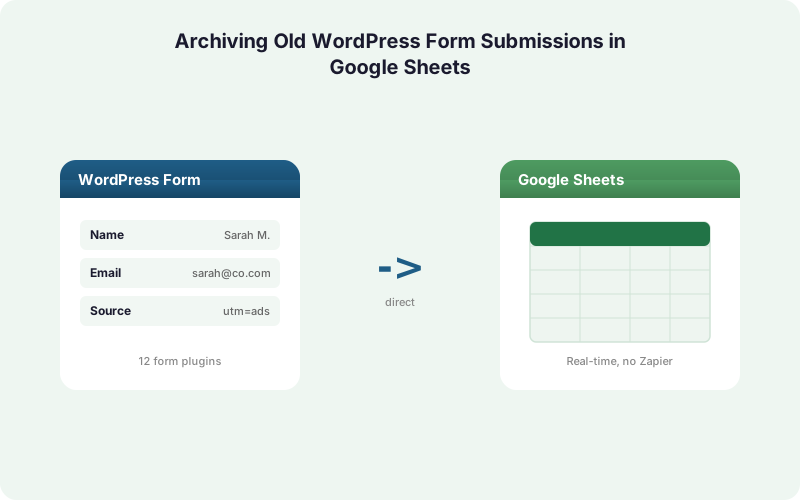
Google Sheets becomes your durable record. Submissions flow there in real time, and you archive old rows on a schedule so the live sheet stays quick. This post walks through the full strategy, including limits, rolling tabs, and a clean archive workflow.
What Is the Google Sheets Cell Limit?
A single Google Sheets spreadsheet holds up to 10,000,000 cells (Google Workspace Updates, 2022). That ceiling, not row count, is what eventually forces an archive plan. Google has signaled a future increase toward 20 million cells, but verify the rollout before you rely on it.
Cells are columns multiplied by rows. A form with 20 columns hits the 10M cap at roughly 500,000 submissions. A 40-column lead form caps near 250,000 rows.
The practical limit arrives sooner. Sheets with hundreds of thousands of rows feel sluggish well before the hard ceiling, especially with formulas, conditional formatting, or pivot tables recalculating on every edit. Plan to archive long before you approach 10M cells.
Should You Separate Live and Archived Data?
Yes. The single most effective tactic is splitting recent submissions from historical ones. With WordPress on 43% of websites (W3Techs, 2026), high-traffic forms generate data that quickly outgrows one tab. A two-tier model keeps things manageable.
The live sheet holds the current window, often the trailing 30 to 90 days. It stays small, recalculates fast, and powers your dashboards and CRM syncs.
The archive holds everything older. It can be a separate tab, a separate workbook, or a yearly file. You rarely open it, so its size barely matters for daily work.
This separation also limits blast radius. A broken formula or accidental sort in the live sheet never touches the archived record of past leads.
How Do Rolling Monthly Tabs Work?
Rolling tabs split your data by time period so no single tab approaches the 10,000,000-cell limit (Google Workspace Updates, 2022). Instead of one endless sheet, you create a tab per month or per quarter and route new submissions to the current period.
In our experience, monthly tabs work best for sites doing thousands of submissions a month. Quarterly tabs suit lower-volume sites. Name them consistently, like 2026-06 or 2026-Q2, so they sort correctly.
To report across periods, use a summary tab with QUERY or IMPORTRANGE pulling from each month. You keep fast per-tab editing while still getting a unified view. SheetLink Forms can target a specific tab per rule, so routing new entries to the right month is a config choice, not a manual copy-paste job.
How Do You Move Old Rows to an Archive Sheet?
The cleanest method is a date-based cutoff: any row older than your retention window moves to the archive. Because spreadsheets are error-prone, with audits finding errors in up to 88% of inspected spreadsheets (Panko, 2008), automate the move rather than dragging rows by hand.
A simple Apps Script approach: read rows where the timestamp column is older than 90 days, append them to the archive tab, then delete them from the live tab. Schedule it with a time-driven trigger so it runs nightly or weekly.
Keep the column order identical between live and archive sheets. If they drift, your appendRow calls land data in the wrong columns. Always test the script against a copy first, and log each run so you can confirm what moved. A weekly run on a clean schedule beats a manual purge you forget to do.
How Do You Keep the Live Sheet Fast?
Speed comes from keeping the live tab small and lean. Every formula recalculates on edits, and at scale that lag is what users actually feel, long before the 10,000,000-cell ceiling (Google Workspace Updates, 2022) ever becomes a concern.
A few proven habits keep things responsive. Cap the live window to 30 to 90 days. Replace volatile functions like NOW, TODAY, and OFFSET with static or query-based alternatives. Avoid whole-column ranges in formulas; reference only the rows you need.
Push heavy reporting to a separate dashboard tab or workbook that reads via IMPORTRANGE, so number-crunching never slows the tab receiving live submissions. Our take: a 5,000-row live sheet with no array formulas outperforms a 200,000-row sheet every single time, no matter how clever the formulas are. Smaller wins.
Archive Tabs or Separate Workbooks?
Both work, and the right pick depends on volume. Because one spreadsheet maxes out at 10,000,000 cells (Google Workspace Updates, 2022), very high-volume sites eventually need separate yearly workbooks rather than tabs in a single file.
Use archive tabs in the same workbook when total volume stays comfortably under the cell limit. It's simpler: one file, easy cross-tab queries, one share link to manage.
Use separate workbooks (one per year, for example) when you'd otherwise blow past the cell ceiling or when the file gets too heavy to open. The tradeoff is that cross-workbook reporting needs IMPORTRANGE and authorized links.
For most sites, start with tabs and graduate to yearly workbooks only when the numbers force it. Don't over-engineer early.
Does This Strategy Work for Excel Online Too?
Yes, the same archiving logic applies to Microsoft Excel on OneDrive. With Google Workspace used by 10M+ businesses (Google Workspace Blog, 2025) and Microsoft 365 holding a comparable base, many teams split data across both. SheetLink Forms supports either as a destination.
Excel uses tables and workbooks rather than Sheets' cell-limit model, but the principle is identical: keep a small live table, move old rows to an archive, and report from a separate view.
SheetLink Forms can deliver to Excel Online in real time, and the free mirror mode writes the same submission to both Google Sheets and Excel at once. See our Excel vs Sheets comparison if you're choosing between them, or the WordPress form to Excel guide for setup.
How Does SheetLink Forms Fit Into Archiving?
SheetLink Forms is the ingestion layer that makes Sheets your durable record in the first place. It sends submissions from 12 core form plugins (17 with the Pro tier) straight to Google Sheets, with no Zapier or per-task fees, even as you scale toward the 10,000,000-cell limit (Google Workspace Updates, 2022).
Because each sync rule targets a specific spreadsheet and tab, you can route new entries to the current month's tab and keep your archive untouched. A built-in retry queue with exponential backoff means a brief Sheets outage delays delivery rather than losing data.
That reliability matters for archiving: your Sheet is only a safe permanent store if every submission actually arrives. Pair it with a scheduled archive script and you offload database bloat while keeping a complete, queryable history. Read the complete setup guide or the Sheets setup docs to get started.
What's the Archiving Checklist?
Start by treating WordPress as capture, not storage, since the database under 43% of all websites (W3Techs, 2026) is not built to hold years of form entries. A short, repeatable routine keeps everything fast.
First, send submissions to Sheets in real time so the durable record is always current. Second, cap your live tab to a 30 to 90 day window. Third, run a scheduled script that moves older rows to an archive tab or yearly workbook. Fourth, watch your cell count and graduate from tabs to workbooks before you near the limit.
Finally, audit periodically. Confirm column order matches between live and archive sheets, check that scheduled triggers still run, and spot-check a few archived rows. For deeper reporting, see our guide on Google Sheets dashboards.
| Approach | Best For | Cell-Limit Risk | Cross-Period Reporting |
|---|---|---|---|
| Single sheet | Low-volume sites | High at scale | Trivial (one tab) |
| Rolling monthly tabs | Most sites | Low per tab | QUERY across tabs |
| Yearly workbooks | Very high volume | Lowest | IMPORTRANGE links |
Frequently Asked Questions
How many form submissions can a Google Sheet hold?
A spreadsheet holds up to 10,000,000 cells (Google Workspace Updates, 2022). With a 20-column form, that's roughly 500,000 submissions; a 40-column form caps near 250,000 rows. Performance degrades well before the hard limit, so archive earlier.
Will offloading submissions to Sheets reduce WordPress database bloat?
Yes. When Sheets is your durable record, you can prune old entries from WordPress safely. Since WordPress runs about 43% of all websites (W3Techs, 2026), database bloat is a common issue; treating WordPress as capture-only keeps backups and admin queries fast.
What's the best way to archive old rows automatically?
Use a time-driven Apps Script trigger that moves rows older than your retention window to an archive tab. Because audits find errors in up to 88% of spreadsheets (Panko, 2008), automating beats manual moves. Keep column order identical and log each run.
Should I use monthly tabs or one big sheet?
For high-volume forms, rolling monthly tabs are better. They keep each tab small and fast and avoid approaching the 10,000,000-cell limit (Google Workspace Updates, 2022). Use a summary tab with QUERY or IMPORTRANGE to report across all periods at once.
When should I move from archive tabs to separate workbooks?
Switch to separate yearly workbooks when total cells approach 10,000,000 (Google Workspace Updates, 2022) or when the file gets slow to open. Until then, tabs in one workbook are simpler. Cross-workbook reporting then requires IMPORTRANGE and authorized links.
Does SheetLink Forms charge per submission for high-volume forms?
No. SheetLink Forms is a one-time purchase with no per-task fees, unlike Zapier's metered model that charges per task (Zapier Pricing, 2026). It sends submissions from 12 core form plugins straight to Sheets, so volume never inflates your bill.
Can I keep dashboards fast while archiving data?
Yes. Keep the live tab small, then build dashboards in a separate tab that reads via IMPORTRANGE. Since formulas recalculate on every edit and slow large sheets long before the 10,000,000-cell ceiling, isolating reporting keeps the submission-receiving tab responsive.
Does the archive strategy work with Excel Online?
Yes. The same live-plus-archive split applies to Excel on OneDrive. SheetLink Forms delivers to Excel in real time, and free mirror mode writes to both Sheets and Excel at once. Keep a small live table and move old rows to an archive view.
More Tutorial guides
Make Google Sheets Your Durable Form Record
SheetLink Forms sends every WordPress submission to Sheets in real time, with a retry queue and no per-task fees. Offload database bloat and keep a complete, queryable history.