
IMPORTRANGE Master Dashboard for Agency Lead Tracking
Every client site syncs its form leads to its own Google Sheet. IMPORTRANGE pulls them all into one master dashboard - formula syntax, permissions, QUERY patterns, health rows, and the official limits.
In This Guide
- Why Build an IMPORTRANGE Master Dashboard?
- How Does the IMPORTRANGE Formula Work?
- How Do You Grant IMPORTRANGE Permissions?
- How Do You Run QUERY on IMPORTRANGE?
- How Do You Build a Per-Client Health Row?
- What Are the Official IMPORTRANGE Limits?
- How Should You Structure the Master Spreadsheet?
- How Do Client Sheets Get Filled Automatically?
- What Can You Build on Top of the Master Sheet?
- Start With Three Clients, Then Scale
- Frequently Asked Questions
Why Build an IMPORTRANGE Master Dashboard?
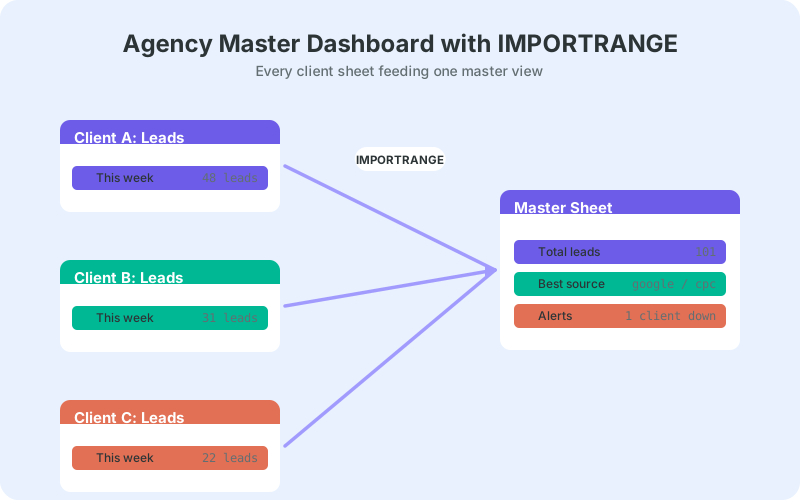
An IMPORTRANGE master dashboard pulls live lead data from every client's Google Sheet into one spreadsheet you check each morning. The majority of agencies maintain 11-20 clients (AgencyAnalytics, 2024), which means 11-20 separate spreadsheets to open, skim, and forget. One formula per client replaces that routine with a single view.
The pattern assumes each client WordPress site already syncs its form submissions to its own dedicated Google Sheet - the setup we walk through in the agency playbook for syncing forms across 25 client sites. Once those per-client sheets exist, the master dashboard is pure formula work. No scripts, no paid connectors, no extra tooling to maintain, and the payoff compounds: every new client costs one config row, not a new reporting workflow.
This guide covers the formula syntax, the one-time permission grant, QUERY-on-IMPORTRANGE reporting patterns, a per-client health row that doubles as a downtime canary, and how to stay comfortably inside Google's official limits.
How Does the IMPORTRANGE Formula Work?
IMPORTRANGE takes exactly two arguments: the source spreadsheet's URL and a range string. =IMPORTRANGE("https://docs.google.com/spreadsheets/d/abc123", "Submissions!A2:H") returns that range as a live array in your master sheet. When a new lead lands in the client sheet, the imported block updates on its own - no refresh button, no re-pasting, no export step.
Both arguments are plain text strings, so they need quotation marks. The first accepts either the full URL or just the spreadsheet ID between /d/ and /edit in the address bar. The second should always include the tab name; without it, Google reads from the first tab, which breaks silently the moment someone reorders tabs in a client sheet.
One behavior worth knowing up front: the formula spills. The single cell holding IMPORTRANGE expands into the full imported block, and any value typed inside that footprint collapses the whole import into a #REF! collision error. Give each import its own tab and the problem never comes up.
The most useful refinement for agencies is indirection. Store each client's URL in a Config tab and pass the cell reference instead: =IMPORTRANGE(Config!B2, "Submissions!A2:H"). Every formula stays identical across clients, and onboarding a new client becomes a one-row edit rather than a formula hunt.
How Do You Grant IMPORTRANGE Permissions?
The first time you point IMPORTRANGE at a new source spreadsheet, the cell shows a #REF! error reading "You need to connect these sheets". Click the cell and press Allow access. That grant is one-time per source spreadsheet: every future import from this master to that client sheet then resolves instantly.
There is a prerequisite: the Google account opening the master needs at least view access to the client sheet. For agencies, the clean pattern is to create every client sheet from one central agency account, or have clients share viewer access to a single ops address like leads@youragency.com. Scattered personal-account ownership is where permission problems breed, usually discovered at report time.
Watch for silent breakage too. If a client revokes access, deletes the sheet, or migrates to a new file, your imports collapse back to #REF! without warning. That is one more reason the health row described below earns its keep: it turns a quiet failure into a red cell you see the same morning.
How Do You Run QUERY on IMPORTRANGE?
QUERY accepts IMPORTRANGE output like any other range, with one twist: you reference columns as Col1, Col2, Col3 instead of A, B, C. The combination is the reporting engine of the whole dashboard - it filters, sorts, and summarizes each client's raw leads before they ever reach your screen.
Three patterns cover most agency reporting needs:
- Latest 10 leads:
=QUERY(IMPORTRANGE(Config!B2, "Submissions!A2:H"), "select Col1, Col2, Col5 order by Col1 desc limit 10", 0) - Leads in the last 7 days:
=QUERY(IMPORTRANGE(Config!B2, "Submissions!A2:H"), "select count(Col1) where Col1 >= date '"&TEXT(TODAY()-7, "yyyy-mm-dd")&"'", 0) - Leads by source: same wrapper with
"select Col6, count(Col1) group by Col6 order by count(Col1) desc"
Set the third QUERY argument to 0 so imported rows are treated as data, not headers - your master tabs should supply their own labels. And if you plan several QUERYs against the same client, import once into a raw tab and point every QUERY at that local range instead. One import serving many reports means fewer requests and less throttling risk. Our QUERY function guide for lead reports covers the clause syntax in depth.
How Do You Build a Per-Client Health Row?
A health row shows, per client, when the last form submission arrived. Broken forms fail silently - visitors hit errors, you see nothing, and the client notices before you do. A stale last-submission timestamp is usually your earliest warning, which makes it a cheap downtime canary for every site you manage.
Three columns per client do the job, assuming column A of each client sheet holds the submission timestamp:
- Last submission:
=MAX(IMPORTRANGE(Config!B2, "Submissions!A2:A"))- format the result cell as a date - Days quiet:
=TODAY()-C2 - Status:
=IF(D2>7, "CHECK SITE", "OK")
Calibrate the threshold per client. A busy local-services site might justify a 2-day alarm, while a niche B2B client can go quiet for a week without anything being wrong. Add conditional formatting so CHECK SITE rows turn red, and you have form monitoring across the whole roster for the cost of three formulas. The same canary pattern works when multisite networks centralize forms into one sheet - one health row per subsite instead of per client.
What Are the Official IMPORTRANGE Limits?
Google caps each IMPORTRANGE request at 10MB of received data, checks sources for updates roughly every hour while the document is open, and throttles spreadsheets that run too many import functions (Google Docs Editors Help, 2026). Chained imports - a master importing from another master - also accumulate delay at every hop, so freshness degrades with each layer.
The spreadsheet itself tops out at 10 million cells or 18,278 columns (Google Drive Help, 2026). Imported ranges occupy real cells in your master file, so twenty clients times an unbounded A:Z import eats capacity far faster than most people expect.
Four habits keep a 20-client dashboard well inside the lines:
- Import only the columns you actually report on, never full-width ranges
- Run one IMPORTRANGE per client into a raw tab, then reuse it locally
- Summarize in the master; leave full submission history in the client sheets
- Never chain masters of masters - always import from the source sheet directly
How Should You Structure the Master Spreadsheet?
Use three tab types: a Config tab listing client names and spreadsheet URLs, one raw tab per client holding that client's single IMPORTRANGE, and a Health or Summary tab whose formulas reference only the local raw tabs. This structure keeps every import countable, auditable, and cheap to reason about when something throttles or breaks.
Adding a client becomes mechanical: add a Config row, duplicate a raw tab, point it at the new URL, and drag the health-row formulas down one line. Removing a client is a tab deletion plus a row deletion. Nothing else in the dashboard needs touching, which matters when the roster changes monthly and the person doing the change isn't the person who built the sheet.
Some clients run several forms, or one site fans out to multiple Google Sheets simultaneously. Keep the per-client sheet as the aggregation point in those cases: consolidate everything into one Submissions tab on the client side, and let the master import exactly one range per client.
How Do Client Sheets Get Filled Automatically?
The dashboard is only as live as the sheets feeding it. SheetLink Forms handles that layer: the free plugin sends WordPress form submissions to Google Sheets in real time - one-click Google connect (v1.12.0) or a classic Google Apps Script receiver you deploy in your own Google account. No Zapier, no per-task fees, and no third-party processor sitting between client leads and their sheet.
It covers 12 major form plugins - Contact Form 7, WPForms, Gravity Forms, Elementor Pro, Fluent Forms, and more - so mixed client stacks still land in one consistent column format. Each row carries a timestamp plus page URL and UTM metadata, which is exactly what the health row and the QUERY reports above consume.
The automatic retry queue with exponential backoff matters here too. When a client's host hiccups, the row is delayed rather than lost, so your canary reflects real traffic instead of delivery luck. The agency docs cover rollout patterns for larger client rosters, including naming conventions that keep the Config tab sane.
What Can You Build on Top of the Master Sheet?
Once the master aggregates every client, it becomes the single source for everything downstream: weekly summaries, pipeline snapshots, and client-facing reports. You maintain one spreadsheet and one set of formulas instead of twenty scattered files with twenty slightly different layouts. Weekly digest emails, pipeline boards, and win-rate tracking all hang off the same master ranges once they exist.
The highest-value addition is a templated report. Connect the master to Looker Studio, build one layout, and add a client filter control - our guide to Looker Studio dashboards for WordPress leads walks through the connection step by step. A 2019 Databox survey found 59% of agencies spend about one hour per client on reporting (Databox, 2019). One template reading one master source is how that hour shrinks to minutes.
Start With Three Clients, Then Scale
Pick your three most active clients, drop their sheet URLs into a Config tab, import each into a raw tab, and build the health row first. That is a working master dashboard in under an hour, and extending it to the full roster is repetition rather than new engineering.
If some client sites aren't syncing forms to a sheet yet, fix that pipeline before polishing the dashboard - the agency client reporting use case shows the full path from form submission to master report. The formulas only matter once every client's leads arrive somewhere IMPORTRANGE can reach. Build it once, and Monday mornings start with one tab, not twenty.
Frequently Asked Questions
How many client sheets can IMPORTRANGE pull into one master dashboard?
Google doesn't publish a fixed source-spreadsheet cap. The real constraints are the 10MB-per-request data limit and throttling when a spreadsheet runs too many import functions, per Google's IMPORTRANGE documentation. Agencies with 20-30 clients stay comfortable by importing narrow, bounded ranges and running one IMPORTRANGE per client.
Why does IMPORTRANGE show a #REF! error?
The most common cause is a missing permission grant: click the cell and press Allow access. Other causes include a deleted or moved source spreadsheet, a renamed tab in the range string, revoked view access, or another value blocking the space the imported array needs to expand into.
How often does IMPORTRANGE refresh imported data?
Google checks the source for updates roughly every hour while the document is open, per the official IMPORTRANGE documentation, and changes also propagate as the master recalculates. Chained imports refresh more slowly because each hop adds its own delay, so always import from the source sheets directly.
Can I use QUERY directly on IMPORTRANGE?
Yes. Wrap the import as the QUERY data argument and reference columns as Col1, Col2, Col3 rather than letters. Set the headers argument to 0 so the first imported row isn't consumed as a label. For repeated queries against one client, import once into a raw tab first.
Do clients need access to my master dashboard?
No. IMPORTRANGE is one-way: your account needs view access to each client sheet, but clients need no access to the master. They keep working in their own spreadsheet while your dashboard reads from it, which keeps client data separation clean for agency work.
What happens if a client revokes access to their sheet?
Every IMPORTRANGE pointing at that spreadsheet collapses to #REF! and the health row goes stale. Restore viewer access for the account that opens the master and the imports recover on their own. Owning client sheets from a central agency account avoids the problem entirely.
Can a Google Sheets dashboard really detect a broken form?
Indirectly, yes. A form that stops submitting stops writing rows, so the last-submission timestamp freezes. A days-quiet column compared against a per-client threshold flags the silence within a day, often before anyone notices the error on the site. It's a canary, not a full uptime monitor.
Does imported data count against the master sheet's cell limit?
Yes. Imported ranges occupy real cells, and a Google Sheets file caps out at 10 million cells or 18,278 columns per Google Drive Help. Import only the columns you report on and keep full submission history in the client sheets, not the master.
More Lead Management guides
Fill every client lead sheet automatically
Send each client site's form leads straight to its own Google Sheet - no Zapier, no per-task fees, no middleware to babysit.