
WS Form to Google Sheets: Direct Integration Guide
WS Form gives developers 55+ field types, and every one of them can land in a Google Sheet in real time. Here is how to wire the connection, map repeaters and file uploads cleanly, and route each form to its own tab.
In This Guide
- Why Send WS Form Data to Google Sheets?
- What Makes WS Form Different From Other Form Builders?
- What Are Your Options for Getting WS Form Entries Into Sheets?
- How Does a Direct WS Form to Google Sheets Connection Work?
- How Do You Connect WS Form to Google Sheets Step by Step?
- How Do Complex WS Form Field Types Map to Columns?
- What Happens to File Upload Fields?
- Can You Route Different WS Forms to Different Sheets?
- What Happens When a Delivery Fails?
- How Do You Turn the Sheet Into a Working Lead Tracker?
- Next Steps
- Frequently Asked Questions
Why Send WS Form Data to Google Sheets?
WS Form entries can land in a Google Sheet the moment a visitor clicks submit, with no Zapier account and no CSV exports. WS Form LITE runs on 10,000+ active installations with a 4.9-star average rating (WordPress.org, 2026), and its PRO edition is the builder many WordPress developers reach for on complex projects.
That developer focus is exactly why the destination matters. The vendor advertises 55+ field types, including repeaters, file uploads, and e-commerce fields, and data that rich is wasted sitting inside notification emails that only one person reads. A spreadsheet gives the whole team one sortable, filterable, shareable record of every submission. With WordPress powering 41.2% of all websites (W3Techs, 2026), moving form data into Sheets is well-trodden ground.
This guide covers the direct WS Form Google Sheets connection, how complex field types map to columns, what happens to file uploads, per-form routing, and what protects you when a delivery fails.
What Makes WS Form Different From Other Form Builders?
WS Form is built for developers first, and its field library shows it. The vendor lists 55+ field types, from plain text and email inputs through repeatable sections, signatures, file uploads, ratings, and price fields with live calculations. Most spreadsheet integrations were designed around five-field contact forms, and this richness is exactly where they tend to break.
Consider what a real WS Form build produces. A repeater section might hold three team members on one submission and ten on the next. A file upload field produces a file, not a text value. A price field carries a calculated total that finance will want to sum at the end of the quarter. If an integration flattens these badly, or silently drops them, the spreadsheet stops being trustworthy and your team quietly goes back to digging through email notifications.
The goal for the rest of this guide is simple: one clean row per submission, with stable columns, no matter which field types the form uses.
What Are Your Options for Getting WS Form Entries Into Sheets?
You have three realistic options: export CSVs from WS Form by hand, relay entries through middleware like Zapier or Make, or install a WordPress plugin that posts each entry directly to your sheet. For live lead capture, the direct route wins on cost, latency, and data ownership.
Manual CSV export is fine for a one-time migration but painful for ongoing capture. Someone has to remember to export, column order drifts between exports, and the sheet is always hours or days stale. Middleware works, but it meters you: Zapier's Professional plan starts at $19.99 per month billed annually (Zapier, 2026), and every single submission consumes tasks against your quota. Your lead data also passes through a third-party processor on its way to Google, which your privacy policy has to account for.
A direct connection has no task meter and no middleman between WordPress and your spreadsheet. The comparison table on this page shows how the three approaches stack up side by side.
How Does a Direct WS Form to Google Sheets Connection Work?
The direct method connects WordPress to your spreadsheet in one of two ways. The default since v1.12.0 is the one-click Google Sheets connect: click Connect Google, approve a standard consent screen, and pick or create your spreadsheet in the Google file picker. The scope is drive.file, so SheetLink only gets access to the spreadsheets you pick or create, never your whole Drive. Delivery happens in real time, and no third party ever holds your data in transit.
The classic alternative is a small Apps Script receiver you deploy into your own Google account. Apps Script is Google's own cloud JavaScript platform for automating Google Workspace (Google, 2026), so this is supported infrastructure, not a fragile workaround. It remains the OAuth-free, fully self-hosted option: the receiver runs as you, inside your account, and its web address is the only thing WordPress needs to know.
One-click connect takes about a minute; the classic one-time deployment takes a few minutes. The Google Sheets setup guide walks through both click by click, including how to keep the classic receiver private to your account.
How Do You Connect WS Form to Google Sheets Step by Step?
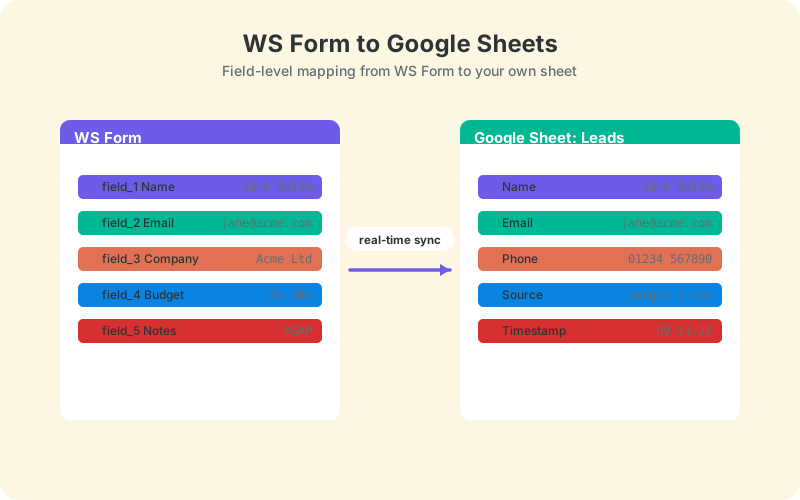
The free SheetLink Forms plugin includes WS Form as one of its 12 major form plugin integrations, so the connection is configuration rather than code. You install the plugin, connect your Google account with one click, and create a delivery rule that points your form at a specific spreadsheet and tab.
- Install and activate SheetLink Forms from WordPress.org.
- Run the setup wizard and use the Connect Google (one click) card: approve access, then pick or create your sheet in the Google file picker. Or choose the classic Apps Script receiver if you prefer the self-hosted route.
- Create a delivery rule and choose WS Form as the source plugin.
- Select the specific form, then map its fields to the columns you want in the sheet.
- Submit a test entry and confirm the row appears within seconds.
That is the whole job for a standard form. Field-level notes for every supported plugin live in the form integrations docs, and the WS Form integration page tracks version compatibility and known quirks.
How Do Complex WS Form Field Types Map to Columns?
Simple fields map one-to-one: a text field becomes a column, and each submission adds one row. Complex types get flattened so that one-row-per-submission rule survives. Repeater sections collapse into readable text values, multi-select fields join their choices, and calculated price fields arrive as plain numbers you can sum with a formula.
Repeaters deserve special attention because they are the field type most integrations mishandle. If a visitor adds five entries to a repeatable section, you do not want five mystery columns appearing mid-sheet and breaking every formula to the right of them. Flattening the repeated values into their mapped column keeps the sheet's structure stable while preserving all the content a human needs to read.
Checkbox groups and multi-selects behave similarly: choices are joined into one cell value, which filters and COUNTIF formulas handle cleanly. If you need per-choice columns for analysis, split them later with a formula rather than at capture time. Capture should stay boring and predictable.
What Happens to File Upload Fields?
File uploads arrive in the sheet as URLs, not attachments. The uploaded file stays in your WordPress media storage, and the cell holds a link pointing to it. Anyone reviewing leads can open the resume, project brief, or photo in one click, and the spreadsheet never bloats with binary data it was never designed to hold.
One habit worth adopting: add a short review column next to the upload link, so whoever screens submissions can mark each file as checked. Uploads from strangers deserve mild suspicion, and a screening column makes that step visible in the sheet instead of assumed.
Links also behave well in spreadsheet workflows. They survive sorting and filtering, they can be counted and checked for blanks, and they copy cleanly into a CRM or an email. For deeper patterns, including capturing file names and sizes as separate metadata columns for triage, see the guide to file upload fields and Google Sheets metadata.
Can You Route Different WS Forms to Different Sheets?
Yes. Each delivery rule targets one form and one destination, so a quote form can feed a quotes spreadsheet while a careers form fills an applications tab. You can run as many rules as you have forms, and conditional routing can go further, splitting one form's entries by a field value, for example sending enterprise inquiries to their own tab.
Routing by form is worth doing early. A support form and a lead form share almost no fields, and mixing them in one tab produces a checkerboard of blank cells that makes filtering miserable. One form per tab keeps columns coherent, formulas simple, and handoffs obvious.
If you want the same entry to land in more than one place, for example a per-client sheet plus an agency master sheet, that pattern is covered in sending WordPress forms to multiple Google Sheets simultaneously.
What Happens When a Delivery Fails?
Failed deliveries go into a retry queue instead of vanishing. If Google is briefly unreachable or the outbound request times out, the entry is retried automatically with exponential backoff, a delivery log records each attempt, and a manual Retry Now option covers anything stubborn.
This mirrors how dedicated webhook infrastructure behaves. Svix's default policy retries a failed webhook 8 times over roughly 28 hours before giving up (Svix docs). Hookdeck, which has processed well over 100 billion webhooks, treats delivery success below 99% as a signal worth investigating (Hookdeck, 2025).
Lead capture deserves the same standard as payment infrastructure. A WS Form entry that silently fails to reach the sheet is a prospective customer nobody calls back, and you will never know it happened unless something is keeping score.
How Do You Turn the Sheet Into a Working Lead Tracker?
Once rows arrive automatically, a few formulas turn the sheet into a lightweight CRM. Add a status column with data validation, a COUNTIF summary of new leads per week, and conditional formatting that flags anything untouched for 24 hours. None of it requires scripts or add-ons.
Attribution columns help too. UTM and click-ID values such as _utm_source and _gclid are appended to each row automatically, so a simple pivot shows which campaigns produce the leads that actually close, not just the ones that submit. Pair that with the price fields WS Form calculates and you can report projected revenue per campaign from one tab.
The full formula toolkit, including QUERY-based views and dedupe checks, is in Google Sheets formulas every lead sheet needs.
Next Steps
The short version: install the free plugin, connect Google Sheets with one click (or deploy the classic Apps Script receiver), and create one delivery rule per WS Form. Repeaters flatten into stable columns, uploads arrive as links, and the retry queue backstops every delivery.
Start with your highest-traffic form. Send a test submission that exercises every complex field type you actually use: a repeater with several rows, a file upload, a multi-select. If that row looks right in the sheet, wire up the rest of your forms the same way, one rule and one tab per form.
| Manual CSV export | Zapier / Make | Direct plugin | |
|---|---|---|---|
| Delivery timing | Whenever you remember | Minutes, task-metered | Real time |
| Monthly cost | Free (your time) | From $19.99/mo (Zapier annual) | Free core plugin |
| Data path | Download, re-upload | Via third-party cloud | WordPress to your Google account |
| Repeaters and uploads | Flat columns, manual cleanup | Per-Zap mapping work | Flattened and linked automatically |
| Failure handling | None | Plan-dependent replays | Retry queue with backoff |
Frequently Asked Questions
Does WS Form work with Google Sheets without Zapier?
Yes. A direct WordPress plugin can write each WS Form entry to your sheet in real time, via a one-click Google connect or a classic Apps Script receiver deployed in your own Google account. There is no middleware account, no per-task fee, and no per-submission middleman touching the data.
Does the free WS Form LITE version connect to Google Sheets?
Yes. The connection works with WS Form LITE, which has 10,000+ active installations and a 4.9-star average on WordPress.org, as well as with PRO. LITE covers common field types, while PRO adds the larger library of 55+ types, and both map to sheet columns the same way.
How do WS Form repeater fields appear in Google Sheets?
Repeater sections are flattened so each submission still occupies exactly one row. The repeated values arrive as readable text in their mapped column instead of spawning unpredictable new columns mid-sheet. That keeps sorting, filtering, and formulas working no matter how many repeat entries a visitor adds.
Can WS Form file uploads be sent to Google Sheets?
Yes, as links. The uploaded file stays in your WordPress media storage, and the sheet cell holds a URL pointing to it. Reviewers open the file in one click, and the spreadsheet stays fast because it never stores binary attachments, only lightweight links.
Can I send different WS Forms to different spreadsheets or tabs?
Yes. Create one delivery rule per form, each pointing at its own spreadsheet or tab. Conditional routing can go further and split a single form's entries by a field value, for example sending enterprise inquiries to one tab and everything else to another.
Do I need a Google API key or OAuth setup for this?
No Google Cloud project or API keys either way. The default one-click connect uses SheetLink's own Google app: you approve a standard consent screen and pick the sheet. If you want to avoid OAuth entirely, the classic Apps Script receiver runs in your own account, and its web address is the only credential your WordPress site needs.
What happens to WS Form entries if Google Sheets is unreachable?
Failed deliveries enter a retry queue with exponential backoff, so temporary outages resolve themselves without losing entries. A delivery log records every attempt, and a manual Retry Now option covers anything persistent. The troubleshooting guide covers cases where retries keep failing.
Is the direct connection cheaper than Zapier for WS Form?
Usually, yes. Zapier's Professional plan starts at $19.99 per month billed annually, and every WS Form entry consumes tasks against your quota. The direct plugin route is free for core Google Sheets delivery, so a busy form can save hundreds of dollars per year.
More Tutorial guides
Send WS Form entries to Google Sheets in real time
The free SheetLink Forms plugin connects WS Form to your own Google Sheet - no Zapier tasks, no monthly middleware fees.