
ACF to Google Sheets: Sync Custom Fields Automatically
Sync Advanced Custom Fields data, including front-end acf_form submissions, into structured Google Sheets columns. Built for directories, property listings, and content audits.
In This Guide
- Can You Sync ACF Data to Google Sheets?
- Why Move Structured Fields into a Spreadsheet?
- How Does the ACF Add-On Source Work?
- Does It Capture Front-End acf_form Submissions?
- How Do You Set Up ACF to Google Sheets?
- How Should You Design Your Sheet Columns?
- What About Personal Data? PII Export Is Opt-In
- Use Case: Business and Member Directories
- Use Case: Property Listings
- Use Case: Structured Content Audits
- Next Steps
- Frequently Asked Questions
Can You Sync ACF Data to Google Sheets?
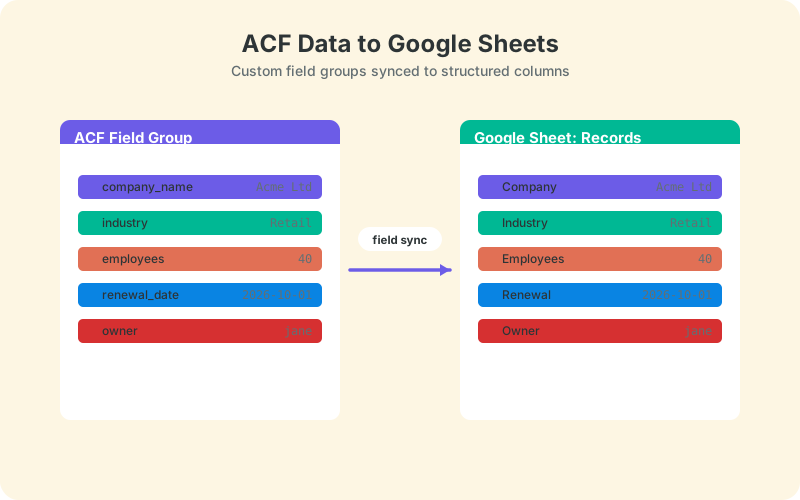
Yes. Advanced Custom Fields data can be synced to Google Sheets automatically, with each ACF field landing in its own named column - including submissions from front-end forms built with acf_form. With 2,000,000+ active installations (WordPress.org, 2026), ACF is the standard way WordPress sites store structured content.
The problem is where that structure ends up: scattered across postmeta, visible only through the WordPress editor, one entry at a time. The moment you want to compare a hundred listings, audit which entries are missing a phone number, or hand a client a filterable dataset, the editor stops being the right tool.
This guide covers how the ACF sync works, how front-end acf_form submissions flow through it, how to design your sheet columns, and three use cases where it pays off immediately: directories, property listings, and structured content audits.
Why Move Structured Fields into a Spreadsheet?
Because ACF data is already tabular - it just is not stored anywhere you can treat it that way. Every field group is effectively a schema: name, address, price, category. A spreadsheet is the natural read model for that schema, and per EBSCO's research, 47-64% of companies run planning work in stand-alone spreadsheets (EBSCO, 2025).
In a sheet, structured fields become sortable, filterable, and countable. You can spot every listing missing an image field, sort a directory by city, or chart entries per category - none of which the WordPress admin does well.
It also changes who can work with the data. Editors, clients, and virtual assistants can review and flag rows in Google Sheets without a wp-admin account, without a staging site, and without anyone explaining what postmeta is.
The alternative approaches all have sharp edges. Manual CSV exports go stale the day they are created. Custom WP_Query scripts need a developer for every new question. A live sync removes both problems: the sheet is always current, and every new question is a filter someone non-technical can build.
How Does the ACF Add-On Source Work?
The ACF source is a paid add-on for the free SheetLink Forms plugin. It takes ACF field data and delivers it to your Google Sheet as structured columns - one field, one column - over whichever connection you set up: the one-click Google Sheets connect (the default since v1.12.0) or a classic Apps Script receiver you deploy in your own Google account.
That architecture matters. Data goes from your server straight to your spreadsheet: no Zapier tasks, no per-row middleman, and no Google Cloud project or API keys. One-click connect uses the drive.file scope, so it can only touch the spreadsheets you pick or create; the classic receiver runs under your own Google account with no OAuth at all.
ACF sits alongside the other add-on sources - WooCommerce, user registrations, MemberPress, LearnDash, Easy Digital Downloads - on top of the 12 form plugins supported in the free core. The form integrations documentation explains the source-and-destination model, and the add-ons page lists what each source covers.
Does It Capture Front-End acf_form Submissions?
Yes. Forms built with ACF's acf_form on the front end - the classic pattern for user-submitted listings, profiles, and applications - flow through the same sync. When a visitor submits, the entry's fields are delivered to your sheet as a new structured row.
This is where the sync gets genuinely powerful. A user-submitted directory entry or property listing no longer waits invisibly in the admin queue; it appears in the spreadsheet your moderation workflow already lives in, with every field in its own column, ready to review.
Because each field keeps its identity, your review columns stay meaningful. A missing value shows up as an empty cell in a named column, not a blob of serialized text - which makes quality control a filter, not an archaeology project.
How Do You Set Up ACF to Google Sheets?
Setup takes a few minutes: install the free plugin, connect a sheet, add the ACF source, and map fields to columns. After that, entries sync as they are created or submitted.
- Install and activate SheetLink Forms from the WordPress.org plugin directory.
- Connect your Google Sheet: click Connect Google in the setup wizard, approve the consent screen, and pick or create a spreadsheet in the Google file picker - about a minute. (Prefer a fully self-hosted setup? Deploying the classic Apps Script receiver in your own Google account is still fully supported.)
- Add the ACF add-on source.
- Choose which field group's data should sync and pick the destination sheet and tab.
- Map each ACF field to a column header.
- Create or submit a test entry and confirm the row appears with every field in the right column.
Reliability is built in: failed deliveries enter an automatic retry queue with exponential backoff, with a manual Retry Now and a delivery log, so a temporary outage never silently drops an entry.
How Should You Design Your Sheet Columns?
One field, one column, stable headers. Match your column headers to your ACF field names, freeze the header row, and never reorder synced columns once rows are flowing. Add working columns - reviewer, status, notes - to the right of the synced ones.
A few habits keep the sheet trustworthy as it grows. Keep raw synced data in one tab and build reports in another; formulas that live inside the data tab break the moment rows land above them. Use consistent formats for dates and numbers so sorting behaves.
Structured data is only as good as its hygiene. Data validation rules, duplicate checks, and normalization formulas catch bad entries early - the toolkit in cleaning WordPress data in Google Sheets with validation applies to ACF rows exactly as it does to leads.
What About Personal Data? PII Export Is Opt-In
Personal data does not sync unless you turn it on. PII export is opt-in, so fields like email addresses and phone numbers stay out of the sheet until you deliberately enable them - the right default for directories and listings that mix public and private fields.
Think of each field group in two halves. Public-facing fields - business name, category, city, price - are safe to sync freely. Contact and identity fields deserve a decision: do you actually need them in the spreadsheet, and who can see the sheet if you do?
When you do enable PII columns, restrict the sheet's sharing settings, keep the columns minimal, and fold the sheet into your data inventory. Opt-in defaults keep the easy path the compliant path.
Use Case: Business and Member Directories
Directories are the canonical ACF project: a custom post type plus a field group for name, category, address, website, and hours. Synced to a sheet, the whole directory becomes one filterable table - which is how directory maintenance actually gets done.
Sort by category to find thin sections. Filter empty cells to find entries missing a website or logo. Count rows per city to see coverage. When a client asks how many plumbers are listed in Columbus, the answer is a filter, not a database query.
A sheet-based directory is also the natural staging ground for enrichment: appending firmographic data next to each entry turns a listings table into a research asset. The workflow in auto-enriching WordPress data in Google Sheets with company data maps directly onto directory rows.
Use Case: Property Listings
Property sites live and die by structured fields: price, bedrooms, bathrooms, square footage, status. Synced to a sheet, listings become an inventory you can actually manage - sortable by price, filterable by status, and shareable with agents who will never log into WordPress.
Front-end submissions fit naturally here too. If agents or owners submit listings through an acf_form, each submission arrives as a review-ready row: empty required cells are instantly visible, and a status column tracks each listing from submitted to approved to published.
The sheet also becomes the pricing conversation. Sort by price per square foot to spot outliers, filter by days-on-market once you add a date column, and share a view-only link with a client instead of screenshotting the WordPress admin. None of that requires touching the live site.
Agencies running listing sites for multiple clients can take this further by pointing several sites at one master workbook, one tab per site. The architecture in centralizing WordPress multisite forms into one Google Sheet shows how that consolidation works in practice.
Use Case: Structured Content Audits
A structured content audit asks: which entries are complete, current, and correct? With every ACF field in its own column, the audit is a set of filters - blank-cell checks for completeness, date sorts for staleness, and category counts for balance.
For bigger audits, the QUERY function turns the raw tab into living reports: entries per category, oldest unreviewed rows, completion rates by field. The patterns in Google Sheets QUERY reports for WordPress data work unchanged on ACF columns.
One planning note for large datasets: a Google Sheets file caps out at 10 million cells (Google Drive Help). A 20-column sync supports hundreds of thousands of rows before that matters, but audit sheets accumulate - archive closed rows to a separate file once an audit cycle ends.
Next Steps
Pick one field group and sync it this week. Install the free plugin, connect a sheet, add the ACF source, and map a handful of fields - a test entry should appear as a structured row within seconds.
Start with public fields only, keep PII opt-outs in place, and add working columns for whatever process the data feeds: moderation, auditing, or client review. Once the first field group is flowing, extending to a full directory or listings inventory is just more mapping. Your structured content finally becomes data you can filter, count, and share - not postmeta you can only open one entry at a time.
Frequently Asked Questions
Is the ACF integration free?
The core SheetLink Forms plugin is free, and the ACF source is a paid add-on on top of it. Add-ons are sold monthly or lifetime, individually or in bundles - the add-ons page lists current options rather than quoting prices that may change.
Does it capture front-end acf_form submissions?
Yes. Entries submitted through ACF's front-end acf_form flow into the sheet the same way as admin-created entries, with each field in its own column. That makes user-submitted directories and listings reviewable in the spreadsheet instead of the admin queue.
Are personal data fields exported automatically?
No. PII export is opt-in, so emails, phone numbers, and similar fields stay out of the sheet until you deliberately enable them. Public fields like names, categories, and prices can sync freely while contact details remain in WordPress by default.
Do I need Google API keys or OAuth for the sync?
No API keys or Google Cloud project either way. The default one-click Google connect just needs a standard consent screen, and its drive.file scope limits access to the spreadsheets you pick or create. If you want no OAuth at all, deploy the classic Apps Script receiver in your own Google account instead. Row data never passes through a third-party processor on either delivery path (the optional AI add-ons are the disclosed exception).
What happens if a sync to Google Sheets fails?
Failed deliveries enter an automatic retry queue with exponential backoff, and you can trigger a manual Retry Now from the delivery log once the issue clears. The log shows every delivery and its status, so nothing disappears silently.
How much ACF data can one Google Sheet hold?
A Google Sheets file supports up to 10 million cells, per Google Drive Help. With a 20-column ACF sync that is room for hundreds of thousands of rows - plenty for most directories, though long-running audit sheets should archive closed rows periodically.
Can multiple sites sync ACF data into one sheet?
Yes. Agencies commonly point several client sites at one master workbook, typically one tab per site, to get a consolidated view of directories or listings. Conditional routing can also split rows by field value into different tabs.
Can I validate or clean ACF data once it is in the sheet?
Yes, and you should. Data validation rules, duplicate checks, and normalization formulas in Google Sheets catch incomplete or inconsistent entries early. Keep raw synced data in one tab and run cleaning and reporting in separate tabs so formulas survive new rows.
More Tutorial guides
Sync ACF Fields to Google Sheets Automatically
Turn structured ACF data into clean spreadsheet columns in real time - no Zapier tasks, no per-row fees, no manual exports.