
9 Google Sheets Formulas Every WordPress Lead Sheet Needs
Your WordPress forms can fill a Google Sheet in real time. These nine formulas turn that raw feed into a self-updating lead tracker with counts, dedup, and live charts.
In This Guide
- Why Your Lead Sheet Needs Formulas, Not Just Rows
- How Do You Filter and Sort Leads Automatically With QUERY?
- How Does ARRAYFORMULA Apply Logic to Every New Row?
- How Do You Count Leads by Source With COUNTIF?
- What Does UNIQUE Do for Messy Lead Data?
- How Do XLOOKUP and VLOOKUP Enrich Each Lead?
- How Do You Format Submission Dates With TEXT?
- Can REGEXMATCH Validate and Flag Bad Leads?
- How Does SPARKLINE Show Lead Trends in One Cell?
- How Do You Deduplicate Leads in Google Sheets?
- Putting It All Together on a Self-Filling Sheet
- Frequently Asked Questions
Why Your Lead Sheet Needs Formulas, Not Just Rows
Spreadsheets are error-prone. Up to 88% of audited spreadsheets contain errors, with an average cell error rate near 3.9% (Panko (2008)). A raw lead dump invites mistakes, manual counts, copy-paste typos, and duplicate rows nobody catches.
Formulas fix that. When your forms feed the sheet in real time, the right formula does the counting, lookups, and cleanup automatically. You stop maintaining the sheet and start reading it.
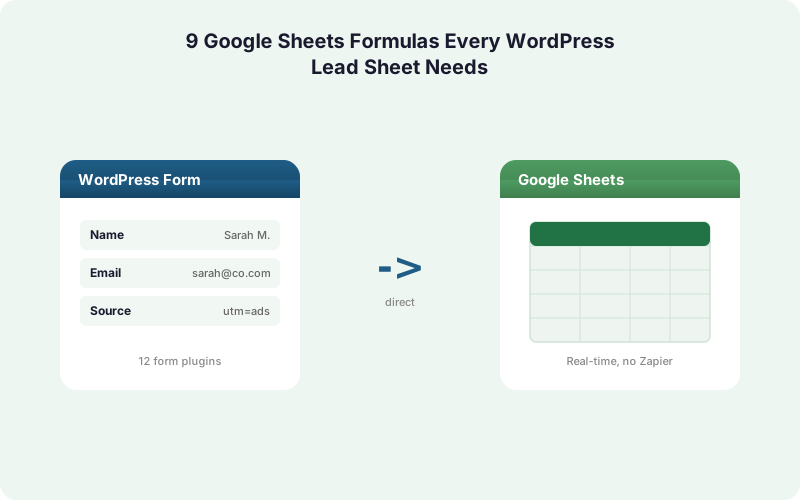
This guide assumes the rows arrive on their own. SheetLink Forms writes each WordPress submission straight to Google Sheets within a second or two, no Zapier task fees in between. Set up the feed once using our Google Sheets setup guide, then layer these nine formulas on top. Every example below works on a live, growing lead sheet.
How Do You Filter and Sort Leads Automatically With QUERY?
QUERY is the single most powerful formula for a lead sheet. It runs a SQL-style query across your data, filtering, sorting, and aggregating in one cell, and it updates the instant a new submission lands. With Google Sheets supporting up to 10,000,000 cells per spreadsheet (Google Workspace Updates (2022)), QUERY scales well past a busy form.
Say your raw feed lands in a tab called Submissions with columns A (timestamp), B (name), C (email), D (source). To build a live view of only this month's leads from paid traffic, sorted newest first:
=QUERY(Submissions!A:D, "SELECT A, B, C WHERE D = 'paid' AND A >= date '2026-06-01' ORDER BY A DESC", 1)
The result is a self-refreshing table. No filter views to reset, no manual sorting. Point your team at the QUERY tab and let the raw feed stay untouched. This pairs naturally with conditional routing, where forms tag each submission before it ever reaches the sheet.
How Does ARRAYFORMULA Apply Logic to Every New Row?
ARRAYFORMULA solves the biggest problem with an auto-filled sheet, formulas that don't follow new rows. When SheetLink Forms appends a submission, a normal formula in column E only covers the rows you dragged it down to. ARRAYFORMULA applies your logic to an entire column at once, so row 5,000 gets the same treatment as row 5.
Put this once in the header cell of a helper column to combine first and last name across every row, present and future:
=ARRAYFORMULA(IF(A2:A="", "", B2:B & " " & C2:C))
The IF(A2:A="", "", ...) guard keeps empty rows blank so you don't get a column of trailing junk. Use the same pattern to normalize phone numbers, flag form types, or compute a lead age. One formula, zero maintenance, even as the sheet grows by hundreds of rows a week.
How Do You Count Leads by Source With COUNTIF?
COUNTIF turns a wall of rows into a real metric. It counts how many cells in a range match a condition, which is exactly what you need to track leads per source, per campaign, or per status without a pivot table. Because WordPress powers around 43% of all websites (W3Techs (2026)), most lead sheets start with WordPress form data, and source attribution is usually the first question owners ask.
To count how many submissions came from Google Ads, where column D holds the source:
=COUNTIF(Submissions!D:D, "google")
For multiple conditions, like paid leads this month, switch to COUNTIFS:
=COUNTIFS(Submissions!D:D, "paid", Submissions!A:A, ">="&DATE(2026,6,1))
Build a small summary block of these counts at the top of a dashboard tab. Combined with the UTM and click-ID data your forms capture, this becomes live marketing attribution you can trust.
What Does UNIQUE Do for Messy Lead Data?
UNIQUE collapses repeated values into a clean list, which is essential when many leads share a company, a campaign, or a referrer. With Google Workspace used by 10M+ businesses (Google Workspace Blog (2025)), shared sheets are everywhere, and a tidy distinct list saves everyone from scrolling thousands of duplicate-looking rows.
To pull every distinct lead source that has ever appeared in column D:
=UNIQUE(Submissions!D2:D)
That single cell becomes a self-maintaining legend. The moment a form sends a new source value, it appears here automatically. Wrap it to feed a dropdown or a COUNTIF summary:
=SORT(UNIQUE(Submissions!D2:D))
UNIQUE is read-only, it never edits your raw data. Pair it with COUNTIF beside each value and you have an instant breakdown of volume by source, no manual category list to maintain as new campaigns launch.
How Do XLOOKUP and VLOOKUP Enrich Each Lead?
XLOOKUP (and the older VLOOKUP) pull related data into your lead sheet from another tab, turning a bare submission into an enriched record. This is how you attach a sales rep, a region, or a plan tier to each lead without re-typing anything. Given that spreadsheets carry roughly a 3.9% cell error rate from manual entry (Panko (2016)), a lookup is far safer than copy-paste enrichment.
Suppose a tab named Reps maps a lead source (column A) to an owner (column B). To assign an owner for the source in cell D2:
=XLOOKUP(D2, Reps!A:A, Reps!B:B, "Unassigned")
The fourth argument, "Unassigned", prevents ugly N/A errors when a source has no match. XLOOKUP also searches left or right and from the bottom up, which VLOOKUP cannot. If your team still uses VLOOKUP, the equivalent is =VLOOKUP(D2, Reps!A:B, 2, FALSE). Wrap either in ARRAYFORMULA to enrich every row at once.
How Do You Format Submission Dates With TEXT?
TEXT converts a raw timestamp into a clean, readable date or a groupable label, which matters because form submissions arrive with full date-time precision. A raw value like 6/15/2026 14:32:09 is hard to group or read. TEXT reshapes it into exactly the format your reports need, and it never alters the underlying timestamp.
To show a friendly date from a timestamp in A2:
=TEXT(A2, "mmm d, yyyy")
To group leads by month for a trend report, strip the day entirely:
=TEXT(A2, "yyyy-mm")
That yyyy-mm output sorts correctly and feeds straight into a COUNTIF or pivot for monthly volume. Wrap it in ARRAYFORMULA to label every row automatically:
=ARRAYFORMULA(IF(A2:A="", "", TEXT(A2:A, "yyyy-mm")))
Clean date labels are the backbone of any time-series view, so this small formula does heavy lifting in the dashboards you build on top of the feed.
Can REGEXMATCH Validate and Flag Bad Leads?
REGEXMATCH tests whether a cell matches a pattern and returns TRUE or FALSE, making it the fastest way to flag invalid emails, spam, or free-mail addresses. Form fields get fat-fingered constantly, and with up to 88% of spreadsheets carrying errors (Panko (2008)), automated validation beats manual eyeballing every time.
To flag rows where the email in C2 is not a valid address shape:
=ARRAYFORMULA(IF(C2:C="", "", IF(REGEXMATCH(C2:C, "^[^@]+@[^@]+\.[^@]+$"), "OK", "CHECK")))
To single out free-mail leads versus business domains, useful for B2B scoring:
=REGEXMATCH(LOWER(C2), "gmail|yahoo|hotmail|outlook")
A TRUE here means a personal inbox; FALSE often signals a real company. Drop these flags into a helper column and your QUERY view can filter them out, so junk submissions never pollute the numbers your team reports on.
How Does SPARKLINE Show Lead Trends in One Cell?
SPARKLINE draws a tiny inline chart inside a single cell, giving you an at-a-glance trend without building a full chart object. For a lead sheet that updates in real time, it's the simplest way to see whether submissions are rising or falling. There's no source statistic for charts, so treat this as a practical pattern: feed it a row of weekly or daily counts.
If cells B2:H2 hold the last seven days of lead counts, this draws a line trend:
=SPARKLINE(B2:H2, {"charttype","line";"color","#2563eb"})
For a volume-by-source bar in one cell, use the column variant:
=SPARKLINE(B2:H2, {"charttype","column"})
Place one SPARKLINE per source row beside its COUNTIF total and you get a compact dashboard, totals on the left, trend on the right. It refreshes the moment new counts roll in, so a live form feed becomes a live mini-chart with zero clicks.
How Do You Deduplicate Leads in Google Sheets?
Duplicate leads waste sales time and inflate every count. Deduplication in Google Sheets is best done with formulas so it stays automatic on a live feed, rather than a one-time Remove Duplicates click that misses tomorrow's rows. Given the ~3.9% cell error rate typical of spreadsheets (Panko (2016)), catching repeat emails programmatically protects your data quality.
To get a clean list of distinct emails, UNIQUE on the email column does it instantly:
=UNIQUE(Submissions!C2:C)
To flag duplicates in place so you can see which rows repeat, use COUNTIF as a running counter:
=ARRAYFORMULA(IF(C2:C="", "", IF(COUNTIF(C$2:C2, C2:C)>1, "DUP", "")))
Any row marked DUP is a second-or-later appearance of that email. Your QUERY view can then filter to first-touch leads only. For a deeper, hands-off approach, see our guide on how to deduplicate leads automatically as they arrive.
Putting It All Together on a Self-Filling Sheet
These nine formulas only earn their keep when the rows arrive on their own. A formula-driven dashboard is useless if you're still pasting leads in by hand each morning. The whole point is a sheet that fills itself in real time, then reports on itself with QUERY, COUNTIF, UNIQUE, and SPARKLINE.
That's the gap most spreadsheet tutorials skip. They show you the formulas but not the ingestion. SheetLink Forms closes it by writing each WordPress submission directly to Google Sheets, no middleware, no per-task fees like Zapier's metered model (Zapier pricing (2026)). The free version on 17 supported form plugins handles the feed; the formulas above handle the rest.
If your team is moving toward Microsoft 365, the same formula thinking applies. Excel Online and Google Sheets both support QUERY-style logic, and SheetLink can deliver to Excel too. Start with the feed, then build the live tracker your sales team will actually open every day.
| Formula | What It Does for Leads | Auto-covers New Rows |
|---|---|---|
| QUERY | Filter, sort, and aggregate leads in one cell | Yes (whole-column range) |
| ARRAYFORMULA | Applies any formula down a full column | Yes (by design) |
| COUNTIF / COUNTIFS | Counts leads by source, status, or date | Yes (whole-column range) |
| UNIQUE | Lists distinct sources or emails, no dups | Yes (open range) |
| XLOOKUP / VLOOKUP | Enriches each lead with owner or region | Yes (inside ARRAYFORMULA) |
| TEXT | Formats and groups submission dates | Yes (inside ARRAYFORMULA) |
| REGEXMATCH | Validates emails, flags spam or free-mail | Yes (inside ARRAYFORMULA) |
| SPARKLINE | Draws a trend chart inside one cell | Refreshes on new counts |
Frequently Asked Questions
Will these formulas keep working as new leads are added?
Yes, if you write them correctly. QUERY, UNIQUE, and COUNTIF reference whole columns like D:D, so they cover future rows automatically. Wrap row-by-row formulas in ARRAYFORMULA so they apply to every new submission your WordPress forms append without dragging anything down.
Do I need any add-on to use QUERY or ARRAYFORMULA?
No. QUERY, ARRAYFORMULA, COUNTIF, UNIQUE, XLOOKUP, TEXT, REGEXMATCH, and SPARKLINE are all built into Google Sheets at no cost. Google Sheets supports up to 10,000,000 cells per spreadsheet, so these formulas scale to large lead sheets without any premium tier.
How fast do leads reach the sheet for the formulas to act on?
With SheetLink Forms, each submission writes to Google Sheets within a second or two of the form being submitted. Because the formulas recalculate the moment a row lands, your counts, lookups, and SPARKLINE trends update in near real time, no scheduled poll or sync delay.
What's the difference between XLOOKUP and VLOOKUP for leads?
Both pull related data into your lead sheet. XLOOKUP is newer, searches in any direction, and lets you set a default like "Unassigned" for no-match cases. VLOOKUP only searches left to right and needs a column index. For new sheets, prefer XLOOKUP for cleaner, safer enrichment.
How do I stop duplicate leads from skewing my counts?
Use UNIQUE for a clean distinct list, or flag repeats with a running COUNTIF that marks any second appearance as DUP. Then filter your QUERY view to first-touch leads only. Since around 3.9% of spreadsheet cells carry errors, automated dedup beats manual cleanup.
Can REGEXMATCH catch spam or fake form submissions?
It catches malformed emails and lets you separate free-mail addresses from business domains, which often signals lower-quality leads. REGEXMATCH returns TRUE or FALSE against a pattern. Combine it with a helper column and QUERY filter so flagged rows never pollute the numbers your team reports on.
Do these formulas work in Excel Online too?
Most do, with minor syntax changes. Excel Online supports XLOOKUP, COUNTIF, TEXT, and UNIQUE, though QUERY is Google-specific. SheetLink Forms can deliver submissions to Excel Online via Microsoft Graph, so the same self-filling-sheet pattern works whether your team uses Google or Microsoft 365.
Why use formulas instead of just exporting leads to a CRM?
Many small teams still run leads in spreadsheets because it's free and flexible. Formulas give you live counts, dedup, and trends without per-seat CRM costs. When you outgrow the sheet, SheetLink can fan the same submissions out to a CRM alongside Google Sheets simultaneously.
More Tutorial guides
Let Your Lead Sheet Fill Itself
SheetLink Forms writes every WordPress submission straight to Google Sheets in real time, no Zapier task fees. Build your formulas once and let the rows arrive on their own.