
Beaver Builder Form to Google Sheets: Direct Setup
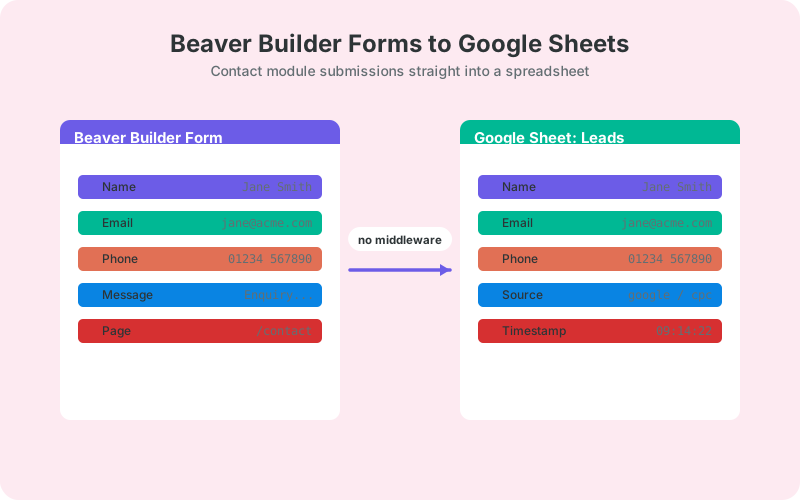
Beaver Builder's Contact Form module can deliver every submission straight to a Google Sheet, even on the free Lite version. Setup, clean field naming, page URL capture for multi-page sites, and retry protection, all covered here.
In This Guide
- Can Beaver Builder Forms Send Submissions to Google Sheets?
- What Does the Contact Form Module Actually Give You?
- Why Move Beaver Builder Leads Into a Spreadsheet?
- What Are Your Options for Connecting Beaver Builder to Google Sheets?
- How Do You Set Up the Direct Connection?
- How Should You Set Up Fields for Clean Columns?
- How Do You Capture the Page URL on Multi-Page Sites?
- What Retry Protection Do You Get?
- How Does Beaver Builder Compare to Other Builders for Sheets Delivery?
- What Should You Do Once Leads Land in the Sheet?
- Next Steps
- Frequently Asked Questions
Can Beaver Builder Forms Send Submissions to Google Sheets?
Yes. The Contact Form module in Beaver Builder, including the free Lite version active on 100,000+ WordPress sites (WordPress.org, 2026), can deliver every submission to a Google Sheet in real time. No Zapier, no CSV wrangling, and no code.
That matters because Beaver Builder's form story is minimal by design. The module emails submissions and moves on, which is fine until a lead lands in spam or gets archived by the wrong person. A spreadsheet gives every submission a permanent row that the whole team can see.
This guide covers the direct Beaver Builder form to Google Sheets connection: how the Contact Form module works, the setup steps, how to keep columns clean across many page instances, how to capture the page URL on multi-page sites, and what protects deliveries when Google briefly does not respond.
What Does the Contact Form Module Actually Give You?
Beaver Builder's Contact Form module ships with name, subject, email, phone, and message fields that you toggle on or off per instance. It is deliberately simple: drop it into any row, style it to match the page, set a destination email address, and publish. There is no separate form builder screen to learn.
The email-only default is the catch. Out of the box, Beaver Builder does not store submissions in a database view you can browse later. If the notification email bounces, lands in spam, or gets deleted, the lead is simply gone. There is no admin screen to recover it from.
That is the gap a spreadsheet closes. Every submission becomes a timestamped row in a sheet your sales or support team already knows how to sort, filter, and share, independent of anyone's inbox habits.
Why Move Beaver Builder Leads Into a Spreadsheet?
Because leads are scarce and inboxes lose them. The average form converts just 1.7% of visitors, per WPForms' research roundup, 2024, so each submission represents dozens of visits' worth of marketing effort. A shared sheet gives the team one place to see, assign, and follow up on every one of them.
The same roundup notes that roughly a third of people who start a form abandon it before finishing. The visitors who actually complete your Beaver Builder form are your warmest prospects, which makes silently losing even one of them to a spam filter genuinely expensive.
A spreadsheet also unlocks measurement that email cannot: leads per week per landing page, response times, and follow-up status, all visible in one screen instead of scattered across mailboxes.
This is hardly exotic. Between 47 and 64% of companies still run planning and budgeting on stand-alone spreadsheets (EBSCO, 2025), so a sheet is where this data was heading anyway. Direct delivery just removes the manual step.
What Are Your Options for Connecting Beaver Builder to Google Sheets?
Three realistic options exist: leave the module on email and copy leads into a sheet by hand, relay submissions through middleware like Zapier or Make, or install a WordPress plugin that posts each submission directly to your sheet. For an active site, the direct route is the cheapest and fastest.
Hand-copying fails the moment anyone gets busy, and it destroys the timestamp accuracy you need for response-time tracking. Middleware works but adds a meter and a middleman: Zapier's Professional plan starts at $19.99 per month billed annually (Zapier, 2026), every submission consumes tasks, and your lead data transits a third-party processor before reaching Google.
A direct plugin connection is free for core Sheets delivery, fires in real time on the submit event, and keeps the data path between your WordPress server and your own Google account. The table on this page compares all three.
How Do You Set Up the Direct Connection?
The free SheetLink Forms plugin supports Beaver Builder as one of its 12 major form plugin integrations, so setup is configuration, not code. Since v1.12.0 the fastest route is one-click Google Sheets connect - no Google Cloud project and no API keys, just SheetLink's own verified Google app with the drive.file scope, so it only sees the spreadsheets you pick or create.
- Install and activate SheetLink Forms from WordPress.org.
- In the setup wizard, choose the "Connect Google (one click)" card: click Connect Google, approve the consent screen, and pick or create your spreadsheet in the Google file picker. (Prefer the classic self-hosted route? Deploy the small Apps Script receiver into your own Google account instead - no OAuth involved, and still fully supported.)
- Create a delivery rule and select Beaver Builder as the source.
- Map the module's fields to columns - headers that match field names map automatically.
- Submit a test entry from the live page and watch the row appear within seconds.
The full walkthrough with screenshots is in the getting started guide, and version notes live on the Beaver Builder integration page.
How Should You Set Up Fields for Clean Columns?
Keep the same field toggles on every Contact Form module across your site, and your sheet stays clean automatically. Column headers come from the module's fields, so when every instance exposes the same set, every page writes into identical columns and one tab can hold leads from the entire site.
Inconsistency does not break anything, but it costs you readability. If the pricing page enables the phone field and the services page does not, phone cells from the services page arrive blank. Filters still work; the sheet just looks patchier than it needs to.
A practical rule: decide once which fields your sales process actually needs, apply that toggle set to every module instance, and resist per-page experiments. The WPForms roundup cited above found that cutting a form from four fields to three lifted conversion by around 50% in one test, so fewer fields helps the visitor and the spreadsheet at the same time.
How Do You Capture the Page URL on Multi-Page Sites?
Beaver Builder sites typically reuse one contact module across many landing pages, so knowing which page produced each lead is the difference between attribution and guessing. The direct connection solves this without touching the form: the submitting page's URL is appended to each row automatically as metadata, alongside a timestamp.
That means no hidden fields to add and no per-page configuration to maintain. Duplicate a landing page, and its leads arrive already labeled with the new URL.
Paid traffic gets the same treatment. UTM and click-ID values such as _utm_source and _gclid are appended to rows automatically, so you can pivot leads by campaign, ad group, and landing page in the same sheet without any tagging work inside Beaver Builder itself.
What Retry Protection Do You Get?
Every failed delivery lands in a retry queue rather than disappearing. If Google is briefly unreachable or your server's outbound request times out, the submission is retried automatically with exponential backoff, a delivery log records each attempt, and a manual Retry Now button handles anything that stays stuck.
This is the same pattern professional webhook infrastructure uses. Svix's default policy retries failed deliveries 8 times over roughly 28 hours before giving up (Svix docs), and Hookdeck's published best practice is exponential backoff with jitter across 6 to 8 attempts over 24 to 48 hours (Hookdeck, 2025).
For a form module that otherwise depends entirely on email deliverability, this is the biggest reliability upgrade in the whole setup: the sheet either has the lead or shows you exactly why not.
How Does Beaver Builder Compare to Other Builders for Sheets Delivery?
Beaver Builder sits at the simple end of the builder-form spectrum: a fixed field set, quick to deploy, easy to keep consistent. Divi's contact form allows custom fields and IDs, and Bricks takes a more developer-oriented approach. The full comparison, including field mapping quirks for each, is in Beaver Builder vs Divi vs Bricks for Google Sheets.
If your lead capture outgrows name-email-phone-message, the usual move is to keep Beaver Builder for layout and add a dedicated form plugin for the complex forms. Multi-step flows in particular are covered in multi-step forms to Google Sheets.
The delivery path stays identical either way, so you can mix builder-native modules and form-plugin forms feeding the same spreadsheet, one rule per form.
What Should You Do Once Leads Land in the Sheet?
Turn the raw rows into a follow-up system. Add a status column with data validation (New, Contacted, Won, Lost), a contacted-at column, and conditional formatting that highlights any lead older than 24 hours with no contact. That takes about ten minutes and requires no scripts.
Because every row already carries an accurate submission timestamp, you can measure how fast your team actually responds and put a number on it week over week. The formulas and layout for that are in tracking lead response time in Google Sheets.
With page URLs on every row, a simple pivot of leads by landing page tells you which Beaver Builder pages earn their traffic, which is exactly the input you need before building the next one.
Next Steps
The setup order that works: standardize the field toggles on every Contact Form module, install the plugin, connect Google (one click, or deploy the classic receiver into your own Google account), and create one delivery rule for your form. Send a test from a live page and confirm the row carries the page URL and timestamp.
From there, add the status and response-time columns, and let the retry queue worry about delivery. If you are starting completely from scratch, the broader walkthrough at WordPress forms to Google Sheets without code covers the same flow for any form setup.
| Email inbox (default) | Zapier / Make | Direct plugin | |
|---|---|---|---|
| Where leads live | Scattered emails | Sheet, via relay | Sheet, one row each |
| Delivery timing | Instant but unstructured | Minutes, task-metered | Real time |
| Monthly cost | Free | From $19.99/mo (Zapier annual) | Free core plugin |
| Page URL capture | Manual | Extra mapping steps | Appended automatically |
| Failure handling | Spam folder roulette | Plan-dependent replays | Retry queue with backoff |
Frequently Asked Questions
Does the free Beaver Builder Lite version include the Contact Form module?
Yes. The Contact Form module ships in Beaver Builder Lite, which is active on 100,000+ WordPress sites. You can place it on any row, toggle its name, phone, and subject fields per instance, and connect it to Google Sheets exactly the same way as the paid version.
Does Beaver Builder store form submissions in the WordPress database?
Out of the box, no. The Contact Form module sends each submission to an email address rather than saving it to a browsable list, so a lost email means a lost lead. That is exactly why routing submissions into a Google Sheet matters: every lead gets a permanent, shareable row.
Can I connect Beaver Builder to Google Sheets without Zapier?
Yes. A direct WordPress plugin appends each submission to your sheet in real time - either through one-click Google Sheets connect or through a Google Apps Script receiver deployed in your own Google account. There are no middleware tasks to pay for, and no per-submission middleman sits between your site and your spreadsheet.
How do I know which landing page a Beaver Builder lead came from?
The submitting page's URL is appended to each row automatically as metadata, along with a timestamp, so no hidden fields are needed. UTM and click-ID values like _utm_source and _gclid are appended too, which makes per-campaign and per-page pivots possible from one sheet.
What happens if a submission fails to reach Google Sheets?
It enters a retry queue and is redelivered automatically with exponential backoff, so brief outages resolve themselves. A delivery log shows every attempt, and a manual Retry Now option covers stubborn failures. Webhook best practice is 6 to 8 attempts over 24 to 48 hours, and this follows that pattern.
Can several Beaver Builder forms feed one spreadsheet?
Yes. Keep the same field toggles on each Contact Form module and every page writes into identical columns, so one tab can hold leads from the whole site. If forms serve different purposes, give each its own tab or sheet with a separate delivery rule instead.
Do I need a Google API key to connect Beaver Builder to Sheets?
No. There are no API keys to create and no Google Cloud project to configure. One-click Google connect uses SheetLink's own verified app with a standard consent screen and the drive.file scope, while the classic Apps Script receiver runs in your own Google account with no OAuth at all - WordPress only needs the receiver's web address to deliver rows.
Can I capture UTM parameters with Beaver Builder forms?
Yes, automatically. UTM and click-ID parameters such as _utm_source, _utm_campaign, and _gclid are appended to each row without adding hidden fields to the Contact Form module. That gives you ad and campaign attribution on every lead with zero changes inside Beaver Builder.
More Tutorial guides
Put every Beaver Builder lead in a Google Sheet
SheetLink Forms delivers Beaver Builder submissions straight to your own sheet - free plugin, no Zapier, no per-task fees.