
MemberPress to Google Sheets: Live Membership Register
New signups, plan changes, and cancellations appended to one sheet in real time. Add churn-watch columns and follow-up automation, and you have membership ops without another SaaS dashboard.
In This Guide
- Membership Ops in One Sheet
- Why a Sheet Instead of Another Dashboard Tool?
- Which Membership Events Belong in the Register?
- How Do Events Get From MemberPress to the Sheet?
- Setting Up the MemberPress Add-On
- What Do Churn-Watch Columns Look Like?
- How Do You Pair the Sheet With Follow-Up Emails?
- How Do You Keep the Numbers in Front of You?
- What a Month of Sheet-Based Ops Looks Like
- Start With Three Event Types
- Frequently Asked Questions
Membership Ops in One Sheet
You can run day-to-day membership operations from a single Google Sheet: every new MemberPress signup, plan change, and cancellation appended as a row, seconds after it happens. That matters because the alternative is usually buying yet another dashboard tool, and 36% of SaaS licenses already go unused (Zylo, 2026).
This guide sets up the live member register, then makes it operational: churn-watch columns that flag at-risk members automatically, follow-up email automation triggered from the sheet, and a weekly digest so the numbers reach your inbox instead of waiting to be checked. No new subscription, no new login - the whole stack is your membership plugin, your site, and a spreadsheet in your own Google Drive.
Why a Sheet Instead of Another Dashboard Tool?
Because the median company already spends $9,455 per employee per year on SaaS while 36% of purchased licenses sit unused (Zylo 2026 SaaS Management Index), and the average tech company pays for around 275 SaaS apps (SaaStr, 2026). A membership analytics subscription is exactly the kind of tool that ends up in the unused column.
For a solo creator or a small membership team, the actual daily questions are simple: who joined, who upgraded, who cancelled, and who looks likely to cancel next. None of those requires a dedicated platform. They require the events in one place and three or four formulas. If you genuinely outgrow that - genuinely, not aspirationally - you can graduate to a BI tool later and bring the entire event history with you.
There is a second benefit: the sheet is yours. Vendor dashboards show the metrics the vendor chose. Your register can carry a notes column, a churn-risk flag, or a "called them personally" checkbox - things no analytics product will ever ship for your specific business.
Which Membership Events Belong in the Register?
Three event types cover most membership operations: new signups, plan changes, and cancellations. Each lands as its own row with an event-type column, so the register reads as a timeline of your business rather than a static member list. A member list tells you where you are; the event timeline tells you how you got there, and only the second one supports churn analysis.
- Signup - member email, plan name, price, signup date, and coupon used if any
- Plan change - old plan, new plan, and date; upgrades and downgrades tell very different stories, so keep both directions
- Cancellation - plan, date, and tenure at cancellation if you can compute it from the signup row
Keep the register append-only. When you want a current-state member list, build it on a second tab with formulas that read the latest event per email address. Raw events stay untouched; interpretations live elsewhere. That split saves you on the day someone sorts the data tab and breaks everything.
How Do Events Get From MemberPress to the Sheet?
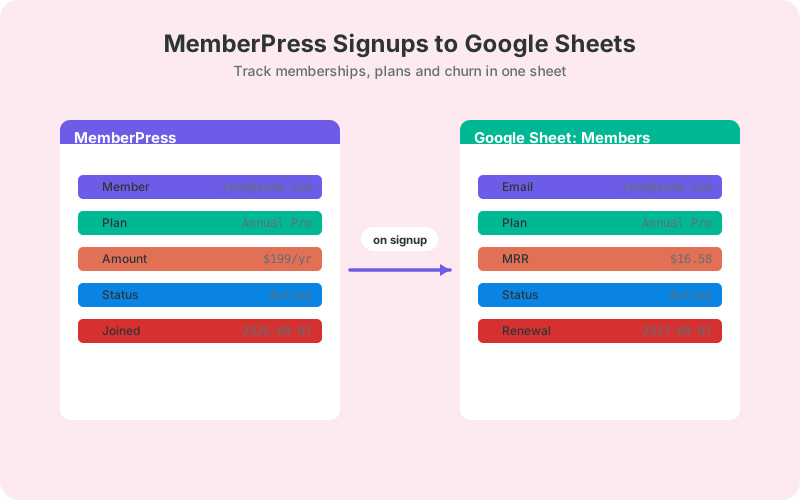
A plugin on your site listens for MemberPress membership events and posts each one straight to your sheet - through the one-click Google Sheets connection (v1.12.0) or a classic Google Apps Script web app deployed in your own Google account. There is no Zapier in the middle, no per-task metering, and no third-party processor handling member data in transit. MemberPress itself keeps working exactly as before; the integration only listens.
The MemberPress source is a paid add-on for the free SheetLink Forms plugin, whose free core already connects 12 major form plugins to Sheets. Failed deliveries go into an automatic retry queue with exponential backoff, which matters when the row you might lose is a cancellation you needed to act on.
Because members' personal data is involved, the ownership model is worth underlining: the sheet lives in your Drive and event payloads never transit a vendor's servers on the Sheets delivery path - with the classic method the receiver script runs entirely in your own Google account, and with one-click connect rows go straight from your server to the Google Sheets API.
Setting Up the MemberPress Add-On
Setup is a ten-minute job at most: install the free core, connect Google through the setup wizard, then activate the MemberPress add-on from the add-ons page and point it at your register tab.
- Install SheetLink Forms from WordPress.org and complete the wizard - the Connect Google (one click) card links your Google account in about a minute, or choose the classic Apps Script receiver deployed in your own Google account.
- Install and activate the MemberPress add-on.
- Create a rule for membership events and select your spreadsheet and tab.
- Map event fields: event type, member email, plan, amount, date.
- Run a test signup on a free or coupon-discounted plan and confirm the row lands.
Test the cancellation path too, not just signup. Cancel your test membership and check that the cancellation row appears with the right event type - it is the row your churn formulas depend on. If any column lands empty, fix the field map now, before real signups start flowing through it.
What Do Churn-Watch Columns Look Like?
Churn watch means adding computed columns that surface at-risk members before they cancel, using nothing but the event history you are already collecting. Three patterns cover most cases, and each is one formula per member on your current-state tab.
- Latest status - the most recent event type per email, so you always know who is currently active
- Downgrade flag - a plan change where the new plan is cheaper; downgrades are often cancellations on a delay
- Tenure at risk - days since signup for members who downgraded, because early downgrades behave differently from long-tenure ones
A simple latest-status lookup: =INDEX(Events!D:D, MAX(IF(Events!B:B = A2, ROW(Events!B:B)))) entered as an array formula, where column B holds emails and D holds event types. Add conditional formatting to turn downgrade rows amber and cancellation rows red, and the register becomes a triage board - the same idea as the pipeline board pattern for leads.
One caution: keep formulas off the raw events tab entirely. Computed columns live on the current-state tab, so an accidental fill-down can never overwrite an event you cannot recreate.
How Do You Pair the Sheet With Follow-Up Emails?
The register earns its keep when it triggers action, and email is the natural first action. A short Apps Script attached to the same spreadsheet can watch for new rows and send the right message for each event type: a welcome note on signup, a save-attempt on downgrade, an exit survey on cancellation.
The mechanics are covered step by step in our guide to automating follow-up emails from Google Sheets - the same pattern applies here, with event type standing in for lead status. Start with a single automation, the cancellation follow-up, because it has the clearest payoff: some cancellations are recoverable if you ask quickly and ask why.
Resist automating the downgrade save-attempt at first. A personal email from the founder, prompted by the amber row, converts that conversation far better than any sequence - and the sheet told you exactly whom to write to and when.
How Do You Keep the Numbers in Front of You?
Numbers you have to go look at eventually stop getting looked at. The fix is a scheduled digest: a short Apps Script time trigger that emails you Monday morning with new signups, cancellations, and net member change for the week, all computed from the register.
Our walkthrough on scheduling weekly digests from Google Sheets has the exact script pattern. For membership, three numbers are enough: joins, cancels, and the delta. If the delta is negative two weeks running, you want that fact arriving in your inbox, not waiting patiently in a tab.
Freshness cuts the other way too: registers rot when events silently stop flowing. The retry queue protects against transient failures, but check the delivery log after plugin updates anyway. The broader hygiene argument is in our piece on stopping CRM data decay - membership data decays for the same reasons lead data does.
What a Month of Sheet-Based Ops Looks Like
In practice the routine is light. Monday: read the digest, two minutes. During the week: glance at amber and red rows, send one or two personal emails where it seems warranted. Month end: a pivot table on the events tab gives joins, cancels, and net growth by plan.
That is the whole operation - no new logins, no new invoices, no onboarding project. The register also compounds. After six months you have a real event history, which is when cohort questions like "do annual signups cancel less than monthly ones?" become answerable with a COUNTIFS instead of a data export and an afternoon.
If you run multiple plans, add a plan filter to the pivot before drawing conclusions. Aggregate churn often hides one struggling plan behind two healthy ones, and the fix for a struggling plan is usually specific to it.
Start With Three Event Types
Wire up signups, plan changes, and cancellations first, and resist adding more streams until you have acted on the data at least once. A register you respond to beats a comprehensive one you ignore.
From there the upgrade path is incremental: churn-watch columns this week, the cancellation follow-up email next week, the Monday digest after that. Each step is an hour of work on top of data that is already flowing - which is the quiet advantage of putting the pipeline in place first.
Frequently Asked Questions
Does MemberPress integrate with Google Sheets natively?
Not directly. MemberPress can reach Sheets through middleware like Zapier, or through a WordPress plugin add-on that posts events straight to your sheet - one-click Google connect or a classic Apps Script receiver in your own Google account. The direct route avoids per-task fees and keeps member data out of third-party processors.
What MemberPress events can I send to Google Sheets?
New signups, plan changes, and cancellations are the core three, each appended as its own row with member email, plan, amount, and date. That event timeline supports churn analysis in a way a static member export cannot, because it preserves the order things happened in.
How do I track membership churn in a spreadsheet?
Add computed columns on a current-state tab: latest status per email, a downgrade flag, and days since signup. Conditional formatting turns at-risk rows amber and cancellations red, so the sheet works as a triage board you can scan in a few seconds each morning.
Do I need Zapier for MemberPress to Google Sheets?
No. A direct plugin connection posts each membership event to a script in your own Google account, with no middleware subscription and no per-task metering. Zapier remains an option, but every signup, change, and cancellation consumes a billable task on that route.
Can I trigger emails from the membership sheet?
Yes. An Apps Script attached to the spreadsheet can watch for new rows and send a welcome, save-attempt, or exit-survey email based on the event type. Our follow-up email guide walks through the exact script pattern step by step.
Is member data in Google Sheets GDPR-friendly?
It can be, because the delivery path avoids third-party processors: events go from your site to a script in your own Google account. You still have obligations - restrict sheet access, honor deletion requests in the sheet too, and document Sheets as a storage location.
Will logging events to a sheet slow my site down?
It should not be noticeable. Delivery is a lightweight background request per event, and failed sends drop into a retry queue rather than blocking anything. Membership events are also rare compared to page views, so the added volume is tiny even on a busy site.
Can I import existing members, or only new events?
The live feed starts when you enable it. For history, export existing members from MemberPress as CSV and paste them above the live rows as signup events with their original dates - your churn formulas and pivots then treat old and new members identically.
More Automation guides
Track Every Signup and Cancellation in Sheets
The MemberPress add-on appends membership events to your own Google Sheet - no Zapier, no extra monthly dashboard tool.