
Automation

How to Schedule Weekly Lead Digests from Google Sheets to Email

Daily Slack alerts overwhelm. Per-row emails get ignored. A weekly digest with the right summary is what your team actually reads.

Published 2026-05-17 12 min read
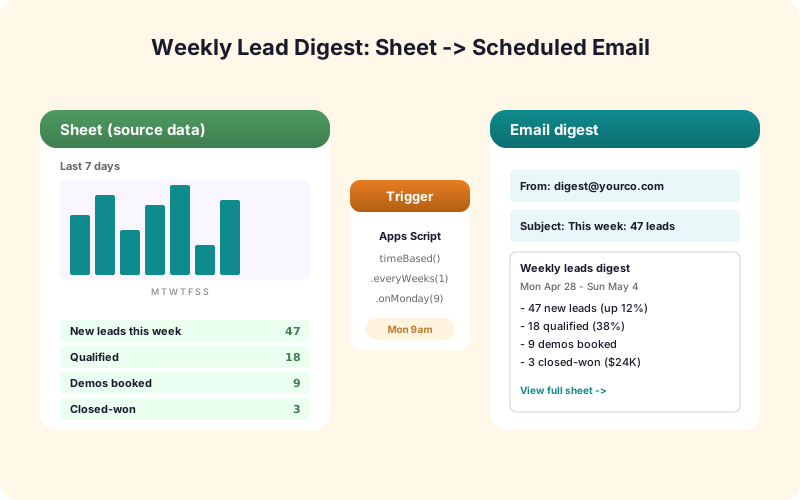
Diagram showing a Google Sheet feeding a weekly digest email with metrics, top leads, and action buttons

Why Digests Beat Per-Event Alerts

Per-event email alerts (one email per form submission) work for low-volume forms. They break at any scale - 50 emails a day fills your inbox and trains people to ignore them.

Daily Slack alerts work better but still produce noise. People mute the channel.

Weekly digests are different. They summarize the week's activity in one email. They surface trends, not events. They're short enough to read and contextualized enough to act on. The right digest gets opened, scanned, and acted on. The wrong digest gets archived unread.

This post covers the mechanics of scheduling weekly digests from Sheets, plus the patterns that make a digest actually useful.

The Mechanics: Apps Script Time-Based Triggers

Google Apps Script has time-based triggers - functions that run on a schedule (hourly, daily, weekly).

To schedule a Monday-morning lead digest:

1. Open your sheet, then Extensions > Apps Script. 2. Write a function `sendWeeklyDigest()` that builds the email and sends it. 3. Click the clock icon (Triggers) in the Apps Script sidebar. 4. Add a time-driven trigger: Week timer, Every Monday, between 8am and 9am.

Done. Every Monday morning, the script runs and the digest goes out. No infrastructure, no scheduler service, no recurring cost.

What Goes in the Digest

A useful weekly lead digest has six sections.

1. Executive summary. "Week of April 22-28: 142 leads (up 12% from last week), 18 qualified (down 4%). Top source: Google Ads (52 leads)."

2. Key metrics. Total leads, qualified leads, top source, top page, conversion rate. As a small table.

3. High-priority leads needing action. Up to 10 rows - leads scoring 80+ that haven't been contacted yet. Direct link to the row in Sheets.

4. Sources breakdown. Per-source totals with sparkline trends.

5. Pages breakdown. Top 5 pages by submission count.

6. Watch-list. Stale leads - rows in New status more than 24 hours, in Contacted more than 5 days.

Keep it under one screen on a phone. People will scan it on Monday morning.

Different Digests for Different Audiences

A senior leadership digest looks different from a sales-rep digest.

Leadership wants metrics, trends, and concerning patterns. Volume up, conversion down, action needed on Source X. Don't list individual leads.

Sales reps want their assigned leads. Volume metrics matter less than "here are the 8 leads you own that need follow-up this week."

Marketing wants source breakdown, page performance, and quality by source. Which channels paid off and which didn't.

Operations wants spam filter activity, integration health, and error counts. Did anything break this week?

Run a different digest for each audience. The Apps Script is the same; the queries against the sheet are different.

HTML Email Template

A digest email needs to render well in Gmail, Outlook, and mobile clients. The template:

- Use a single-column layout. Multi-column breaks on phones. - Inline CSS only. External stylesheets get stripped by email clients. - Use tables for layout - email clients have inconsistent flexbox support. - Test in Litmus or Email on Acid before going live.

A reasonable template structure: header (logo, week date), summary metrics box, 3-5 sections separated by horizontal rules, footer with unsubscribe link (yes, even internal digests should have an unsubscribe).

Use Apps Script's GmailApp.sendEmail() with htmlBody. For higher deliverability and analytics, use a transactional email API (Postmark, SendGrid) instead.

Digest Fatigue and How to Avoid It

Weekly digests get ignored after a few months unless you keep them sharp. Three antidotes.

Vary the highlight. Don't lead with the same stat every week. Some weeks it's "leads up 20%" and that's the headline. Other weeks it's "conversion rate stable at 14%" and you lead with that. The reader scans for the most newsworthy thing first.

Cut what nobody reads. If a section gets no clicks for three months, remove it. Track click rates on each link in the digest.

Test new sections. Add experimental sections (e.g., "Top customer feedback themes from this week") and measure engagement. Keep what works, drop what doesn't.

Action Buttons in the Digest

A static digest gets read. A digest with action buttons gets acted on.

For each high-priority lead in the digest, include a "Mark Contacted" button. The button is a link to an Apps Script web app endpoint that updates the row's Status field on click.

For concerning trends ("conversion rate dropped 30%"), include a "Investigate" button that links to a saved view in your Sheet showing the relevant data.

With action buttons, the digest becomes a decision tool, not just an information artifact. Most digests don't do this. The ones that do get used.

Beyond Weekly: Daily, Monthly, Quarterly

The same architecture supports other cadences.

Daily morning brief. A short summary of yesterday's activity, sent at 7am. Useful for fast-moving sales teams. Keep it shorter than the weekly digest - just the headline metrics and any urgent items.

Monthly report. Sent on the 1st of each month. Longer, more analytical. Suitable for leadership reviews.

Quarterly review. Heavier analysis, with quarter-over-quarter trends and recommendations.

Each cadence runs as a separate Apps Script time-based trigger. The query logic is similar; the time window and aggregation level differ.

Closing the Loop

A digest that goes out but doesn't lead to action is wasted effort.

Close the loop with action buttons (covered above). Add tracking - which sections of the digest get the most clicks. Survey the recipients quarterly: is the digest still useful? what would they change?

If the answer comes back "I haven't opened it in months," cancel that audience's digest. If it comes back "I love it but I wish it had X," add X.

A living digest, refined every quarter based on what readers actually use, becomes one of the highest-leverage internal communications your team has.

Measuring Whether the Digest Is Working

Three metrics tell you if your digest is earning its place in the team's inbox.

Open rate. Track via your transactional email API or by adding tracking pixels. Below 50% open rate suggests your subject line or sender reputation needs work. Above 70% means people are actively reading.

Click rate per section. If a section gets no clicks for three months, drop it. New sections deserve a 30-day trial before judgment.

Survey feedback. Quarterly survey of recipients: is the digest still useful? what would you change? Five-minute survey, three questions. The qualitative answers often reveal more than the click data.

A digest that performs well on all three is doing real work. A digest that performs poorly is just noise wearing a polite suit.

Recap

A weekly Sheets-driven lead digest is one Apps Script time-based trigger plus a function that builds the email. Different digests for different audiences. Action buttons that close the loop. Track engagement and refine.

This pattern replaces "I'll just check the dashboard manually" - which nobody actually does - with proactive delivery of the right summary to the right people. The result is a team that knows what's happening, prioritizes correctly, and acts on the data instead of letting it accumulate.

A working digest is a small but compounding win. The first version takes a few hours to build. Each refinement (new section, better template, action buttons) takes minutes. Six months in, you have a digest that's genuinely useful and a team that depends on it. The teams that resist building this kind of automation tend to spend the equivalent time in meetings reviewing the same data manually - lower leverage and lower quality of attention. Build the digest.

Frequently Asked Questions

How do I schedule an email to send weekly from Google Sheets?

Use Apps Script's time-based triggers. In the script editor, click the clock icon, add a Week timer trigger set to your preferred day and time. The script runs on schedule and sends the digest.

Should I use Gmail or a transactional email API?

Gmail (via GmailApp.sendEmail) works for low-volume internal digests. For higher volume, deliverability concerns, or external recipients, use a transactional API like Postmark or SendGrid.

How long should a weekly digest be?

Under one screen on a phone. People scan digests on mobile during transit. A long digest gets archived unread.

What sections should a digest include?

Executive summary, key metrics table, high-priority leads needing action, source breakdown, page breakdown, and a watchlist for stale leads. Six sections max. Cut anything nobody reads.

How do I prevent digest fatigue?

Vary the lead headline week to week. Cut sections with low engagement. Test new sections and keep what works. Survey recipients quarterly.

Can I include action buttons in the digest?

Yes. Each button links to an Apps Script web app endpoint that takes an action (e.g., "Mark Contacted" updates the row's Status). This turns the digest from an information artifact into a decision tool.

Should I send the same digest to everyone?

No. Different audiences want different summaries. Leadership wants trends. Sales reps want their assigned leads. Marketing wants source performance. Run separate digests with audience-appropriate content.

Can I use this for daily or monthly reports too?

Yes. The same architecture supports daily morning briefs, monthly reports, and quarterly reviews. Each is a separate Apps Script time-based trigger with its own time window and aggregation level.

How do I measure if the digest is working?

Track open rate (target above 50%), click rate per section (drop sections with zero clicks for 3 months), and qualitative survey feedback quarterly. A digest that performs well on all three is earning its place in the team's inbox.

Send Weekly Lead Digests Automatically

Apps Script time-based triggers, HTML email templates, action buttons. Every Monday morning, your team gets the right summary.