
Divi Form Field IDs and Mapping to Google Sheets
Send native Divi Contact Form submissions straight to Google Sheets in real time. Connect Google with one click (or deploy a receiver in your own Google account), map fields by Field ID, and skip Zapier's monthly fees entirely.
In This Guide
- How do you send Divi contact form submissions to Google Sheets?
- Why move Divi form data into a spreadsheet?
- What you need before you start
- How does the direct connection actually work?
- Step-by-step: connect your Divi form to a Google Sheet
- How to choose clean Field IDs in the Divi module
- Field mapping rules: what the plugin uses as keys
- Divi email vs Zapier vs a direct plugin: which route wins?
- Troubleshooting: why are values blank in the sheet?
- Next steps
- Frequently Asked Questions
How do you send Divi contact form submissions to Google Sheets?
You can send Divi contact form submissions to Google Sheets in real time with a free WordPress plugin - either the one-click Google Sheets connect (v1.12.0+) or a small Apps Script receiver deployed in your own Google account. No Zapier, no monthly fees, no Google API keys. Divi serves over 1,000,000 customers (Elegant Themes, 2026), yet its native contact form only emails you each submission.
That email-only default is the whole problem. Inbox threads are impossible to sort, filter, or report on, and a single spam-folder mishap can swallow a lead forever. A spreadsheet fixes all of that with sortable columns, timestamps, and shared access for your team.
This guide walks through the full setup: deploying the receiver, picking clean Field IDs in the Divi module, mapping fields correctly, and fixing the classic blank-column bug. It follows the same direct approach as our complete WordPress forms to Google Sheets guide, applied specifically to Divi 4 and Divi 5.
Why move Divi form data into a spreadsheet?
A spreadsheet turns raw submissions into something you can count, sort, and act on. The average form converts at just 1.7 percent across industries, per WPForms' research roundup, 2024, so every lead that does arrive deserves better than an inbox thread you'll scroll past next week.
WordPress powers 41.2 percent of all websites (W3Techs, 2026), and a huge share of those sites run page builders like Divi. Yet most of them still treat form submissions as disposable email notifications rather than structured data worth keeping.
Once submissions land in Google Sheets, you get timestamps, filters, shared access, and a free base for charts, pivot tables, or a lightweight CRM. You also get an off-WordPress backup: if your site breaks or a plugin update misfires, the lead history survives untouched in your Google account.
The practical wins show up fast. Mark leads as contacted in a Status column, share one link with a client instead of forwarding emails, and see this week's submission count at a glance. None of that is possible when your "database" is a Gmail label.
What you need before you start
You need four things: a WordPress site running the Divi theme or Divi Builder, a Divi Contact Form module on a published page, a Google account with access to Google Sheets, and the free SheetLink Forms plugin from WordPress.org. Total setup time is about a minute with one-click Google connect, or around ten minutes on the classic Apps Script route.
There is nothing to buy for this workflow. The Sheets path is part of the free core, which covers 12 major form plugins including Divi's Contact Form module - see the form integrations docs for the full list. The setup works the same on Divi 4 and Divi 5, and it has been verified on both.
One practical note before you begin: do the whole setup against a published page you can actually submit from. The Divi builder preview does not fire real submissions the way a live page does, and testing on the real URL removes a whole class of "nothing arrived" confusion later.
How does the direct connection actually work?
There are two direct routes, and both keep third parties out of the submission path. The default since v1.12.0 is one-click Google Sheets connect: click Connect Google, approve a standard Google consent screen, then pick or create your sheet in the Google file picker. It uses the drive.file scope, so SheetLink only gets access to the spreadsheets you pick or create - never your whole Drive - and submissions travel straight from your server to the Google Sheets API.
The classic alternative is a Google Apps Script web app that you deploy in your own Google account - the fully self-hosted option, with no OAuth involved. Apps Script is Google's own scripting platform, and a "web app" deployment gives you a private URL that accepts requests. You paste a provided script into script.google.com, click deploy, authorize it once, and copy the resulting URL into WordPress. The Google Sheets setup guide covers each click with screenshots.
Because the hop is direct either way, delivery is effectively instant. A built-in retry queue with exponential backoff re-sends any submission that fails in transit, a delivery log records every attempt, and a manual "Retry Now" button clears the queue on demand. A brief Google outage never costs you a lead.
Step-by-step: connect your Divi form to a Google Sheet
The fastest route (v1.12.0+): install the plugin, open SheetLink -> Google Sheets (OAuth), click Connect Google, approve the consent screen, pick or create a sheet in the Google file picker, then create a sync rule with your Divi Form ID and send a test submission. That takes about a minute, with no script to deploy and no URL to paste.
Prefer the classic self-hosted route? It has five short steps: install the plugin, create a sheet, deploy the Apps Script receiver, create a sync rule with your Divi Form ID, and send a test submission. If your Field IDs are already clean, it takes about ten minutes end to end.
- Install and activate SheetLink Forms from Plugins -> Add New in your WordPress dashboard.
- Create a Google Sheet and give the tab a clear name like "Leads". Column headers are created automatically on the first delivery, so the sheet can start empty.
- Deploy the Apps Script receiver: copy the script from the plugin's setup screen into script.google.com, deploy it as a web app, authorize it once when Google prompts you, and paste the web app URL back into WordPress.
- Create a sync rule: choose Divi as the source and enter your Form ID. Both
divi_0andet_pb_contact_form_0work; the first Divi form on a page is index 0. - Submit a test entry on the live page and watch the row appear in your sheet within a couple of seconds.
Leave the field map empty on the first pass. With an empty map, every field the module captures is auto-synced to its own column, which is the fastest way to confirm the pipeline works end to end before you start customizing.
How to choose clean Field IDs in the Divi module
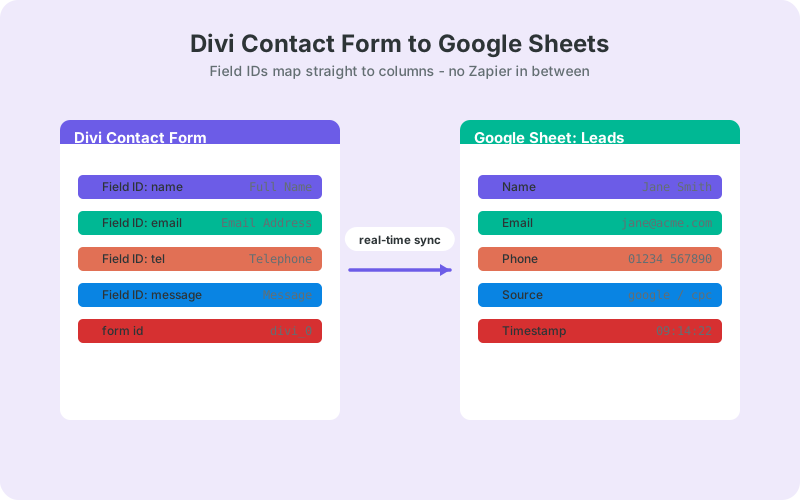
Field IDs are set per field inside the Divi Contact Form module, in each field's settings under Field ID. Use short, lowercase, descriptive IDs like name, email, tel, and message. These IDs become your mapping keys and, with auto-sync, your sheet's column names, so choose them the way you would name database columns.
Open the module, click a field to edit it, and set the Field ID deliberately instead of accepting whatever Divi generated. A form built by duplicating fields often ends up with IDs like email_copy or field_2, which turn into confusing column headers and brittle mappings six months from now.
Three practical rules keep things clean:
- Keep IDs unique within the form - duplicate IDs mean one column silently wins and the other value disappears.
- Avoid spaces and capital letters; stick to lowercase letters, numbers, and underscores.
- Never reuse an ID for a different meaning across form revisions, or old rows and new rows stop lining up under the same header.
Field mapping rules: what the plugin uses as keys
Fields are captured under the Field ID set in the module - name, email, tel, and so on. Field labels also work as mapping keys once lowercased and hyphenated, so a field labeled "Phone Number" can be mapped as phone-number. If the field map is left empty, every captured field auto-syncs to its own column.
That gives you three levels of control. Empty map: everything flows through automatically, ideal for the first test. Partial map: list only the fields you want, in the exact column order you want. Label-based keys: useful when someone else built the form and you would rather not open the module at all.
On the rule side, the Form ID field accepts both styles Divi exposes: divi_0 and et_pb_contact_form_0 refer to the same first form on a page. Both formats are supported and verified on Divi 4 and Divi 5, so use whichever one you can see in your page's HTML source.
A good habit: once the sheet is live, treat Field IDs as frozen. Renaming an ID later creates a new column for new rows while history stays under the old header.
Divi email vs Zapier vs a direct plugin: which route wins?
For most Divi sites, the direct plugin route wins: real-time rows, no per-task fees, and no third-party processor in the data path. Email notifications are fine as a backup alert, and Zapier makes sense mainly when Sheets is one stop in a longer multi-app workflow.
Divi's native behavior emails each submission, and the module does not store entries in your database by default. That means there is no export to fall back on: if the notification email fails or lands in spam, the record is simply gone. Zapier solves storage but adds a subscription and routes every lead through a third-party service; the ongoing cost adds up fast, as we break down in our Zapier cost analysis for WordPress forms.
Zapier still earns its keep when the sheet is one of six destinations and you need branching logic across apps that have no WordPress plugin. For the single job of "form to sheet", though, paying per task for something a free plugin does directly is hard to justify.
The table below puts the three routes side by side.
Troubleshooting: why are values blank in the sheet?
Blank values almost always mean a key mismatch: the key in your field map does not match the Field ID the module actually uses. Open the module, check each field's Field ID, and make your map keys match those exactly - or clear the map entirely and let auto-sync take over.
The classic trap is copying the input's HTML name attribute, which looks like et_pb_contact_name_0. That string is Divi's internal input name, and it is never the mapping key. The plugin keys on the Field ID (name) or the lowercased-hyphenated label (phone-number), not on the raw input name you see in the page source.
Other quick checks, in order: confirm the Form ID matches the form you are testing (a second form on the page is divi_1, not divi_0), make sure you submitted on the live page rather than the builder preview, and open the delivery log to see what was actually sent.
If a delivery failed in transit rather than mapping wrong, it is not lost. Failed submissions queue automatically and retry with exponential backoff, and you can trigger "Retry Now" manually once the underlying issue is fixed.
Next steps
You now have a Divi form writing rows to Google Sheets in real time, keyed on clean Field IDs, with auto-sync or an explicit map. From here, the same rule-based approach extends naturally to routing multiple forms, deduplicating leads, and building reports on top of the sheet.
If you run several builders across client sites, see how Divi's setup compares to its neighbors in Beaver Builder vs Divi vs Bricks for Google Sheets. The Divi integration page has the condensed checklist version of this guide.
Everything covered here ships in the free core. Paid add-ons like CRM fan-out and two-way sync exist if you outgrow a single sheet - the pricing page has the details - but a Divi form feeding a live lead sheet costs nothing.
| Divi email notifications | Zapier | SheetLink direct | |
|---|---|---|---|
| Where submissions live | Email inbox only | Google Sheets | Google Sheets |
| Setup time | None (default) | 15-30 minutes | About 1 minute (one-click) or 10 minutes (self-hosted) |
| Monthly cost | Free | Paid plans | Free |
| Third party in data path | Email provider | Yes - Zapier servers | None |
| Retry on failure | No | Plan-dependent | Automatic retry queue |
Frequently Asked Questions
Does Divi have a built-in Google Sheets integration?
No. The native Divi Contact Form module sends email notifications and does not include a Google Sheets connector or built-in entry storage. To get submissions into a sheet, you need either an automation service like Zapier or a direct WordPress plugin that posts rows in real time.
Does this setup work with Divi 5?
Yes. The integration is verified on both Divi 4 and Divi 5, and the mapping rules are identical: fields are captured under the module's Field ID, labels work as lowercased-hyphenated keys, and both divi_0 and et_pb_contact_form_0 are accepted as the Form ID.
What Form ID should I enter for my Divi contact form?
Use divi_0 or et_pb_contact_form_0 for the first form on a page; both formats work. A second form on the same page is divi_1. If rows never arrive, view the page source and confirm which index the form actually renders with before changing anything else.
Why are some columns blank in my Google Sheet?
Blank columns mean your field map key does not match the module's Field ID. Check each field's settings, copy the Field ID exactly, or clear the map so every field auto-syncs. Never use the HTML input name like et_pb_contact_name_0 - it is never the mapping key.
Can I map Divi fields by label instead of Field ID?
Yes. Labels work as mapping keys after lowercasing and hyphenation, so a field labeled "Phone Number" maps as phone-number. Field IDs are still the more stable choice because labels change more often, but label keys are handy when you would rather not edit the module.
Do I need Zapier or a Google API key for this?
No. There are no Zapier tasks, no per-submission fees, and no Google Cloud project or API keys to set up. Choose the one-click Google connect (a standard Google consent screen, drive.file scope only) or the OAuth-free classic route: a Google Apps Script web app you deploy in your own Google account.
Can I send two Divi forms to different sheet tabs?
Yes. Create one sync rule per form - divi_0 and divi_1, for example - and point each rule at a different spreadsheet or tab. Conditional routing can also split a single form's rows by field value, such as sending each service type to its own tab.
Is the Divi to Google Sheets integration free?
Yes. Divi Contact Form support is part of the free core, which covers 12 major form plugins. Real-time delivery, auto-sync, field mapping, and the retry queue all ship free; paid add-ons only come in for extras like CRM fan-out or two-way sync - see /pricing.
More Tutorial guides
Put your Divi leads in a sheet, not an inbox
SheetLink Forms sends Divi submissions to Google Sheets in real time - free, no Zapier tasks, no API keys, no monthly fees.