
Setup Wizard
The first-run wizard that walks new installs from activation to a working Google Sheet connection in about three minutes.
Maintained by Arden Talbot, founder of SheetLinkWP
What it looks like
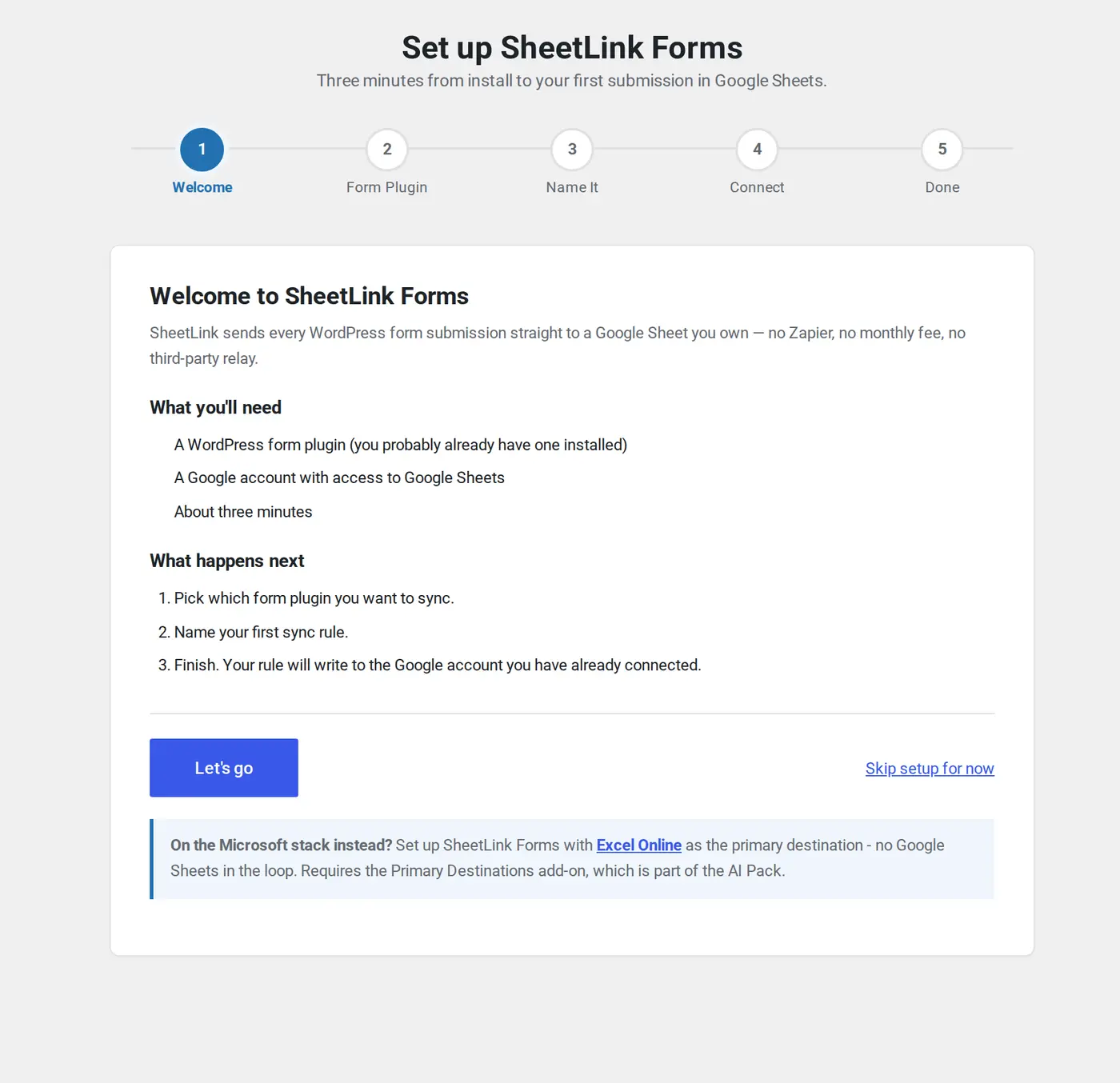
The guide is five steps on one screen: Welcome, Form Plugin, Name It, Connect, Done. It opens on first activation and can be reopened any time from the Setup guide button on the SheetLink Dashboard.
What the wizard does
On first activation, SheetLink Forms automatically redirects to a guided setup wizard under SheetLink -> Setup. The wizard handles the six steps that used to live across separate admin pages, walking you from a fresh install to a working Google Sheet connection in about a minute with one-click connect (or about three minutes on the classic Apps Script route).
- Welcome screen with a quick overview of what gets configured.
- Optional license-key activation step (skippable - the free core works without activation).
- Form-plugin picker that auto-detects which of the 12 supported form plugins are already installed.
- Rule naming so you can recognise the sync later.
- Connect Google (one click) card (v1.12.0+) that takes you to the Google Sheets (OAuth) page, where you sign in and pick or create a spreadsheet - no code to deploy. Note that this route leaves the wizard: you finish setup on that page rather than in the wizard.
- Classic route: an Apps Script generator with copy-to-clipboard and step-by-step Google-side instructions, plus a paste-the-URL step that sends a test payload to verify end-to-end delivery before saving.
Running the wizard again later
The wizard marks itself complete the first time you finish or skip it, so it does not re-appear on every admin load. To run it manually at any time visit /wp-admin/admin.php?page=sheetlink-setup directly. This is handy when onboarding a second site, or when walking a client through the flow.
What gets saved
On completion the wizard creates one sync rule in SheetLink -> Sync Rules with your chosen form plugin and the classic Apps Script URL you pasted. The wizard's finish step is the Apps Script route specifically: it requires a script.google.com web-app URL and will not accept anything else. If you took the one-click Google route instead, you leave the wizard at that point and finish on the Google Sheets (OAuth) page - and note that connecting a spreadsheet there does not send anything on its own, you also need a rule pointing a form at it. That page offers to create one for you (v1.14.0+). Field mapping defaults to auto-sync (since v1.9.2): every form field becomes a sheet column in form order. For Google Sheets the header uses the field label where your form plugin exposes one (v1.14.0+), otherwise the field key. Open the rule on the Sync Rules page only if you want to pin specific fields to specific columns, skip fields, or reorder. The Smart Mapping feature still auto-suggests column names when you do open the rule for editing.
Troubleshooting the test send
Applies to the classic Apps Script route. One-click connections are tested with the Send Test button on the Google Sheets (OAuth) page instead.
The test payload fires once you paste the Apps Script URL and click Send Test. If it fails:
- HTTP 403 or 302: the Apps Script is deployed with restricted access. Re-deploy with Execute as: Me and Who has access: Anyone.
- Network error: the URL is not a valid
script.google.comorscript.googleusercontent.comweb-app URL. Only those prefixes are accepted. - HTTP 500: the Apps Script threw an error. Open the script in your Google Sheet and check the execution log under Extensions -> Apps Script -> Executions.
You can always skip the test and save the rule manually, then verify from a real form submission on your site.
Ready to Get Started?
Install SheetLink Forms and connect your first form in under 10 minutes.