
Ninja Forms to Excel Online: Real-Time Sync, No Zapier
Ninja Forms runs on 600,000+ sites, and plenty of those teams live in Excel, not Google Sheets. Here is how to stream submissions into an Excel Online workbook on OneDrive in real time, without Zapier or Power Automate.
In This Guide
- Can Ninja Forms Send Submissions to Excel Online?
- Why Excel Online Instead of Google Sheets?
- What Are Your Options for Getting Ninja Forms Data Into Excel?
- How Does the Direct Microsoft Graph Connection Work?
- How Do You Connect Your Microsoft 365 Account?
- How Does Table Mapping Work in Excel Online?
- What Is the Difference Between the Free Mirror and Excel-Primary?
- How Does the Google Sheets Mirror Work Day to Day?
- What Happens When a Delivery to Excel Fails?
- What Can You Do With Lead Data in Excel Online?
- Next Steps
- Frequently Asked Questions
Can Ninja Forms Send Submissions to Excel Online?
Yes. Ninja Forms, active on 600,000+ WordPress sites (WordPress.org, 2026), can stream every submission into an Excel Online workbook on OneDrive in real time. No Zapier, no Power Automate flows, no CSV exports. The connection runs over Microsoft Graph, Microsoft's official API for Microsoft 365.
The setup is a mirror by default: submissions deliver to Google Sheets as the primary destination, and each row is copied into your Excel workbook at no extra cost. If your organization needs Excel as the only destination, with no Google account in the loop at all, that runs as a paid add-on. Both paths are covered below.
This guide walks through connecting your Microsoft 365 account, how rows map into an Excel table, the difference between the free mirror and Excel-primary, and how destination-aware retries protect deliveries.
Why Excel Online Instead of Google Sheets?
Because many teams already live in Microsoft. Microsoft 365 passed 450 million commercial paid seats as of January 2026 (Microsoft, 2026). If your sales team, accountant, or client spends the day in Excel, delivering leads to a Google Sheet just creates a copy-paste job for somebody.
Excel's reach goes beyond those seats: one hedged industry estimate puts Excel at 750 million or more users worldwide (Senacea). Some organizations also standardize on Microsoft for policy reasons, keeping data inside their 365 tenant wherever possible.
Neither tool is universally better for form data; they differ in sharing models, formulas, and automation hooks. The trade-offs are laid out in Excel Online vs Google Sheets for WordPress form data. If your reporting already happens in Excel, sending the data there directly is the honest answer.
What Are Your Options for Getting Ninja Forms Data Into Excel?
Three realistic routes exist: export submissions from Ninja Forms as CSV and import them into Excel by hand, build a Power Automate flow, or use a WordPress plugin that writes rows to your workbook directly through Microsoft Graph. For live lead capture, direct delivery is the least work and the least lag.
CSV export is fine for archives but hopeless for a live pipeline: the workbook is always stale, and someone owns the chore forever. Power Automate can do the job, but you build and maintain the flow yourself, behavior depends on your Microsoft 365 plan and connector availability, and debugging failed runs becomes your hobby.
Direct delivery is mapped once in WordPress and then forgotten. The comparison table on this page summarizes all three, and the deeper cost breakdown is in WordPress forms to Excel vs CSV export vs Power Automate.
How Does the Direct Microsoft Graph Connection Work?
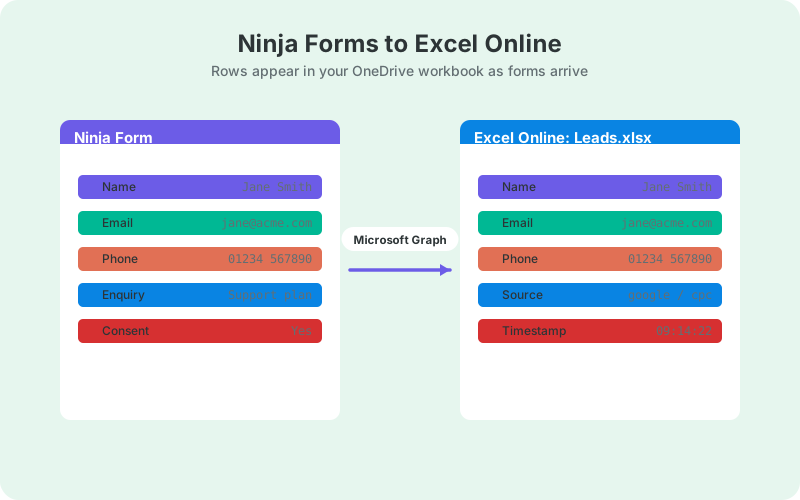
The free SheetLink Forms plugin delivers Ninja Forms submissions to Google Sheets as the primary destination and can mirror every row into an Excel Online workbook on OneDrive at no extra cost. You sign in with Microsoft once through OAuth, and rows are written to your workbook through Microsoft Graph as submissions arrive.
The OAuth handshake runs through the plugin's broker, and your Microsoft refresh token is stored encrypted at rest. Your Microsoft password never touches WordPress, and you can revoke the connection from your Microsoft account at any time.
Because Graph writes rows the moment a submission lands, the workbook behaves like a live feed rather than a nightly import. The general pattern, including what the workbook looks like in practice, is covered in sending WordPress form submissions to Excel Online.
How Do You Connect Your Microsoft 365 Account?
The Excel connection takes one OAuth sign-in on top of a working Sheets setup, and it needs a Microsoft 365 work or school account - Microsoft's Excel API only reaches workbooks stored on OneDrive for Business or SharePoint, so consumer OneDrive cannot be used. Since the free path mirrors from a Google Sheets primary, get that base connection running first; one-click Google connect takes about a minute (or use the classic Apps Script webhook), and neither path needs Google API keys. The steps from there:
- Set up the base Ninja Forms to Google Sheets connection, following the Ninja Forms setup guide.
- In the plugin settings, enable the Excel Online destination and click Connect Microsoft.
- Sign in and approve the consent screen with a Microsoft 365 work or school account. Personal Outlook.com accounts are not supported by Microsoft's Excel API.
- Choose the workbook and worksheet that should receive submissions.
- Submit a test entry and confirm the row appears in both the sheet and the workbook.
If you have not built the Ninja Forms side yet, the full walkthrough with screenshots is at Ninja Forms to Google Sheets step by step.
How Does Table Mapping Work in Excel Online?
Submissions land as rows in an Excel table, with columns matching your Ninja Forms fields. Tables are the right structure for this: they expand automatically as rows arrive, structured references keep formulas readable, and they plug straight into PivotTables and charts without reselecting ranges.
The practical rule is to keep your Ninja Forms field setup stable. Columns align to fields, so renaming or deleting fields mid-campaign fragments your history the same way it would in any spreadsheet. Add new fields when you need them; avoid churning existing ones.
A concrete example makes the mapping obvious. Say your quote form has five fields with the keys name, email, phone, project_type, and budget. The Excel table gets five matching columns plus the metadata columns, and a submission from Dana requesting a redesign lands as one row: her name and contact details in the first three columns, "Website redesign" under project_type, and the budget figure as a plain number that SUM and AVERAGE handle without cleanup.
Field keys, not display labels, are the stable thing to think in. Labels are what visitors see and what marketing likes to rewrite; keys are what the columns follow. Keep keys boring and lowercase, and you can rework the form's wording freely without ever touching the workbook.
Before pointing real traffic at the form, submit two or three test entries that fill every field, including the optional ones. That locks in the full column set from the start, so later rows never arrive wider than the table expects. Delete the test rows afterwards; the columns stay.
Metadata arrives alongside the form fields. Each row carries a submission timestamp, and marketing attribution values such as _utm_source and _gclid are appended automatically, so campaign reporting works in Excel with no extra tagging inside Ninja Forms.
What Is the Difference Between the Free Mirror and Excel-Primary?
The free path is a mirror: Google Sheets is the primary destination, and every row is copied into your Excel Online workbook as well. Excel as the primary destination, meaning no Google account anywhere in the loop, is part of SheetLink Plus ($29/mo).
Most teams are well served by the free mirror. You get a live Excel workbook for the people who work in Microsoft, plus a Google Sheet that costs nothing to keep as a second copy of your lead data.
Excel-primary exists for organizations that cannot route data through Google at all, usually for IT policy or client-contract reasons. If that describes you, the add-on details are on the pricing page. Either way, the Ninja Forms side of the configuration is identical.
How Does the Google Sheets Mirror Work Day to Day?
Both destinations receive each submission at essentially the same time. When a visitor submits your Ninja Forms form, the row is delivered to Google Sheets and mirrored into the Excel workbook within seconds of each other, so the two copies stay in step through the day instead of drifting until a nightly job runs.
In practice, teams treat the copies differently. The Excel workbook becomes the working surface for whoever lives in Microsoft, while the Google Sheet quietly accumulates the same rows as a second copy. If someone mangles the workbook with a bad sort or an overeager delete, the sheet still holds every row, and that redundancy costs nothing on the mirror path.
Each copy is full fidelity: the same field values, timestamps, and attribution columns land in both, so a report built in either tool agrees with the other. There is no partial mirror to reason about, and nothing to reconcile at month end.
What Happens When a Delivery to Excel Fails?
Failed deliveries enter a retry queue that is destination-aware: if OneDrive hiccups, the Excel delivery retries on its own schedule with exponential backoff, without re-sending the row that already reached Google Sheets. A delivery log records each attempt per destination, and a manual Retry Now covers anything persistent.
That per-destination bookkeeping matters once you write to two places, because the alternative is duplicate rows in one destination whenever the other fails. Serious webhook infrastructure works the same way: Hookdeck, which has processed well over 100 billion webhooks, treats delivery success below 99% as worth investigating (Hookdeck, 2025), and Svix's default policy retries failures 8 times over roughly 28 hours (Svix docs).
Not every failure deserves the same response, and the queue treats them differently. Transient trouble, like Microsoft Graph throttling a burst of writes or returning a server error during an outage, is exactly what exponential backoff exists for: wait, retry, succeed. An expired or revoked Microsoft connection is different, because no amount of retrying revives a dead token. The delivery log surfaces that case distinctly, so you know to reconnect the account rather than wait.
The log is also per destination, which turns a vague "sync is broken" report into a two-minute diagnosis: you can see at a glance whether the problem sits on the Google side, the Microsoft side, or your own server's outbound connection.
The practical result: a Microsoft outage costs you minutes of latency, not leads.
What Can You Do With Lead Data in Excel Online?
Because rows arrive in a structured table, the workbook is analysis-ready from day one. A PivotTable over the leads table gives you submissions by day, by source, or by campaign, and refreshing it pulls in everything that arrived since you last looked. No importing, no range fixing.
Shared workbooks make this a team surface: sales can add a status column and work leads directly in Excel while new rows keep appending underneath. Conditional formatting on the timestamp column flags anything that has waited too long for a reply.
Starter recipes, including a source-by-week pivot and a lead-aging view, are in Excel PivotTables for WordPress lead data.
Next Steps
The order that works: get Ninja Forms delivering to Google Sheets first, connect your Microsoft account, pick the workbook, and send a test submission that shows up in both destinations. From there the mirror runs itself, and the destination-aware retry queue handles the bad days.
If your team turns out to live entirely in Excel, evaluate the Excel-primary add-on once the mirror has proven itself. Integration details and version notes for the Ninja Forms side are on the Ninja Forms integration page.
| Manual CSV export | Power Automate | Direct plugin | |
|---|---|---|---|
| Delivery timing | Whenever you export | Flow-run intervals | Real time |
| Cost | Free (your time) | Depends on M365 plan | Free mirror; Excel-primary via SheetLink Plus ($29/mo) |
| Setup effort | Repeated exports forever | Build and maintain a flow | Connect once, map once |
| Failure handling | Human memory | Flow run history | Destination-aware retry queue |
| Where data lands | Local file | Excel Online table | Excel Online table on OneDrive |
Frequently Asked Questions
Can Ninja Forms send submissions to Excel without Zapier?
Yes. A WordPress plugin can write each Ninja Forms submission into an Excel Online workbook on OneDrive through Microsoft Graph, Microsoft's official API. Rows appear in real time as visitors submit, with no Zapier tasks, no Power Automate flows, and no CSV exports involved.
Is the Ninja Forms to Excel Online connection free?
The mirror path is free: submissions deliver to Google Sheets as the primary destination and every row is copied into your Excel workbook at no cost. Excel as the primary destination, with no Google account involved, is part of SheetLink Plus ($29/mo).
Do I need Power Automate to get Ninja Forms data into Excel?
No. Power Automate is one way to move form data into Excel, but it means building and maintaining a flow yourself, with behavior that depends on your Microsoft 365 plan. A direct plugin connection through Microsoft Graph is mapped once in WordPress and needs no flow at all.
Where are my Microsoft credentials stored?
Your password is never stored in WordPress. You sign in through Microsoft's own OAuth consent screen, the handshake runs through the plugin's broker, and the resulting refresh token is stored encrypted at rest. You can revoke the connection from your Microsoft account settings at any time.
Do submissions still go to Google Sheets when Excel mirroring is on?
Yes. On the free path, Google Sheets remains the primary destination and Excel Online receives a mirrored copy of each row. That gives you a live workbook for the Excel users and a spreadsheet backup in Google at the same time, from one submission.
What happens if OneDrive is briefly unavailable?
The Excel delivery enters a destination-aware retry queue and is redelivered with exponential backoff, while the Google Sheets delivery proceeds independently. A per-destination delivery log shows each attempt, and a manual Retry Now option covers failures that outlast the automatic schedule.
Does the Excel workbook update in real time?
Yes. Rows are appended to the workbook's table through Microsoft Graph as each submission arrives, not on a polling interval or nightly sync. Anyone with the workbook open in Excel Online sees new leads appear, and PivotTables pick them up on the next refresh.
Can I skip Google entirely and only use Excel?
Yes, with Excel-primary delivery, part of SheetLink Plus ($29/mo), which delivers Ninja Forms submissions straight to your Excel Online workbook with no Google account in the loop. The free mirror path is the sensible way to trial the workflow first.
More Tutorial guides
Stream Ninja Forms leads into Excel Online today
Mirror Ninja Forms submissions to OneDrive free with SheetLink Forms - no Zapier tasks, no Power Automate flows to babysit.