
Google Apps Script Form Receiver: How It Really Works
The Apps Script receiver behind direct WordPress-to-Sheets delivery, explained: doPost(e), token checks, appendRow, and why running it in your own Google account keeps third parties out of your data.
In This Guide
- The Receiver That Lives in Your Google Account
- What Is Google Apps Script?
- How Does an Apps Script Web App Receive Data?
- What Happens on Each Submission, Step by Step?
- Why Does 'Runs in Your Account' Matter?
- What Does This Mean for GDPR?
- How Is the Receiver Secured?
- Middleware vs API-Key Plugins vs Your Own Receiver
- How Does SheetLink Forms Use This Architecture?
- Next Step: Read Your Own Receiver
- Frequently Asked Questions
The Receiver That Lives in Your Google Account
A Google Apps Script form receiver is a tiny web app, deployed inside your own Google account, that accepts form submissions over HTTPS and appends them to your spreadsheet. In June 2026, Google promoted Apps Script to a Google Workspace core service with enterprise-grade data protection (Google Workspace Updates, 2026), so the platform underneath now carries Workspace-level commitments.
That architecture is the whole point. Because the receiver runs in your account, form data travels from your WordPress site straight into your Google account and nowhere else. No middleware vendor stores a copy, no automation platform logs your leads in its task history, and no third party ever touches a submission on the delivery path (the optional AI add-ons are the one disclosed exception).
One note before we dive in: since v1.12.0 (2026-07-24), SheetLink Forms also offers a one-click Google Sheets connect - an OAuth flow using the drive.file scope and the Google file picker, so the plugin only gets access to the spreadsheets you pick or create, never your whole Drive. This article covers the classic self-hosted receiver method, which remains fully supported and is the option to choose if you want no OAuth in the picture at all.
This post demystifies the moving parts one at a time: doPost(e), the secret token check, appendRow, the guards around them, and why this design beats handing an OAuth'd middleman service broad keys to your spreadsheet.
What Is Google Apps Script?
Google Apps Script is Google's cloud-based JavaScript platform for automating and extending Google Workspace apps like Sheets, Docs, and Gmail (Google). Scripts run on Google's servers, inside your account, with only the permissions you grant them. There is nothing to host, nothing to install, and nothing to patch on your own machines.
The June 2026 change matters for anyone using scripts in a business context. As a Workspace core service, Apps Script is now covered by the same enterprise data protection commitments as Sheets or Gmail themselves (Google Workspace Updates, 2026). That removes a common objection from IT and compliance reviewers who previously flagged it as an "additional service" outside the core agreements.
For form delivery, one Apps Script capability does the heavy lifting: any script can be deployed as a web app with its own HTTPS URL. That single feature is what turns a spreadsheet into something a website can talk to directly. There is more background in our Apps Script glossary entry.
How Does an Apps Script Web App Receive Data?
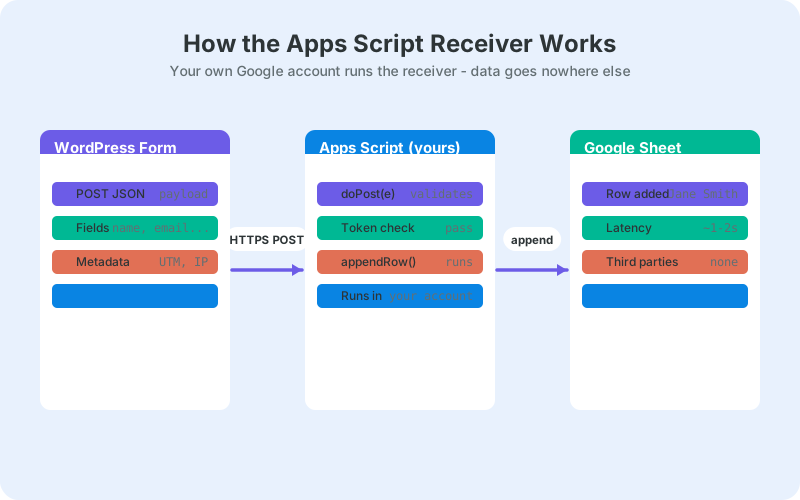
When you deploy a script as a web app, Google assigns it a unique HTTPS URL. Any POST request sent to that URL wakes the script and runs a function named doPost(e), where e is an object carrying everything the sender included: form fields, query parameters, and the raw request body.
In other words, the script is a webhook receiver. Your WordPress site plays the sender: on each form submission it makes one HTTPS POST to your script's URL with the field values in the payload. Google handles the servers, the TLS certificates, the scaling, and the uptime, because the endpoint runs on Google's own infrastructure.
Inside doPost, the script reads fields from e.parameter, runs its checks, and writes a row. The entire receiver is typically a few dozen lines of JavaScript you can read in one sitting. That readability is itself a security feature: you can audit every single line of the code that handles your lead data.
What Happens on Each Submission, Step by Step?
Five steps run in a couple of seconds: WordPress sends the POST, doPost(e) fires, the script checks a shared secret token, incoming field values are mapped to columns, and appendRow writes them as one new row at the bottom of your sheet.
- A visitor submits your form and WordPress packages the field values.
- WordPress POSTs them over HTTPS to your script's unique URL.
doPost(e)runs and compares the token in the payload against the secret stored in the script. No match, no write.- The script maps incoming fields to your sheet's columns, adding metadata like a timestamp.
appendRowinserts the values as a new row and the script returns a success response to WordPress.
appendRow is the quiet hero of the pipeline. It always writes to the next free row and never overwrites existing data, which is exactly the behavior you want from a running log of inbound leads. Rows accumulate in order, and nothing a new submission does can damage an old one.
Why Does 'Runs in Your Account' Matter?
Because the data path defines who your data processors are. With an Apps Script receiver, submissions travel from your site to your script to your sheet, entirely inside infrastructure you control or already trust. With middleware, every submission detours through a vendor's servers, where it is received, stored, logged, and retained under that vendor's policies rather than yours.
Middleware platforms are legitimate tools, but they are a third party in your data flow by design. Their task histories keep copies of your leads' names, emails, and messages. That is an extra breach surface, an extra subprocessor for your privacy policy, and an extra recurring bill that scales with volume. We broke down those costs in Make vs Zapier vs a direct plugin.
The receiver model removes the detour instead of trying to secure it. There is nothing extra to trust because there is nobody in the middle: no vendor dashboard holds your submissions, no vendor outage can eat them, and no vendor pricing change can hold your pipeline hostage.
What Does This Mean for GDPR?
Fewer processors means less GDPR surface. Regulators issued EUR 1.2 billion in GDPR fines during 2025 alone (DLA Piper, 2026), and every third party that handles personal data is a processor you must document, contract with, and answer for. A receiver running in your own account adds none.
Concretely: your Article 30 records of processing get shorter, you need no data processing agreement with a middleware vendor, and a subject access request touches two systems, WordPress and your Google account, instead of three or four. Data residency and transfer conversations get simpler for the same reason, because one hop in the chain simply does not exist.
None of this makes a form pipeline GDPR-compliant by itself. Consent, retention schedules, and lawful basis still apply no matter how clean the data path is. Our guide to GDPR-compliant form data in Google Sheets covers the full checklist.
How Is the Receiver Secured?
Three layers do the work: transport, authentication, and content. Transport is HTTPS end to end, since Apps Script web app URLs are TLS-only. Authentication is a shared secret token checked at the top of doPost, so requests without the right token are rejected before any spreadsheet code runs. Content hardening handles whatever attackers put inside the fields themselves.
The main content risk is formula injection: a "name" field that begins with an equals sign, a plus, a minus, or an at sign turns into live spreadsheet code the moment it is written to a cell, and a hostile formula can exfiltrate data from the sheet. A well-built receiver neutralizes those values so they land as inert text instead of executing.
You also keep unilateral kill authority. Re-deploying the script rotates its URL, and deleting the deployment shuts the endpoint off entirely. No support ticket to a vendor, no waiting on someone else's queue: revocation is one click inside your own account, effective immediately.
Middleware vs API-Key Plugins vs Your Own Receiver
Three architectures dominate WordPress-to-Sheets delivery. Middleware routes every submission through a vendor cloud. API-key plugins connect directly to Google's APIs but require you to create Google Cloud credentials or OAuth tokens and store them in your WordPress database. The receiver model stores nothing in WordPress except a URL and a token whose only power is appending rows.
That last property is the underrated one. If your WordPress site is ever compromised, stored Google API credentials can expose broad account scopes to the attacker. A stolen receiver URL and token expose exactly one ability: adding rows to one spreadsheet, and only until you rotate the deployment, which takes seconds.
The table below compares the three side by side. None of them is wrong; they place trust, cost, and blast radius in different hands. The receiver model consistently puts the least of all three outside your own control, which is why it is the right default for lead data.
How Does SheetLink Forms Use This Architecture?
SheetLink Forms automates exactly this pattern. The plugin's wizard walks you through deploying the Apps Script receiver into your own Google account in a few minutes, then sends submissions from 12 major form plugins to it in real time. On this classic method there are no Google API keys, no OAuth, and no third-party data processor anywhere on the Sheets path. (If you would rather skip the deployment entirely, the one-click Google Sheets connect added in v1.12.0 is the alternative; the receiver remains the fully self-hosted choice.)
The receiver it sets up includes the secret token check and the formula-injection guard described above out of the box, so the security posture in this post is the default, not an upgrade. Follow the Google Sheets setup docs for the walkthrough, or the plain-English version in WordPress forms to Google Sheets without code.
Because the deployment lives in your account, you keep everything this post promised: full auditability of the script, one-click revocation, and a data path with nobody standing in the middle of it.
Next Step: Read Your Own Receiver
If you already run an Apps Script receiver, open the script editor and read it. Find doPost, find the token check, find appendRow. Ten minutes of reading buys you something no middleware subscription can offer at any price: complete knowledge of every line of code that touches your lead data.
If you are still routing submissions through a middleman, price out the switch. The receiver model costs nothing on the Sheets path, removes a processor from your GDPR paperwork, and received a Workspace-grade trust upgrade in June 2026. The architecture that keeps your data yours happens to also be the cheapest one available.
| Middleware (Zapier, Make) | API-key plugins | Your own Apps Script receiver | |
|---|---|---|---|
| Data path | WordPress -> vendor cloud -> Google | WordPress -> Google API | WordPress -> your script -> your sheet |
| Third-party data processor | Yes, the vendor | No | No |
| Credentials stored in WordPress | Vendor API key | Google API keys or OAuth tokens | Receiver URL plus secret token |
| If WordPress is breached | Vendor connection exposed | Google credentials exposed | Append-only access to one sheet |
| Cost for Sheets delivery | Paid plans, per-task limits | Varies by plugin | Free |
Frequently Asked Questions
What is a Google Apps Script form receiver?
It is a small script, deployed as a web app in your own Google account, that accepts HTTPS POST requests from your website and appends each submission as a row in your spreadsheet. Google defines Apps Script as its cloud JavaScript platform for automating Workspace apps.
Is Google Apps Script free to use?
Yes. Apps Script is included with any Google account, and deploying a script as a web app costs nothing. Google applies daily usage quotas, but a typical form receiver at normal submission volumes sits comfortably within them, with no per-task fees of the kind middleware platforms charge.
What does doPost(e) do in Apps Script?
doPost(e) is the function Apps Script runs automatically whenever an HTTP POST request hits your web app's URL. The e object carries the request data, including form fields in e.parameter. Your code reads those values, validates the secret token, and then writes the row.
Does my form data pass through SheetLink's servers?
No. With the classic receiver, submissions travel directly from your WordPress site to the Apps Script receiver deployed in your own Google account, with no third-party data processor in between. And with the newer one-click OAuth connection, submission payloads still travel directly from your server to the Google Sheets API - SheetLink's broker only handles sign-in and token refresh, never form data.
Is an Apps Script receiver secure enough for real lead data?
Yes, with the standard guards in place: HTTPS-only transport, a secret token checked before any write, and formula-injection neutralization for cell values. Since June 2026, Apps Script is also a Google Workspace core service covered by enterprise-grade data protection commitments.
What changed for Apps Script in June 2026?
Google promoted Apps Script from an additional service to a Google Workspace core service (Google Workspace Updates, 2026). That places it under the same enterprise data protection commitments as Sheets and Gmail, which matters for compliance reviews that previously flagged it as out of scope.
Do I need a paid Google Workspace plan for this to work?
No. Apps Script web apps work with regular free Google accounts as well as Workspace accounts. The June 2026 core-service commitments apply to Workspace customers, but the receiver architecture itself, doPost, the token check, and appendRow, works identically on both account types.
What is formula injection and why should a receiver block it?
Formula injection is when a submitted value starting with an equals sign, plus, minus, or at sign executes as a live formula once written to a cell, potentially pulling data out of your sheet. A receiver blocks it by neutralizing such values so they land as plain text.
Can I use a webhook to send form data to Google Sheets?
Yes. A Google Apps Script web app deployed in your own account exposes a POST URL that works as a webhook endpoint, and each POST appends a row to your sheet with appendRow. SheetLink Forms generates and manages that receiver for you, so WordPress form submissions reach Google Sheets in real time with no third-party middleware in between.
More Automation guides
Send Forms to Sheets With Nobody in the Middle
Deploy the receiver in your own Google account in minutes. No API keys, no OAuth, no middleware holding your lead data.