
Contact Form 7 to Excel Online Without Code
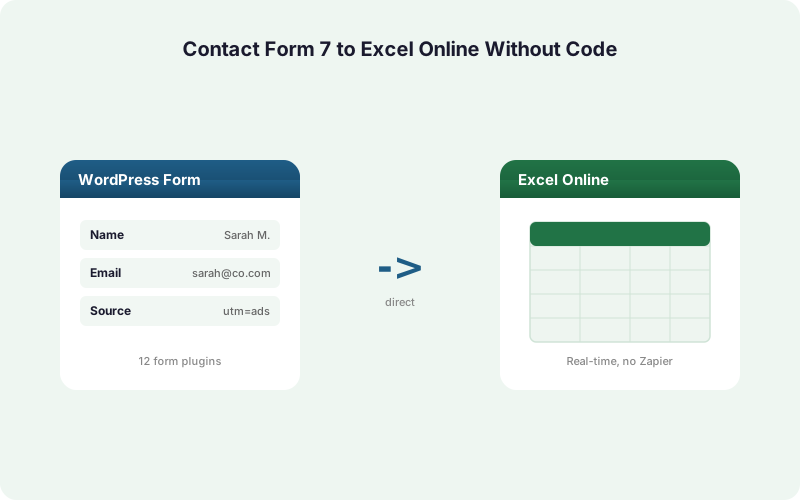
Send every Contact Form 7 submission straight into an Excel Online workbook on OneDrive in real time. No Zapier, no CSV exports, no developer needed.
In This Guide
- Why Send Contact Form 7 Data to Excel Online?
- What Makes Contact Form 7 Different?
- What Do You Need Before You Start?
- How Do You Connect Microsoft 365 to WordPress?
- Choosing Your Workbook and Table
- How Do You Map CF7 Mail Tags to Excel Columns?
- Does Data Reach Excel in Real Time?
- Free Mirror Mode vs Paid Excel-Primary: Which Do You Need?
- Why Skip Zapier or Power Automate?
- What Happens If Excel Is Temporarily Unavailable?
- Putting It All Together
- Frequently Asked Questions
Why Send Contact Form 7 Data to Excel Online?
Contact Form 7 powers 10+ million WordPress sites (2026), yet it stores nothing by default. Every submission is emailed and then gone. Routing that data into Excel Online turns your form into a living record your whole team can open from anywhere.
There's a practical reason this matters. Microsoft reports 400M+ paid Microsoft 365 commercial seats (2024), so most businesses already live in Excel. Sending leads there means no new tool to learn and no export ritual.
We've found that teams who already use Excel for reporting want their form data in the same place, not in a separate dashboard. Excel Online gives you live formulas, pivot tables, and shared editing on a single source of truth.
What Makes Contact Form 7 Different?
Contact Form 7 has no built-in entry storage. Unlike Gravity Forms or WPForms, it never saves submissions to the database, so if the notification email fails or gets filtered, that lead is lost. With 10+ million installs (2026), this catches a lot of people out.
CF7 works through mail tags, the bracketed placeholders you write in your form like [your-name] and [your-email]. These tag names become the keys you map to spreadsheet columns.
Many users bolt on the Flamingo plugin or a CSV add-on to keep records. That helps, but Flamingo data still lives inside WordPress and CSV exports are manual snapshots. Sending submissions to Excel Online makes the workbook your permanent, shareable record without an extra database table to maintain.
What Do You Need Before You Start?
You need four things, and none of them involve writing code. First, a WordPress site running Contact Form 7. Second, a Microsoft 365 account with OneDrive (any plan that includes Excel Online works among the 400M+ paid M365 seats, 2024).
Third, an Excel workbook saved on OneDrive with a formatted table where rows will land. Fourth, a connector that speaks Microsoft Graph, the official API for writing to Excel Online in real time.
That connector is where SheetLink Forms fits. It's a WordPress plugin that delivers form submissions directly to your spreadsheet through Microsoft Graph, no middleware in between. Install it like any plugin, and you're ready to connect Microsoft 365.
How Do You Connect Microsoft 365 to WordPress?
You connect Microsoft 365 through a one-time OAuth handshake, not by pasting API keys. The account has to be a work or school Microsoft 365 account - personal Outlook.com accounts are not supported by Microsoft's Excel API, which only reaches workbooks stored on OneDrive for Business or SharePoint. Because Microsoft 365 spans 400M+ paid commercial seats (2024), the sign-in flow is the same secure consent screen you already know from logging into Office.
In the plugin's Excel settings, click Connect Microsoft 365. You're sent to Microsoft's login, you approve access to your OneDrive files, and you're returned to WordPress with the connection live.
Behind the scenes, the plugin stores an encrypted refresh token, not your password, and uses it to call Microsoft Graph. We've found this beats per-flow connector setup because there's nothing to renew manually and no premium-connector fee, which we'll cover below. See the WordPress form to Excel guide for screenshots.
Choosing Your Workbook and Table
Pick a workbook on OneDrive with a real Excel table, not just a sheet with headers. Excel Online treats a formatted table as the target for new rows, which keeps your data clean as it grows. This step takes about a minute.
In Excel, select your header row, then Insert, then Table, and confirm your headers. Give the columns clear names like Name, Email, Message, and Date, since those names guide your field mapping in the next step.
A quick tip from experience: keep one table per form. If you run a contact form and a quote-request form, give each its own workbook or its own sheet and table. That separation makes later filtering and pivots far simpler than dumping everything into one giant table.
How Do You Map CF7 Mail Tags to Excel Columns?
You map each Contact Form 7 mail tag to a column in your Excel table using a simple dropdown, no code required. Since CF7 powers 10+ million sites (2026) and every form uses different tag names, this mapping step is what makes the integration form-agnostic.
Open your sync rule, choose Contact Form 7 as the source, and select your form. The plugin reads your form and lists every mail tag it finds, such as [your-name], [your-email], and [your-message].
For each tag, pick the Excel column it should write to. Map [your-name] to Name, [your-email] to Email, and so on. You can also pin a timestamp column and capture hidden fields. The plugin can auto-grab UTM and click-ID values like GCLID, fbclid, and msclkid for attribution.
Does Data Reach Excel in Real Time?
Yes. The moment Contact Form 7 processes a submission, the plugin writes a new row to your Excel Online table through Microsoft Graph, typically within a second or two. There's no polling delay and no scheduled export.
This matters because spreadsheets are still the system of record for most teams. 90% of financial-ops firms still rely on spreadsheets (AutoRek, 2025), and 58% of finance leaders use Excel as their primary tool (Rossum, 2024). Live data means decisions run on the latest lead, not last week's export.
Real-time delivery also reduces the manual-entry risk that plagues spreadsheets. Panko's research found up to 88% of audited spreadsheets contain errors (2016). Letting the plugin type each row removes the copy-paste mistakes humans make.
Free Mirror Mode vs Paid Excel-Primary: Which Do You Need?
SheetLink Forms offers two ways to reach Excel, and the right one depends on whether you also use Google Sheets. Mirror mode is free; Excel-primary is part of SheetLink Plus at $29/mo. Both write in real time via Microsoft Graph.
Free mirror mode sends each submission to Google Sheets AND Excel Online from a single rule. It's ideal if your team keeps a Sheets workflow but a manager or finance lead wants the same data in Excel. You set up Sheets once - one-click Google connect or the classic Apps Script webhook - then enable the Excel mirror.
Excel-primary makes Excel Online the sole destination, no Google account required. Choose this if your business is fully on Microsoft 365. It ships in the Primary Destinations add-on, part of SheetLink Plus listed on the pricing page.
Why Skip Zapier or Power Automate?
A direct plugin avoids the metered fees and licensing rules that make middleware expensive at scale. Zapier (2026) charges per task, where one action equals one task, with overages billed at 1.25x the base rate, so high-volume forms get costly fast.
Power Automate has its own catch. Microsoft began enforcing premium-connector licensing on April 1, 2025 (Microsoft Learn), with documented per-flow run and throttling limits. Writing to Excel via the right connectors can require a premium plan.
SheetLink Forms is a direct Microsoft Graph integration with no per-task fee and no premium-connector tax. For the full math, see our breakdown of Make vs Zapier vs direct plugin true cost and the deeper Zapier cost analysis.
What Happens If Excel Is Temporarily Unavailable?
If Microsoft Graph is briefly unreachable, the submission isn't lost. SheetLink Forms holds it in a built-in retry queue and resends automatically using exponential backoff at 5 minutes, 30 minutes, then 2 hours, with full delivery logs you can audit.
This matters most for Contact Form 7, which stores nothing itself. Without a queue, a momentary API hiccup would mean a lead vanishes. With it, the row simply lands a little later and your record stays complete.
The queue also protects you from the bigger reliability problem with spreadsheets: human error. Since spreadsheets average a 3.9% cell error rate (Panko, 2008), automated, logged delivery is far safer than re-keying missed submissions by hand. You see exactly what was delivered and when.
Putting It All Together
The full path takes about ten minutes. Install the plugin, connect Microsoft 365 with one OAuth click, choose your OneDrive workbook and table, then map your Contact Form 7 mail tags to columns. Submissions flow into Excel Online in real time from that point on.
Because Contact Form 7 runs on 10+ million sites (2026) and stores no entries, Excel becomes your durable record instead of a stack of notification emails. The retry queue keeps that record complete even during a brief outage.
From here you can grow the setup. Add conditional routing, fan leads out to a CRM, or compare Excel and Sheets for your workflow. The same direct-integration model works across all 12 supported form plugins, so what you learn here applies far beyond CF7.
| Approach | Setup | Delivery Speed | Ongoing Cost | CF7 Record Kept |
|---|---|---|---|---|
| CF7 + Flamingo / CSV export | Add-on plus manual exports | Manual snapshots | Free, manual labor | Inside WordPress only |
| Zapier / middleware | Connect accounts per zap | Polled, can lag | Per-task, 1.25x overage | Yes, while subscribed |
| SheetLink Forms direct | One OAuth click, map tags | Real time via Graph | One-time license | Yes, plus retry queue |
Frequently Asked Questions
Does Contact Form 7 store submissions on its own?
No. Contact Form 7 only emails submissions and saves nothing to the database by default. If an email fails or is filtered, that lead is gone. Sending data to Excel Online creates a permanent, shareable record, which is why many of CF7's 10+ million sites add storage.
Do I need to write any code to connect CF7 to Excel Online?
No code is needed. You install SheetLink Forms, connect Microsoft 365 through a one-time OAuth sign-in, pick your OneDrive workbook, and map mail tags to columns using dropdowns. The whole setup takes about ten minutes and never touches the Microsoft Graph API directly.
What are CF7 mail tags and how do they map to columns?
Mail tags are the bracketed placeholders in your form, like [your-name] or [your-email]. The plugin reads every tag in your form and lists them, then you assign each one to an Excel column. So [your-email] writes to your Email column, and so on.
Is sending data to both Google Sheets and Excel free?
Yes. Free mirror mode delivers each submission to Google Sheets AND Excel Online from a single rule at no cost. Making Excel the sole destination with no Google account uses Primary Destinations, part of SheetLink Plus at $29/mo.
How fast does data reach Excel Online?
Typically within a second or two. When Contact Form 7 processes a submission, the plugin writes a new row through Microsoft Graph immediately, with no polling delay or scheduled export. This keeps your workbook live, which matters since 90% of financial-ops firms still rely on spreadsheets (AutoRek, 2025).
What happens if Excel or my connection goes down?
The submission enters a built-in retry queue and resends automatically using exponential backoff at 5 minutes, 30 minutes, and 2 hours. Full delivery logs let you audit every row. Nothing is lost, which is critical because CF7 itself stores no backup of submissions.
Why not just use Zapier or Power Automate for this?
Both meter usage. Zapier bills per task with overages at 1.25x base rate (2026), and Microsoft began enforcing Power Automate premium-connector licensing on April 1, 2025. A direct plugin avoids per-task fees and premium-connector costs entirely while writing in real time via Microsoft Graph.
Does this work with form plugins other than Contact Form 7?
Yes. The same direct integration supports 12 core form plugins, including Gravity Forms, WPForms, Elementor Pro, and Fluent Forms, with 17 available through the Pro tier. The mapping process is identical, you just pick a different source form.
Should I use Excel Online or Google Sheets for my form data?
It depends on your stack. If your team lives in Microsoft 365, Excel Online keeps data where you already work. If you prefer Google or want both, mirror mode covers it. See our comparison of Excel Online vs Google Sheets for WordPress form data for a full breakdown.
More Tutorial guides
Send Contact Form 7 to Excel Online in Minutes
Connect Microsoft 365 with one click, map your mail tags, and watch every CF7 submission land in Excel Online in real time. No code, no Zapier, no per-task fees.