
Contact Form 7 to Google Sheets Without Zapier
CF7 is on 5 million WordPress sites. Here's how to pipe every submission to a Google Sheet in minutes - about one with one-click Google connect - with zero recurring costs.
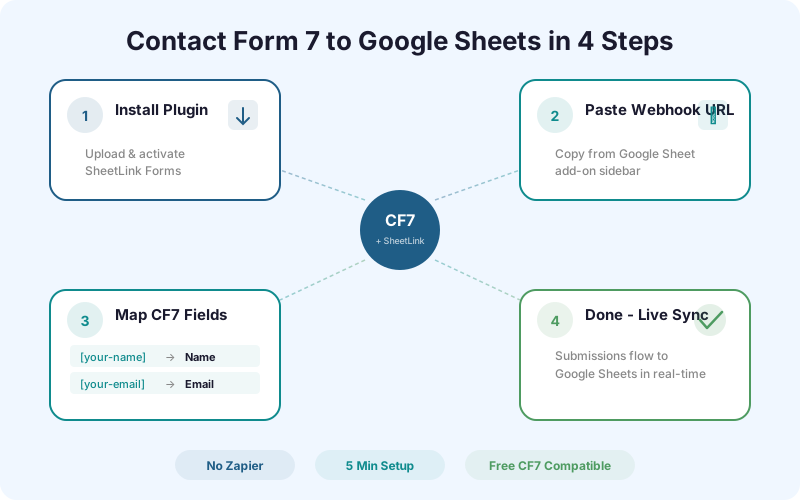
Why CF7 Users Need Google Sheets
Contact Form 7 is the most installed form plugin in WordPress history. Over 5 million active installations. It's free, lightweight, and does exactly what it says - creates contact forms.
But CF7 has one major gap: there's no built-in way to see your submissions in a spreadsheet. By default, CF7 sends form data via email and that's it. No database storage, no export, no dashboard. Your leads live in your inbox, mixed with everything else.
Google Sheets fixes this. Every submission becomes a row in a spreadsheet you can filter, sort, share with your team, and build reports from. The question is how to get the data there.
Step-by-Step Setup
The entire setup takes a few minutes. No coding required.
Step 1: Install SheetLink Forms. In your WordPress dashboard, go to Plugins > Add New > Upload Plugin. Upload the sheetlink-forms.zip file and activate it.
Step 2: Connect Google Sheets. The fast path (v1.12.0+) is one-click: go to SheetLink > Google Sheets (OAuth), click Connect Google, approve the consent screen, and pick an existing spreadsheet or create a new one in the Google file picker. Takes about a minute, and SheetLink only gets access to the sheets you pick or create (drive.file scope), never your whole Drive. Prefer the classic self-hosted route? Create the Apps Script webhook instead: open your spreadsheet, go to Extensions > Apps Script, paste the SheetLink receiver script, click Deploy > New deployment > Web app with access set to "Anyone", then paste the deployment URL into SheetLink > Settings. Click "Test Connection" to verify either way.
Step 3: Submit once and let the columns build themselves. Open your Contact Form 7 form editor and note each field's mail-tag (e.g., [your-name], [your-email], [your-message]). You do not type column names anywhere: the first delivery seeds the header row from the form's own fields, preferring each field's label and falling back to the mail-tag. Open the mapping screen afterwards only if you want to rename, reorder, or drop a column.
Step 4: Test with a submission. Fill out your CF7 form on the front end and submit. Check your Google Sheet - the row should appear within seconds.
Handling Special CF7 Features
CF7 has several features that require special handling:
Special mail tags: CF7 includes special tags like [_remote_ip], [_user_agent], [_date], and [_time]. SheetLink Forms captures all of these automatically and includes them as additional columns in your Google Sheet.
Conditional fields: If you're using the Conditional Fields for CF7 plugin, SheetLink handles the dynamic field visibility correctly. Fields that are hidden (not filled) send empty values rather than breaking the row structure.
File uploads: CF7 supports file upload fields ([file your-file]). SheetLink stores the file URL (served from your WordPress media library) in the Sheets cell rather than the binary file data.
Multi-step forms: If you're using a multi-step CF7 form plugin, SheetLink captures the final submission (after all steps are complete), not intermediate steps.
Troubleshooting Common Issues
Submissions not appearing in Google Sheets: on the classic Apps Script route, check that your deployment URL is correct (it should end in /exec) and that the script is deployed as a "Web app" with access set to "Anyone." On the one-click connection, use Send Test on the rule to confirm the link. Either way, check SheetLink > Logs for any failed deliveries.
Columns in wrong order: SheetLink seeds the header row from your CF7 fields on the first delivery, preferring each field's label and falling back to the mail-tag. If columns appear in a different order than expected, rearrange the columns in Google Sheets directly - the data is matched by header name, not position.
Duplicate submissions: If you see duplicate rows, check whether you have both SheetLink and another Google Sheets plugin active (like JEsuspended). Disable the other plugin.
Apps Script quota errors: Free Google accounts have a limit of 20,000 URL fetch calls per day. If you're processing more than 20,000 form submissions per day, upgrade to Google Workspace or use multiple Apps Script deployments.
Frequently Asked Questions
Does this work with the free version of Contact Form 7?
Yes. SheetLink Forms works with the standard, free version of CF7. No premium add-ons required.
Will I still receive email notifications from CF7?
Yes. SheetLink Forms works alongside CF7's email notifications. You get both: the email notification AND the Google Sheets row. They're independent systems.
Can I send different CF7 forms to different Google Sheets?
Yes. SheetLink supports conditional routing. You can assign each CF7 form a unique identifier and route submissions to different spreadsheets or different tabs within the same spreadsheet.
How does this compare to using Flamingo for CF7 submissions?
Flamingo stores CF7 submissions in your WordPress database and displays them in the admin dashboard. SheetLink sends them to Google Sheets. You can use both - Flamingo for WordPress-side storage and SheetLink for Google Sheets access. They complement each other.
More Tutorial guides
Connect CF7 to Google Sheets in Minutes
No Zapier. No recurring fees. One-time purchase, lifetime updates.