
How to Automate Lead Follow-Up Emails from Google Sheets
When a WordPress lead lands in Google Sheets in real time, an Apps Script trigger can send the follow-up email seconds later. Here is the send-on-new-row pattern, conditional logic, and how to avoid duplicate sends.
In This Guide
- Why Does Follow-Up Speed Matter So Much?
- How Do WordPress Leads Reach Google Sheets in Real Time?
- Time-Driven Triggers vs On-Edit Triggers: Which Should You Use?
- What Does a Simple Send-On-New-Row Script Look Like?
- Can You Personalize Follow-Ups With Mail Merge?
- How Do You Send Different Emails Based on Field Values?
- How Do You Avoid Sending Duplicate Follow-Up Emails?
- When Should You Route to a Dedicated Email Tool Instead?
- How Do You Make the Whole Pipeline Reliable?
- Can You Track Follow-Up Performance in the Same Sheet?
- Putting It All Together
- Frequently Asked Questions
Why Does Follow-Up Speed Matter So Much?
Speed-to-lead is the single biggest lever you control after a form submission. A lead that gets a reply in the first minute feels heard; one that waits hours has usually moved on. With WordPress powering about 43% of all websites (W3Techs, 2026), most lead forms live on a platform that can pipe data instantly.
The catch is the gap between form and inbox. Submissions sit in a database, someone exports them later, and the follow-up goes out cold. Closing that gap means two things have to be true. The lead must reach a destination in real time, and something must watch that destination and act.
Google Sheets is an ideal middle layer here. It is free, every salesperson can read it, and it can run code. We have found that teams move faster when the trigger lives where they already work.
How Do WordPress Leads Reach Google Sheets in Real Time?
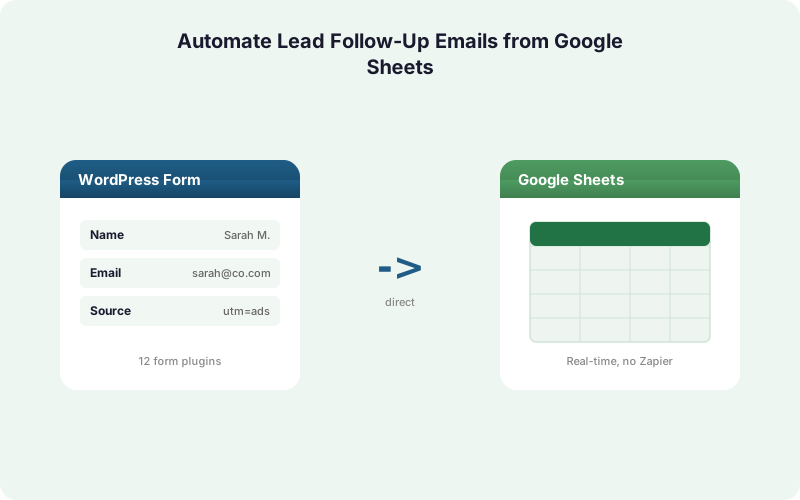
Real-time ingestion is the foundation. With over 10 million businesses on Google Workspace (Google Workspace Blog, 2025), Sheets is already the default lead store for many teams. SheetLink Forms writes each WordPress submission to a row within 1-2 seconds, with no Zapier or middleware in between - connect with the one-click Google Sheets connect (Connect Google, then pick or create a sheet in the Google file picker) or the classic Apps Script webhook you deploy once. The follow-up trigger below works the same over either connection.
This matters because the email trigger is only as fast as the data feeding it. A scheduled sync that polls every 15 minutes adds a 15-minute delay before any follow-up logic even runs.
SheetLink works with 12 core form plugins (17 with the Pro tier), so the same row format works whether you use Gravity Forms, WPForms, or Elementor Pro. Walk through the full pipe in our WordPress forms to Google Sheets guide, or jump to the setup docs to connect your sheet. The result is a sheet that fills itself the instant a lead hits submit.
Time-Driven Triggers vs On-Edit Triggers: Which Should You Use?
Apps Script offers two trigger styles, and the choice shapes your latency. Because spreadsheet errors are common, with up to 88% of audited spreadsheets containing errors (Panko, 2008), picking the simplest reliable trigger reduces the surface for mistakes. For automated follow-up, a time-driven trigger is usually the safest choice.
An on-edit trigger fires the moment a cell changes. It sounds perfect, but webhook-driven writes from an external script do not always fire onEdit reliably, and the trigger runs with limited permissions.
A time-driven trigger runs your function on a schedule you set, for example every minute or every five minutes. It scans for new rows since the last run and sends emails for them. You trade a few seconds of latency for far more reliable execution and full authorization. For lead follow-up, a one-minute trigger feels instant to the prospect while staying robust.
What Does a Simple Send-On-New-Row Script Look Like?
The core pattern is a function that finds unprocessed rows and emails each lead. Google Sheets supports up to 10,000,000 cells per spreadsheet (Google Workspace Updates, 2022), so a single lead sheet can hold years of submissions without splitting files. The script below reads new rows, sends a message, and marks each one done.
Add a status column, then create a function like sendFollowUps(). It loops the rows, checks the status cell, and uses MailApp.sendEmail() for each lead without a sent flag:
function sendFollowUps() {
  const sheet = SpreadsheetApp.getActiveSheet();
  const rows = sheet.getDataRange().getValues();
  for (let i = 1; i < rows.length; i++) {
    if (rows[i][5] === 'sent') continue;
    MailApp.sendEmail(rows[i][2], 'Thanks for reaching out',
      'Hi ' + rows[i][1] + ', we received your message.');
    sheet.getRange(i + 1, 6).setValue('sent');
  }
}
Attach sendFollowUps to a time-driven trigger via the clock icon in the Apps Script editor. Pick every minute, and your follow-ups go out within 60 seconds of a lead arriving.
Can You Personalize Follow-Ups With Mail Merge?
Yes, and personalization lifts response. Each row already holds the lead's name, email, and form fields, so a mail-merge template turns those columns into a tailored message. Because spreadsheets carry an average cell error rate around 3.9% (Panko, 2016), validate that key fields are non-empty before sending so you never email a broken greeting.
Replace the plain string in MailApp.sendEmail() with a template that swaps placeholders for column values. Read a draft from a Gmail template using GmailApp.getDrafts(), then substitute tokens like the lead's first name and the source form.
For richer formatting, pass an htmlBody option to MailApp.sendEmail() with inline styles and a real signature. Capture campaign context too. SheetLink records UTM and click IDs automatically, so you can reference the exact campaign a lead came from. See our UTM and GCLID attribution guide for how those columns get populated.
How Do You Send Different Emails Based on Field Values?
Conditional sends route the right message to the right lead. Your script can branch on any column, sending a demo invite to enterprise leads and a self-serve guide to small accounts. Since up to 88% of audited spreadsheets contain errors per Panko (2008), keep branch logic readable so future edits do not silently misroute leads.
Inside the loop, read the relevant cell, for example a budget or plan field, and choose the template with a simple condition. A switch statement on the form name or a value comparison keeps the rules easy to scan.
You can also push conditional logic upstream into the pipe itself. SheetLink supports conditional routing by form and field value before data even reaches the sheet, so high-value leads can land in a separate tab. Our conditional routing walkthrough shows how to split traffic, which keeps each Apps Script trigger focused on one audience.
How Do You Avoid Sending Duplicate Follow-Up Emails?
Duplicate sends are the most common failure mode, and a status column fixes most of it. The script must mark each row the moment it sends, so the next trigger run skips it. With sheets holding up to 10,000,000 cells per Google Workspace Updates (2022), a single processed flag scales to years of leads without slowing the scan.
Three habits prevent doubles. First, write the sent flag in the same run, immediately after the email succeeds. Second, guard against two trigger runs overlapping by using LockService.getScriptLock() at the top of the function. Third, dedupe leads who submit twice by checking the email column against rows already marked sent.
For heavier dedupe needs, handle it at the data layer. Our automatic lead deduplication guide covers matching on email or phone so the same person never triggers two follow-ups.
When Should You Route to a Dedicated Email Tool Instead?
Apps Script is perfect for simple, low-volume follow-ups, but a real email tool wins at scale. Gmail caps consumer accounts at modest daily send limits, and Workspace accounts at higher but still finite ones, so high-volume senders should route leads into a platform built for deliverability. Many SMBs still run leads in spreadsheets, yet a marketing tool adds sequences, unsubscribe handling, and reporting.
SheetLink's Multi-CRM Routing add-on can fan each submission out to Mailchimp, ActiveCampaign, HubSpot, and more at the same time as the sheet, with conditional routing by field value and no per-task fees.
That means the sheet stays your readable system of record while the email tool owns sending. Compare the approaches in our Google Sheets CRM guide, and browse delivery options on the integrations page. The decision usually comes down to volume and whether you need automated drip sequences.
How Do You Make the Whole Pipeline Reliable?
Reliability comes from the ingestion layer, not the script. If a lead never reaches the sheet, no trigger can email it, so the write step must survive outages. SheetLink uses a built-in retry queue with exponential backoff at 5 minutes, 30 minutes, and 2 hours, plus full delivery logs, so a temporary Sheets hiccup delays delivery rather than losing the lead.
On the Apps Script side, wrap sends in a try-catch and log failures to a column so you can see which rows need a retry. A failed MailApp.sendEmail() should not stop the loop for every other lead.
Avoid scheduled-poll tools that add lag before your trigger even runs. The direct-pipe model removes that delay entirely, which we compare in Make vs Zapier vs direct plugin. A reliable pipe plus a defensive script means follow-ups go out every time.
Can You Track Follow-Up Performance in the Same Sheet?
Yes, and keeping reporting in the sheet avoids tool sprawl. Add a sent-timestamp column and a response column, then build a live dashboard from the same data your trigger writes to. Because Google Workspace serves over 10 million businesses (Google Workspace Blog, 2025), most teams already know how to read a pivot table, so adoption is near zero-cost.
The script can stamp the send time with new Date() into a column, giving you a true speed-to-lead metric per row. Sort or filter to find leads waiting too long.
From there, sparklines and pivots turn the raw rows into a follow-up report without exporting anything. Our Google Sheets dashboards guide shows the formulas. The same sheet becomes form intake, automation trigger, and reporting surface in one place.
Putting It All Together
The fastest follow-up comes from a sheet that fills itself and a trigger that watches it. Get the WordPress lead into Google Sheets in real time, run a time-driven Apps Script every minute, send a personalized email, and mark the row sent so it never fires twice.
Keep the logic simple, guard against duplicates with a status flag and LockService, and validate fields before sending. For higher volume or true drip sequences, route to a dedicated email tool while the sheet stays your readable record.
Start with the real-time pipe, since everything downstream depends on it. Connect your sheet - one-click Google connect or the classic Apps Script webhook - via the setup docs, review pricing on the pricing page, and if you run many client sites, the agency tools centralize every lead pipeline in one place.
| Approach | Latency to Email | Personalization | Best For |
|---|---|---|---|
| Apps Script time-driven trigger | Under 60 seconds | Mail merge from row data | Low to medium volume |
| Apps Script on-edit trigger | Unreliable on webhook writes | Mail merge from row data | Manual sheet edits only |
| Routed to email tool | Real time via Multi-CRM Routing | Full drip sequences | High volume + deliverability |
Frequently Asked Questions
How fast can an Apps Script send a follow-up email after a lead arrives?
With SheetLink writing the row in 1-2 seconds and a one-minute time-driven trigger scanning for new rows, the follow-up email typically sends within 60 to 90 seconds of submission. That feels near-instant to the prospect while keeping the trigger reliable and fully authorized.
Do I need Zapier to trigger emails from Google Sheets?
No. SheetLink Forms writes WordPress submissions straight to Sheets with no Zapier or middleware, and Google Apps Script handles the sending natively. You avoid per-task fees entirely. Apps Script and a time-driven trigger cover most follow-up needs without any third-party automation service.
Why use a time-driven trigger instead of an on-edit trigger?
Webhook-driven writes from an external script do not reliably fire onEdit, and that trigger runs with limited permissions. A time-driven trigger runs on your schedule with full authorization, scanning for new rows. For lead follow-up, a one-minute time-driven trigger is more dependable than on-edit.
How do I stop duplicate follow-up emails?
Add a status column and write a sent flag immediately after each email succeeds, so the next run skips that row. Use LockService.getScriptLock() to prevent overlapping runs, and check the email column against rows already marked sent to catch repeat submitters.
Can I send different emails based on the form field values?
Yes. Inside the loop, read the relevant cell, such as a plan or budget field, and branch with a condition to pick the template. You can also route high-value leads to a separate tab using SheetLink's conditional routing before the data reaches the sheet.
Will Apps Script handle high email volume?
Gmail and Workspace accounts have finite daily send limits, so very high volume senders should route leads into a dedicated email tool. SheetLink's Multi-CRM Routing add-on can fan submissions to Mailchimp, ActiveCampaign, or HubSpot for sequences and deliverability while the sheet stays your record.
What happens if Google Sheets is briefly unavailable when a lead submits?
SheetLink uses a built-in retry queue with exponential backoff at 5 minutes, 30 minutes, and 2 hours, plus full delivery logs. A temporary outage delays the write rather than losing the lead, so the follow-up still sends once the row lands.
Can I personalize follow-ups with mail merge?
Yes. Each row holds the lead's name, email, and form fields, so a template can swap placeholders for column values. Pull a draft with GmailApp.getDrafts() or pass an htmlBody to MailApp.sendEmail(). Validate that key fields are non-empty first to avoid broken greetings.
Does this work with my form plugin?
Almost certainly. SheetLink Forms supports 12 core form plugins, including Gravity Forms, WPForms, Elementor Pro, and Fluent Forms, and 17 with the Pro tier. The row format stays consistent across plugins, so the same Apps Script follow-up logic works regardless of which form you use.
More Automation guides
Turn New Leads Into Sent Emails in Under a Minute
SheetLink Forms pipes every WordPress submission to Google Sheets in real time, so your Apps Script trigger fires while the lead is still warm. No Zapier, no per-task fees.