
Fluent Forms Without Zapier: Direct Google Sheets Sync
Connect every Fluent Forms submission to a Google Sheet in about a minute with one-click Google connect - or five minutes self-hosted. No middleware, no per-task fees, no third-party data processing.
In This Guide
- Why Skip Zapier for Fluent Forms?
- How the Direct Connection Works
- What You Need Before You Start
- Step 1: Create the Receiving Google Sheet
- Step 2: Deploy the Apps Script Webhook (Classic Method)
- Step 3: Configure the WordPress Plugin
- Field Mapping: Names, Custom Fields, and Hidden Inputs
- Routing Submissions to Multiple Sheets
- Common Issues and How to Fix Them
- Beyond the Basic Connection
- Recap: Fluent Forms to Sheets in 5 Minutes
- Frequently Asked Questions
Why Skip Zapier for Fluent Forms?
Fluent Forms is one of the fastest WordPress form builders on the market. It loads in milliseconds and handles thousands of submissions without slowing down a site. The natural next step is sending those submissions to Google Sheets - for sales follow-up, marketing analysis, or just having a backup outside WordPress.
Most tutorials send you to Zapier. That works, but it adds three problems. First, every submission costs a Zapier task - $29.99/month for 750 tasks adds up fast on a busy site. Second, your form data passes through Zapier servers before it ever reaches Google. Third, when Zapier has an outage (which happens every few months), your sheet stops updating and you don't notice until a deal goes cold.
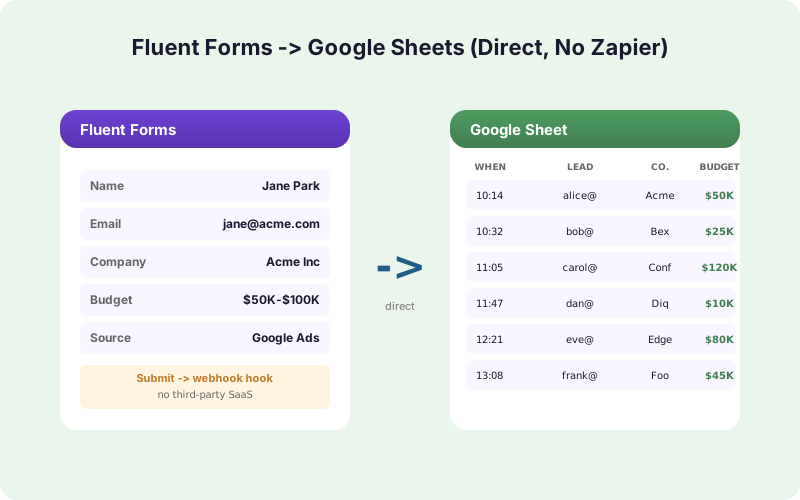
The direct approach is simpler. Your WordPress site writes straight to your sheet - via one-click Google Sheets connect (v1.12.0+) or a Google Apps Script webhook you host yourself. No middleware, no per-task fees, no second vendor in the data path. This guide walks through both setups.
How the Direct Connection Works
Since v1.12.0, SheetLink Forms offers two direct ways to connect - both free, and neither puts a middleman in your data path. The recommended one is one-click Google Sheets connect: click Connect Google, approve a standard consent screen, then pick or create a spreadsheet in the Google file picker. The alternative is the classic Apps Script webhook, the fully self-hosted route.
The classic method has three pieces. The Fluent Forms plugin (which you already have). A Google Apps Script web app deployed in your Google account (free, takes 30 seconds to copy-paste). And a WordPress plugin that handles the field mapping and webhook delivery.
When a visitor submits a Fluent Form, your WordPress server posts the field data to the Apps Script URL. Apps Script parses the JSON, finds the right spreadsheet, and appends a new row. The whole round-trip happens in under a second. If Google is briefly unreachable, the WordPress plugin queues the submission locally and retries until it lands.
This architecture has been used in production by thousands of sites. SheetLink Forms' Fluent Forms integration handles all the wiring so you never touch JavaScript.
What You Need Before You Start
You need three things to complete this setup. A WordPress site running Fluent Forms (the free version is fine - this works with both Lite and Pro). A Google account with access to Google Sheets and Google Apps Script. A WordPress admin login on the site you want to connect.
No Google Cloud project and no API keys with either method. One-click connect uses SheetLink's own verified Google app with the drive.file scope - SheetLink only gets access to the spreadsheets you pick or create, never your whole Drive. Prefer no OAuth at all? The classic Apps Script method authenticates transparently because the script runs as you in your own Google account. If you already have a Fluent Form set up and a Google account, you have everything you need.
Step 1: Create the Receiving Google Sheet
The fastest path (v1.12.0+): in WordPress admin, open SheetLink -> Google Sheets (OAuth), click Connect Google, approve the consent screen, then pick or create a spreadsheet in the Google file picker. That takes about a minute and skips Steps 1-2 below entirely: the first submission seeds the header row from your form's own fields, so there are no column names to type. The steps that follow cover the classic self-hosted Apps Script method, which remains fully supported.
For the classic method, open Google Sheets and create a new spreadsheet. Name it something descriptive like "Contact Form Leads" or "Newsletter Signups." In the first row, add column headers that match the fields on your Fluent Form: Name, Email, Phone, Message, Submitted At. Order matters here - the script will write fields to columns in the order they appear.
If your form has UTM tracking, add columns for utm_source, utm_medium, utm_campaign, gclid. If you want to track lead status, add a Status column for manual or automated updates.
Grab the Sheet ID from the URL. It's the long string between /d/ and /edit. You'll need it in the next step.
Step 2: Deploy the Apps Script Webhook (Classic Method)
In Google Sheets, click Extensions, then Apps Script. A new tab opens with a code editor. Paste a receiver script (the SheetLink Forms plugin provides one in its admin panel - it's about 30 lines of JavaScript). The script does three things: parses the incoming JSON, finds the spreadsheet by ID, and calls appendRow() with the field values.
Click Deploy, then New Deployment. Choose Web App as the type. Set "Execute as" to your Google account and "Who has access" to "Anyone." This sounds permissive but it's the standard pattern - the URL is unguessable and only your WordPress server has it. Click Deploy and copy the resulting URL.
This URL is your webhook endpoint. Treat it like a password - if someone gets it, they can append rows to your sheet. The plugin stores it in encrypted WordPress options.
Step 3: Configure the WordPress Plugin
Install SheetLink Forms (or another Fluent Forms-to-Sheets plugin). In the plugin settings, paste the Apps Script webhook URL. The plugin will run a test ping to verify the script responds. If it does, you'll see a green "Connected" indicator.
Next, choose the form you want to connect. The plugin reads your Fluent Form definition and shows every field as a mappable source. Drag fields onto destination columns or accept the default left-to-right mapping. Save.
That's the entire setup. Submit a test entry on your form and watch it appear in your sheet within two seconds. If you're used to Zapier's polling delay (often 5-15 minutes on lower tiers), the speed will surprise you.
Field Mapping: Names, Custom Fields, and Hidden Inputs
Fluent Forms has a flat field structure - every input gets a name attribute that the plugin reads. For most forms the default mapping just works. But there are three cases that trip people up.
Repeater fields (where users add multiple rows like "additional attendees") need a flatten strategy. The plugin can either join them into a single cell with separators or write each repeater row to its own row in the sheet.
Custom HTML fields with hidden inputs (common for tracking sources, A/B test variants, or affiliate IDs) need to be added to the field map manually because Fluent Forms doesn't expose them in the standard field list.
File upload fields can't be embedded in a sheet directly. Best practice is to log the file URL plus metadata (filename, size, MIME type) in the row. We cover this in detail in our guide on logging file uploads to Google Sheets.
Routing Submissions to Multiple Sheets
Many sites need different forms to land in different sheets. Sales leads to Sales Pipeline, support requests to Support Queue, newsletter signups to Marketing. The direct approach handles this cleanly with one webhook per destination.
In the SheetLink Forms admin, you can create multiple destinations and assign each form to a destination. The plugin posts to the right Apps Script for each form. No conditional logic, no shared state, no Zapier multi-step Zaps that fail when one step errors.
For more complex needs - sending the same submission to two different sheets, or routing by field value - see our guides on simultaneous multi-sheet writes and conditional routing by field value.
Common Issues and How to Fix Them
Three problems account for ~90% of support tickets on this setup.
"Submissions appear in random columns." The Apps Script writes fields in the order they're sent, not by column header. If you reordered your form fields after the initial setup, remap them in the plugin.
"Submissions stopped appearing after I duplicated the sheet." The webhook URL is tied to the script, which is tied to the original sheet. When you duplicate a sheet, the script doesn't come with it - you need to redeploy.
"Some submissions are missing." Check your Fluent Forms entries (the WordPress database always stores them, regardless of webhook status). If they're there but not in Sheets, look at the plugin's retry log. Most failures are transient and resolve within a minute, but a sustained Apps Script quota error means you're hitting the daily 20,000 URL fetch limit (very rare for typical sites).
Beyond the Basic Connection
Once your Fluent Forms data is in Google Sheets, you can layer on workflows that would cost a fortune through Zapier. Score every submission with AI using the AI Lead Scoring add-on. Fan out to your CRM with the Multi-CRM Routing add-on. Sync changes back to WordPress with the Two-Way Sync add-on.
These all build on the same direct webhook architecture - no middleware, no per-task fees, no extra failure points. Your sheet stays the source of truth, and everything else reads from it.
Recap: Fluent Forms to Sheets in 5 Minutes
The direct setup is genuinely fast. With one-click connect (v1.12.0+): click Connect Google, pick or create a sheet in the Google file picker, and submit one entry - the columns build themselves, about a minute. Prefer the self-hosted route? Create a Sheet with column headers, deploy a 30-line Apps Script as a web app, paste the URL into the plugin, and map your fields. Done either way.
Compared to Zapier, you save $360+/year per connected site, eliminate a third party from your data path, and gain instant submission delivery instead of polling delays. For most WordPress sites running Fluent Forms, there is no reason to keep paying for middleware.
Frequently Asked Questions
Does Fluent Forms have a built-in Google Sheets integration?
Fluent Forms Pro includes a Google Sheets module, but it is Pro-only and managed inside Fluent Forms. SheetLink Forms works with the free version of Fluent Forms and lets you choose your connection: one-click Google Sheets connect (drive.file scope, no Google Cloud setup) or the self-hosted Apps Script webhook. It also gives you finer-grained control over field mapping and multi-sheet routing.
How fast does data appear in Google Sheets?
Direct webhook delivery is typically under two seconds from form submission to row appearing in Sheets. Zapier's polling-based approach can lag 5-15 minutes on lower-tier plans.
Can I use this with the free version of Fluent Forms?
Yes. The webhook approach hooks into the standard Fluent Forms submission action that fires on both free and Pro versions. No Pro license required.
What happens if Google Sheets is temporarily unavailable?
The SheetLink Forms plugin queues failed deliveries locally in WordPress and retries with exponential backoff. Submissions are never lost - they sit in the queue until Google responds.
Is my data still stored in WordPress?
Yes. Fluent Forms always saves submissions to its own WordPress database table. The Sheets integration is an additional destination, not a replacement. If you ever lose access to your sheet, every submission is recoverable from WordPress.
Can I send Fluent Forms data to multiple Google Sheets at once?
Yes. SheetLink Forms supports multi-destination routing, so the same submission can write to two or more sheets simultaneously. This is useful for keeping a master log plus team-specific views.
Do I need a Google Workspace account?
No. The setup works with a free personal Google account. Google Workspace adds higher Apps Script quotas, but typical WordPress sites never approach the free-tier limits.
How does this compare to Zapier for Fluent Forms?
Direct webhook delivery is faster, free of per-task fees, and removes a third party from your data path. Zapier makes more sense when you need to chain multiple non-Sheets apps in a single workflow. For Fluent Forms to Google Sheets specifically, direct is cheaper and simpler.
More Tutorial guides
Connect Fluent Forms to Sheets in 5 Minutes
Skip the Zapier tax. SheetLink Forms is a one-time purchase with unlimited submissions.