
How to Score WordPress Leads with AI and Google Sheets
Set up AI-powered lead scoring that runs on every form submission. No data science background needed.
What Is AI Lead Scoring?
Lead scoring assigns a numerical value to each form submission based on how likely that person is to become a customer. Traditional lead scoring uses manual rules: "If job title contains CEO, add 20 points. If company size > 100, add 15 points."
AI lead scoring replaces manual rules with a language model that reads the entire submission - every field, the page the form was on, the UTM source, the time of day - and produces a score with reasoning. It catches patterns that rule-based systems miss.
How SheetLink's AI Scoring Works
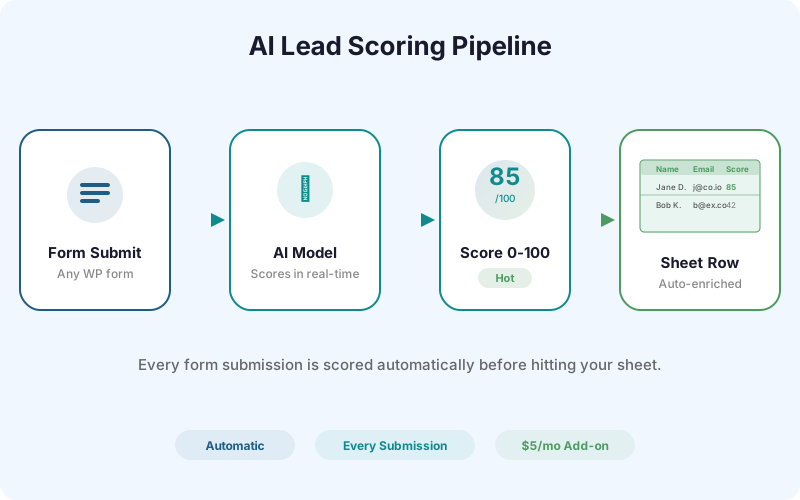
SheetLink Forms includes an optional AI Lead Scoring add-on ($5/month) that runs on every form submission. Here's the pipeline:
1. A visitor submits a form on your WordPress site. 2. SheetLink sends the form data to Google Sheets (as usual). 3. Simultaneously, the submission is sent to SheetLink's AI scoring engine. 4. The AI model reads all form fields plus metadata (page URL, UTM parameters, referrer, time). 5. It returns a score (0-100), a category (Hot, Warm, Cold), and a one-line reasoning. 6. The score, category, and reasoning are appended to the same Google Sheets row.
The entire process adds less than 2 seconds to the pipeline. Your sales team sees scored leads in Google Sheets in near real-time.
What Signals Does the AI Score?
The AI model evaluates multiple signals from each submission:
Form field content: Name, email domain (gmail.com vs company.com), phone number presence, message length and intent, company name, job title, budget range.
Behavioral signals: Which page the form was on (pricing page = higher intent), UTM source (Google Ads vs organic), time of submission (business hours vs 2 AM).
Metadata: Email domain reputation, company name recognition, form completion time (bots fill forms instantly, humans take 30+ seconds).
The model weighs these signals contextually. A short message from a company email on your pricing page scores higher than a long message from a gmail address on your blog.
Practical Examples
Dental office scoring new patient inquiries: A submission from someone asking about "dental implants consultation" with a phone number and insurance information scores 85 (Hot). Someone asking "do you accept my insurance" without scheduling intent scores 55 (Warm). A generic "I have a question" from a free email scores 30 (Cold).
SaaS company scoring demo requests: A submission with a company email, "VP of Engineering" title, and "200-500 employees" company size scores 92 (Hot). A student email asking about "pricing for a school project" scores 15 (Cold).
Agency scoring client leads: A business owner asking about "WordPress maintenance for 5 sites" with a budget range of "$1,000-$3,000/month" scores 88 (Hot). A "just looking for information" inquiry with no budget or timeline scores 25 (Cold).
Setting Up AI Lead Scoring
Setup takes 5 minutes:
1. Enable the AI Lead Scoring add-on in your SheetLink Forms license portal ($5/month). 2. In your WordPress dashboard, go to SheetLink > Settings > AI Scoring and toggle it on. 3. The scoring engine automatically detects your form fields and starts scoring new submissions. 4. Three new columns appear in your Google Sheet: AI Score (0-100), Category (Hot/Warm/Cold), and Reasoning (one-line explanation).
No training data required. No model configuration. The AI works out of the box for any form type.
Google Sheets Formulas for Lead Scoring Workflows
Once scores are in your sheet, you can build workflows with standard Google Sheets features:
Conditional formatting: Color rows based on score. Green for 70+, yellow for 40-69, red for below 40. Select the score column, go to Format > Conditional formatting, and add rules.
Filtered views: Create a view that only shows Hot leads (score >= 70). Your sales team sees their priority list without manual sorting.
SLACK/EMAIL notifications: Use Google Sheets' built-in Apps Script to send a Slack message or email when a Hot lead arrives. Trigger on sheet edit, check the score column, and call the Slack webhook if score >= 80.
Frequently Asked Questions
Does AI lead scoring work with any WordPress form?
Yes. The AI scoring engine works with any form builder supported by SheetLink Forms: Elementor Pro, Contact Form 7, Gravity Forms, WPForms, Fluent Forms, Formidable Forms, and Ninja Forms.
How accurate is the AI scoring?
The model achieves approximately 80-85% alignment with human scoring in our testing. It's not perfect - no scoring system is - but it eliminates the manual effort of reviewing every submission and surfaces high-intent leads immediately.
Can I customize the scoring criteria?
The current version uses a general-purpose model optimized for lead qualification. Industry-specific tuning (e.g., dental, legal, SaaS) is on the roadmap. You can supplement AI scores with your own Google Sheets formulas for business-specific rules.
What does AI lead scoring cost?
The AI Lead Scoring add-on is $5/month on top of your SheetLink Forms license. It includes unlimited scoring for all form submissions across your licensed sites.
More Lead Management guides
Score Every Lead Automatically
AI lead scoring for WordPress forms. $5/month add-on. Works with any form builder.