
Formidable Calculation, Repeater and Lookup Fields to Sheets
Formidable Forms handles complex calculations, repeaters, and views. This guide shows how to send all of it to Google Sheets without losing structure.
In This Guide
- Why Formidable Is Different
- The Three Integration Options
- The Setup: One Click or Classic
- Sending Calculation Fields
- Repeater Fields: Flatten or Expand?
- Lookup Fields and Cross-Form References
- File Upload Fields
- Formidable Views vs. Google Sheets
- Two-Way Sync: Edits in Sheets Push to Formidable
- AI Scoring, Multi-CRM Routing, and Multi-Sheet Routing
- Recap
- Frequently Asked Questions
Why Formidable Is Different
Formidable Forms is the WordPress form plugin built for power users. It supports calculations, lookups, repeaters, conditional logic, and Formidable Views - a built-in display layer that turns submissions into front-end pages, tables, and reports.
That power makes integration with Google Sheets more nuanced than a typical form. Sending the raw entry to Sheets is straightforward. Preserving the structure - calculations as numbers not strings, repeaters as either flattened or expanded rows, lookups as resolved values - takes more thought.
This guide walks through the full pattern, including the cases that trip people up.
The Three Integration Options
Formidable Forms gives you three real options for getting data to Sheets.
Option 1: Formidable's built-in Google Sheets API. Available in higher Formidable tiers. Requires OAuth setup with Google Cloud Console. Reliable but locks you into the Formidable subscription.
Option 2: Zapier. Works, costs ~$360/year for typical volumes, adds polling delays, exposes your data to a third party.
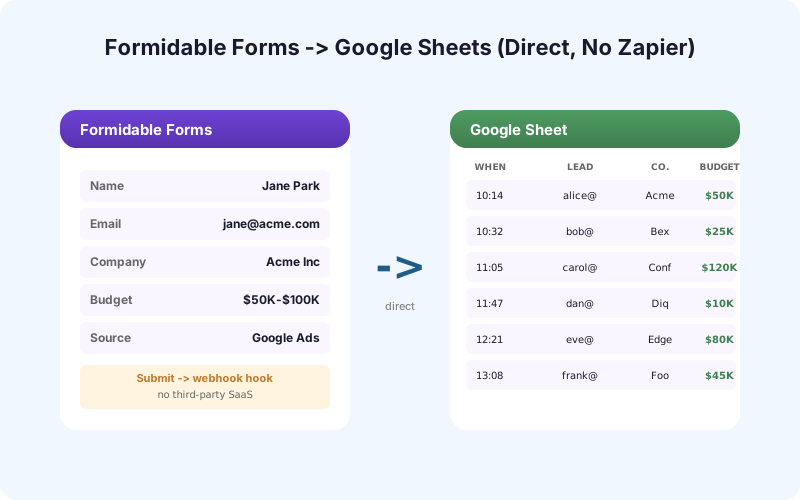
Option 3: A direct WordPress plugin (SheetLink Forms). One-time plugin purchase. Sub-second delivery. Submissions go straight from your server to your sheet. Works with the free version of Formidable, with two connection methods: one-click Google connect (v1.12.0 - consent screen plus Google file picker, drive.file scope only, no Google Cloud Console) or a classic self-hosted Apps Script webhook.
This guide focuses on Option 3 because it's the cheapest and the most reliable for the common case. SheetLink Forms' Formidable integration implements this pattern with full support for Formidable's advanced field types.
The Setup: One Click or Classic
You'll need a Google account, a WordPress site with Formidable installed, and a few minutes of focus.
The fastest path is one-click Google connect: install SheetLink Forms, click Connect Google, approve the consent screen, then pick an existing sheet or create a new one in the Google file picker. Pick your Formidable form, save, and submit a test entry: the first delivery seeds the header row from the form's own field labels, so there are no column names to type. The row appears in Sheets within two seconds - about a minute end to end. Refine the mapping afterwards only if you want to rename, reorder, or drop a column.
Prefer the classic self-hosted route? Create a Google Sheet with column headers matching your Formidable form fields, plus columns for Entry ID and Created At - these are useful even if you don't put them on the form itself. In the sheet open Extensions > Apps Script, paste the receiver script, click Deploy, New Deployment, Web App, execute as your account, access for "Anyone," copy the URL, and paste it into SheetLink's destination field. Budget about 10 minutes.
That's the full path for a basic form. The rest of this guide covers what changes when your form has calculations, lookups, repeaters, or file uploads.
Sending Calculation Fields
Formidable's calculation fields are one of its killer features. A quote form might calculate `quantity * unit_price + shipping`, with the result visible to the user before submission.
When this submission reaches Google Sheets, you want the calculated value as a number, not a formatted string. The wrong setup gives you "$1,234.56" in a text-formatted cell, which breaks SUM() and pivot tables. The right setup writes 1234.56 as a numeric value, with the cell formatted as currency at the sheet level.
In SheetLink Forms, switch the calculation field's "format" option from "as displayed" to "raw numeric value." Then format the destination column in Sheets as Currency, Number, or whatever applies. Now sums and pivot tables work as expected.
Repeater Fields: Flatten or Expand?
A repeater field lets users add multiple rows - "list each attendee's name and email," "describe each property you want appraised," "add line items to your invoice."
There are two strategies for getting these into Sheets.
Flatten: Combine all repeater rows into a single cell using a separator (newlines, semicolons, or pipes). Good for human review. Bad for analysis - you can't pivot or filter individual rows.
Expand: Each repeater row becomes its own row in Sheets, with the parent fields duplicated. Good for analysis. Worse for human review of "this one submission" because rows are spread out.
Most teams pick expand for analytical use cases (line items, attendees) and flatten for narrative use cases (project notes, free-form lists). SheetLink Forms supports both per-field, so a single form can mix strategies.
Lookup Fields and Cross-Form References
Formidable lookup fields pull values from another form's entries. A "Project Name" lookup might pull from a Projects form, so users select an existing project rather than retyping it.
When this submission reaches Sheets, you want the resolved label, not the raw entry ID. SheetLink Forms reads the lookup's display value, not the underlying ID, by default. If you also want the ID for joins or audit purposes, add a second column and map the raw value separately.
This matters most for CRM-style use cases where you're building a relational structure across multiple forms.
File Upload Fields
Formidable's file upload field stores the file in WordPress and gives you a URL. You can't embed the file in a cell, so the integration writes the URL plus metadata: filename, size in bytes, MIME type, and upload timestamp.
If the file is private (uploaded with `private="true"` in the field settings), the URL requires authentication. The plugin should still log the URL but flag it as private so you know logging it in a shared sheet is sensitive. We cover this pattern in detail in logging file upload metadata to Sheets.
Formidable Views vs. Google Sheets
Formidable Views are a strong reason teams stay in Formidable - you can build front-end tables, gallery layouts, and custom dashboards inside WordPress. Google Sheets is not a replacement for that.
The two tools serve different audiences. Formidable Views are for people inside WordPress. Google Sheets is for people outside WordPress - sales teams who don't have WP logins, finance teams pulling data into their existing reports, marketing teams running pivot tables.
Use both. Submissions land in Formidable (visible to admins via Views) and in Sheets (visible to everyone else via shared link). The direct webhook approach makes this trivial - one form, two destinations, no extra cost per submission.
Two-Way Sync: Edits in Sheets Push to Formidable
A common ask: "What if my sales team edits a status field in Sheets - can that change push back to Formidable?" Yes, with the Two-Way Sync add-on, which runs over the classic Apps Script connection.
The add-on listens for cell edits in Sheets and updates the corresponding Formidable entry. This lets your sales team work in Sheets while admins keep the canonical record in WordPress. Conflict resolution is "last write wins" with a timestamp comparison; complex schemas may need custom rules.
For most use cases, one-way sync (forms to Sheets only) is enough. Add two-way only when you have an explicit need for round-trip editing.
AI Scoring, Multi-CRM Routing, and Multi-Sheet Routing
Once Formidable is feeding Sheets, common follow-ons include scoring leads with AI (AI Lead Scoring), routing different forms or values to different sheets (Multi-Node Routing), and pushing to your CRM (Multi-CRM Routing).
All three operate on the data after it lands in Sheets, which means none of them depend on Formidable's internal APIs and none of them break when Formidable releases updates.
Recap
Formidable Forms' power - calculations, lookups, repeaters, Views - all maps cleanly to Google Sheets if you choose the right strategy per field type. The direct approach gives you sub-second delivery, no per-task fees, no third-party data exposure, and works with the free version of Formidable.
The full setup takes about a minute with one-click Google connect, or about 10 minutes with the classic Apps Script webhook. Once it's in place, every form on your site can use the same destination, with per-form field mappings and routing rules layered on top.
Frequently Asked Questions
Does this work with Formidable Forms Lite?
Yes. The webhook approach uses Formidable's standard submission hook, which is available in both the free Lite version and all paid tiers.
How do I handle Formidable calculation fields?
Configure the plugin to send the raw numeric value (not the formatted display string) and format the destination column in Sheets as Currency or Number. This preserves SUM() and pivot table behavior.
What about Formidable repeater fields?
Choose between flatten (all repeater rows in one cell with separators) and expand (each repeater row gets its own sheet row). SheetLink Forms supports both per-field, so different repeaters in the same form can use different strategies.
Can I sync Sheets edits back to Formidable?
Yes, with the Two-Way Sync add-on. Edits in Sheets push back to the Formidable entry. Most teams only need one-way (forms to Sheets), but two-way is available when you need it.
How does this compare to Formidable's built-in Google Sheets integration?
The built-in integration requires Formidable's higher-tier license and a Google Cloud OAuth setup. SheetLink works with the free version, connects in about a minute with one-click Google connect (no Google Cloud project) or about 10 minutes with the classic Apps Script webhook, and supports advanced patterns like multi-destination routing and conditional sheets.
Are file uploads supported?
Yes. The plugin writes the file URL plus metadata (filename, size, MIME type) to your sheet. The file itself stays on your WordPress server.
Can multiple Formidable forms write to the same sheet?
Yes. You can map multiple forms to the same destination sheet, with optional Form Name or Form ID columns to distinguish entries. Some teams prefer one sheet per form for easier filtering.
What about Formidable Views - do they survive?
Views continue to work normally. The Sheets integration is additive - it sends a copy to Sheets without changing anything in Formidable. Admins keep using Views inside WordPress while non-admins use Sheets.
More Tutorial guides
Connect Formidable Forms to Sheets in One Click
Skip the Formidable subscription tier upgrade. One-click Google connect or a self-hosted webhook, one-time purchase, free version compatible.