
Ninja Forms + Google Ads Conversion Tracking via Google Sheets
This guide is for Ninja Forms sites running Google Ads where the goal is to upload actual sale values, not form fills, as conversions. It walks through the exact setup for capturing the Google Click ID (plus wbraid and gbraid for iOS traffic), writing it to a Google Sheet alongside the form data, and exporting completed conversions as a CSV ready for Google Ads upload. By the end you will have a working pipeline from ad click to Smart Bidding optimisation - without paying for a CRM.
How it works
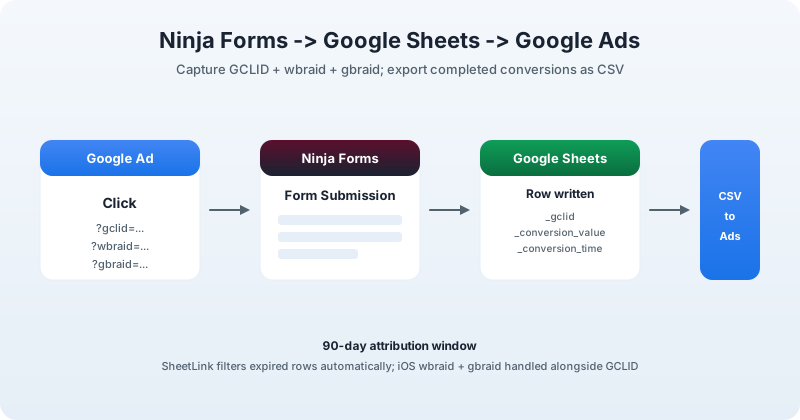
A visitor clicks one of your Google Ads. They land on the site with ?gclid=... (or ?wbraid=... or ?gbraid=... for iOS) in the URL. SheetLink’s frontend script reads those parameters into a 90-day cookie before the visitor sees your form. When they submit your Ninja Forms form, SheetLink hooks into ninja_forms_after_submission, pulls the click ID from the cookie, and writes a row to your Google Sheet alongside the form fields and four blank columns: Conversion Name, Conversion Value, Conversion Time, and Conversion Currency. When you close the deal, you fill in those columns. In WordPress you click Export CSV, and the resulting file imports cleanly into Google Ads under Tools -> Conversions -> Uploads.
What SheetLink captures automatically
| Click ID | Source | When it applies |
|---|---|---|
| GCLID | ?gclid=... | Standard Google Ads click |
| wbraid | ?wbraid=... | iOS web-to-app conversion (ATT-restricted) |
| gbraid | ?gbraid=... | iOS in-app conversion (ATT-restricted) |
Plus utm_source, utm_medium, utm_campaign, utm_term, and utm_content. The wbraid and gbraid parameters matter because iOS 14.5+ traffic running under App Tracking Transparency does not produce a GCLID - if you only capture GCLID, your iOS conversions are silently lost.
Prerequisites
- SheetLink Forms plugin (free on WordPress.org)
- Ninja Forms installed with at least one form already set up
- A Google Sheet connected to that form via SheetLink
- A Google Ads account with offline conversion tracking enabled (Tools -> Conversions -> New conversion action -> Import -> Other data sources)
Setup
- Install SheetLink and connect your Google Sheet. Follow the setup guide to create your first sync rule and deploy the Apps Script webhook to your Sheet.
- Open SheetLink -> Google Ads Conversions in your WordPress admin sidebar.
- Enable the feature for your Ninja Forms rule. Set the Conversion Name (matching the action name in your Google Ads account), pick the Conversion Currency, and select the timezone matching your Google Ads account.
- Run the one-time Apps Script setup. The page shows your per-rule export token; copy it into your existing Apps Script project as a Script Property named
SHEETLINK_ADS_TOKEN. Then paste in the helper file fromassets/apps-script/google-ads-helper.gs(shipped with the plugin) and re-deploy the script. - Submit a test form entry. A new row should appear in your Sheet with the captured GCLID and four blank conversion columns.
- When a deal closes, fill in
Conversion Name,Conversion Value, andConversion Timeon that row. The optional installable trigger from the helper file auto-fills Conversion Time when you enter a value. - Click Export CSV on the SheetLink admin page. Upload the resulting file to Google Ads under Tools -> Conversions -> Uploads.
Plugin-specific notes
Ninja Forms’ multi-step layouts and conditional logic do not affect click ID capture - the hook fires on final submission regardless of form structure. Ninja Forms uses internal field keys rather than human labels for column headers; if you map fields explicitly, use those keys (visible in the field settings panel of each Ninja Forms field).
Frequently asked questions
Does this work with Ninja Forms’ multi-step and conditional logic forms? Yes. The hook fires only on final submission and the cookie persists for 90 days, so paged forms and conditionally-shown fields both record the click ID correctly. Partial steps never produce a row.
What if my visitor is on iOS and there’s no GCLID?
This is exactly why SheetLink also captures wbraid and gbraid. iOS Safari under App Tracking Transparency does not produce a GCLID; Google Ads sends wbraid (web-to-app) or gbraid (in-app) instead. The CSV export uses GCLID first and falls back to wbraid then gbraid - so iOS conversions are recorded the same way.
How long do I have to fill in the conversion value? Google Ads accepts offline conversions within 90 days of the original click. SheetLink’s CSV export filters out rows older than 90 days automatically so you never upload an expired conversion. The UTM cookie is also 90 days for the same reason.
Ready to try it?
SheetLink Forms is free on WordPress.org. The Google Ads conversion feature is included at no extra charge.