
WordPress Booking Forms to Google Sheets: Appointments, Slots & Follow-up Queues
Booking forms generate three datasets at once: the appointment, the slot inventory, and the follow-up queue. Here's how to log all three to Sheets.
In This Guide
- Booking Data Has Three Shapes
- The Major WordPress Booking Plugins
- The Bookings Sheet: What to Log
- The Slot Inventory: A Separate Tab
- The Follow-up Queue
- No-Shows and Late Cancellations
- Calendar Integrations: Don't Reinvent
- Capacity Planning From Sheets
- Beyond Bookings: Reviews, Memberships, Packages
- Recap
- Frequently Asked Questions
Booking Data Has Three Shapes
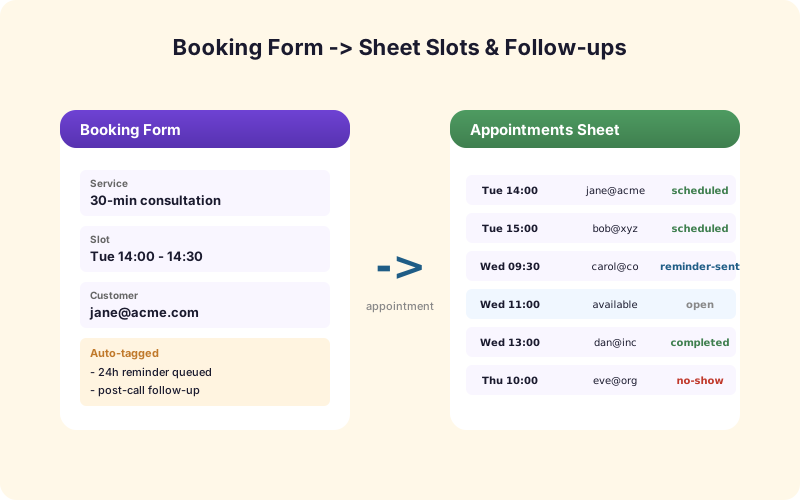
A booking form is not a contact form. When someone books an appointment, your data takes three shapes at once.
The appointment itself: customer details, service, slot, duration, status. This is the row in your "Bookings" sheet.
The slot inventory: which slots are available, which are taken, which are blocked. This is a separate sheet (or tab) showing capacity over time.
The follow-up queue: post-appointment tasks - send the thank-you email, request a review, schedule the next appointment. This builds over time as appointments complete.
Most teams set up Sheets logging that captures only the first shape. The second and third are where the real operational value lives.
The Major WordPress Booking Plugins
The WordPress booking plugin landscape has consolidated around five players.
Amelia - service-based businesses (salons, clinics, fitness). Strong calendar UI, employee/service mapping, package support.
BookingPress - similar feature set to Amelia, more flexible pricing.
Bookly - older but mature. Add-on heavy.
Simply Schedule Appointments (SSA) - lightweight, Calendly-style. Great for solo professionals.
FluentBooking (from the Fluent ecosystem) - tight integration with Fluent CRM and Fluent Forms.
All five expose appointment data through standard WordPress action hooks. SheetLink Forms supports all of them via the same direct connection used for regular forms - one-click Google connect or the classic Apps Script webhook.
The Bookings Sheet: What to Log
A working Bookings sheet has 12-15 columns. Customer name, email, phone. Service name, service ID. Slot start, slot end, duration in minutes. Provider/staff name. Status (confirmed, completed, no-show, cancelled, rescheduled). Booking source (which form, which page). Internal notes.
For paid bookings, also: payment status, amount, payment ID. For multi-attendee bookings: number of attendees. For recurring bookings: parent appointment ID and recurrence rule.
Freeze the header row. Format slot start/end as date-time. Apply conditional formatting on Status (green for confirmed, red for cancelled, gray for completed). Now the sheet works as a daily operations dashboard, not just a log.
The Slot Inventory: A Separate Tab
Bookings tell you what was booked. Slot inventory tells you what's available, what's booked, and what's blocked - the full capacity picture.
A simple slot inventory tab has columns: Date, Time Slot, Provider, Service, Status (Available, Booked, Blocked, Past), Booked By, Booking ID. One row per slot.
The trick is keeping it in sync. SheetLink Forms can listen for both booking creation and booking cancellation events, then update the matching slot row to "Booked" or back to "Available." For blocking and reopening (when a provider goes on leave or returns), the inventory pulls from the booking plugin's availability rules.
With this in place, you can pivot the Slot Inventory tab by week to see utilization, by provider to see capacity gaps, by service to see demand patterns.
The Follow-up Queue
A completed appointment usually triggers two or three follow-up actions: send a thank-you email, request a review, schedule the next appointment, send a satisfaction survey, deliver a customer health check.
The follow-up queue is a sheet that builds over time. Each completed appointment creates one or more follow-up rows with a Due Date, Action Type, Customer Email, Status (Pending, Done, Skipped), and a link back to the parent appointment.
This is the Sheet your customer success or front-desk team works from each morning. SheetLink Forms can populate it automatically based on rules: "every Massage appointment that completes generates a Review Request follow-up due in 2 days." Once it's in the queue, your team picks it up via filtering.
No-Shows and Late Cancellations
A no-show is not the same as a cancellation. A cancellation has policy implications (refund or no?), and a no-show has follow-up implications (call to reschedule, charge a fee, flag the customer).
Log status transitions explicitly. When a slot passes without check-in, mark Status as No-Show and log the timestamp. When a cancellation happens within the policy window, mark Status as Cancelled-Late. These are different rows from "Cancelled" (within policy).
A filter view "No-Show this week" gives front-desk a daily action list. Conditional formatting on the Bookings sheet highlights customers with multiple no-shows, who probably warrant a different policy treatment going forward.
Calendar Integrations: Don't Reinvent
A Sheets-driven booking workflow doesn't replace Google Calendar or Outlook. It complements them.
Most booking plugins push appointments to Google Calendar via OAuth. That's where providers see their day. The Sheet is for operations - the front-desk view, the manager view, the cross-customer view that calendar can't show.
Don't try to make Sheets the calendar. Use both: calendar for "what's next on my schedule," sheets for "what does our week look like across all providers and how are bookings trending."
Capacity Planning From Sheets
Once your bookings, slots, and follow-ups are in Sheets, capacity planning becomes a few formulas.
- Utilization rate per provider: COUNTIF Booked slots / COUNTIF Total slots. - No-show rate per service: COUNTIF Status=No-Show / COUNTIF Total bookings. - Booking lead time: AVERAGE(Slot Start - Booking Created Time). - Repeat-customer rate: COUNTIF customer_id appears > 1 / total unique customers.
These surface in 30 seconds when the data is structured correctly. They surface never if all you have is a stack of confirmation emails.
Beyond Bookings: Reviews, Memberships, Packages
When bookings are flowing to Sheets, follow-on workflows get cheap.
Review tracking: every "Review Requested" follow-up gets paired with a "Review Received" status when the customer leaves one (via webhook from your review tool).
Membership renewals: customers on packages have a "Sessions Remaining" column updated per appointment. When it hits zero, a renewal follow-up auto-creates.
Package upsells: pivot the Bookings sheet by customer to see frequent users who haven't bought a package - perfect candidates for an upsell campaign.
This is the operational layer most booking plugins don't build into the product itself. Sheets becomes the canvas where your team builds workflows specific to your business.
Recap
Booking forms generate three datasets - appointments, slot inventory, follow-up queue. Most teams only log the first. The second and third are where Sheets earns its keep.
Map status transitions explicitly (no-shows are not cancellations). Don't replace Google Calendar with Sheets - complement it. Use Sheets formulas for capacity planning. And once the foundation is in place, packages, memberships, and review tracking all build on top with minimal extra code.
One last note: booking data has long-term value most teams underestimate. Three years of bookings reveals seasonal demand patterns, customer lifetime value distributions, and the marketing channels that produce repeat business. Keep your historical data archived (separate annual sheets, queryable but not active) so this analysis is possible later. Most booking SaaS tools delete or compress historical data; your sheets do not, which is a competitive advantage over time. Booking workflows reward investment - get the foundation right and the operational wins compound for years.
Frequently Asked Questions
Does SheetLink Forms work with Amelia?
Yes. Amelia exposes appointment events through WordPress action hooks. SheetLink Forms listens for booking creation, cancellation, completion, and no-show events and writes corresponding rows to your sheet.
What about BookingPress, Bookly, and Simply Schedule Appointments?
All four are supported. The integration uses the plugin's standard WordPress hooks, so booking creation and status changes feed into Sheets automatically.
How do I track slot availability in Sheets?
Use a separate tab structured as one row per slot, with columns for Date, Time, Provider, Service, and Status (Available, Booked, Blocked, Past). SheetLink Forms updates the Status column when bookings are created or cancelled.
Can I auto-generate follow-up tasks from completed appointments?
Yes. Set rules like "every Massage appointment that completes generates a Review Request follow-up due in 2 days." SheetLink Forms applies the rules at status-change time and writes follow-up rows to a separate Follow-ups tab.
Do I still need Google Calendar?
Yes. Google Calendar is where providers see their day. Sheets is where operations teams see the cross-customer, cross-provider view. The two complement each other - Sheets is not a calendar replacement.
How do I track no-shows separately from cancellations?
Use distinct status values - Cancelled (within policy), Cancelled-Late (within policy window violation), No-Show (slot passed without check-in). Each transition is logged with a timestamp for audit and analysis.
Can I see utilization rate per provider from Sheets?
Yes. Use COUNTIF over your Slot Inventory tab: Booked slots divided by Total slots. Pivot tables make it easy to slice by provider, service, or week.
Does this work for paid bookings?
Yes. Add columns for Payment Status, Amount, Payment ID, and Payment Provider. The integration writes payment data alongside appointment data when the booking plugin captures it (Stripe, PayPal, WooCommerce-based payments are all common).
How long should I keep booking history?
Indefinitely if storage allows. Three years of historical bookings reveal seasonal patterns, customer lifetime value, and channel performance over time. Archive older data to separate annual sheets to keep the active sheet fast while preserving the full history.
More Tutorial guides
Run Your Booking Operation From Sheets
Appointments, slot inventory, and follow-up queue. All three. One license.