
WooCommerce Checkout Custom Fields to Google Sheets: The Data You're Missing
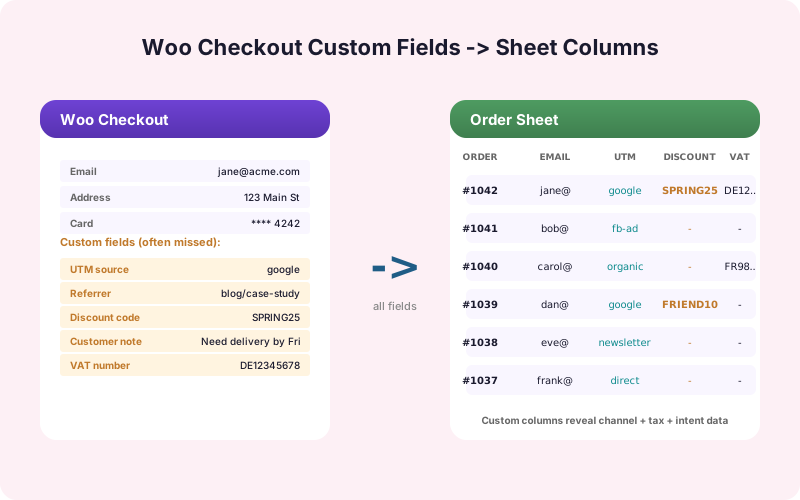
Standard order data is the bare minimum. The questions you ask at checkout - "How did you hear about us?", VAT IDs, delivery instructions - belong in your sheet too.
In This Guide
- The Gap Between WooCommerce Reports and Your Real Questions
- The Custom Fields That Matter Most
- Logging Marketing Attribution Properly
- B2B Fields: VAT, EIN, Company Name
- Fulfillment Notes and Gift Options
- How to Capture and Send the Custom Fields
- WooCommerce Subscriptions: A Special Case
- Refunds, Cancellations, and Status Changes
- Beyond Logging: Operations Workflows
- Recap
- Frequently Asked Questions
The Gap Between WooCommerce Reports and Your Real Questions
WooCommerce's built-in reports show revenue, product performance, and customer counts. They don't show why a customer chose you over a competitor, what their internal PO number is, whether they want their order gift-wrapped, or which trade show they met you at.
That information lives in checkout custom fields - the questions you add to the WooCommerce checkout via the Checkout Field Editor plugin, custom hook code, or a builder like Cartflows. The data is captured per order in WooCommerce post meta, but it's buried where finance, fulfillment, and marketing rarely look.
Getting these custom fields into Google Sheets, alongside the standard order columns, is the difference between a sheet that documents what happened and a sheet that explains why.
The Custom Fields That Matter Most
Five categories of checkout custom fields show up repeatedly across WooCommerce stores.
Marketing attribution. "How did you hear about us?" Often a dropdown with options like Google, Friend, Trade Show, Podcast. This is the cheapest, most direct attribution data you'll ever get and most stores throw it away.
Tax/business identifiers. VAT ID, EIN, ABN. Critical for B2B and EU shipments. If these aren't in your sheet, your finance team has to dig into each order manually.
Delivery instructions. Gate codes, leave-at-door notes, business hours. Goes to fulfillment, often via the order PDF, but a Sheets log creates an audit trail.
Gift options. Gift message, gift wrap selection, send-by date. These should drive packaging workflow.
Custom product configuration. Engraving text, monogram initials, t-shirt sizes for a corporate bulk order. Per-line-item, but worth surfacing per order too.
Logging Marketing Attribution Properly
The "How did you hear about us?" field is gold if you log it right. Most stores stop at the dropdown answer. Pair it with three things and you have actionable attribution.
First, capture the UTM parameters from the URL when the customer first landed on the site. Store them in a cookie so they survive the journey to checkout. Log all four (utm_source, utm_medium, utm_campaign, utm_content) plus the gclid and fbclid if present.
Second, capture the landing page URL. The page that brought them in tells you which content earned the sale.
Third, capture the time-to-purchase. Did they buy on first visit or come back after 30 days?
Now your Sheets row tells you: customer X said they heard from "Friend," but their UTM source is google/cpc, they landed on a comparison page, and they took 14 days to convert. The "Friend" answer is partially true but the real attribution story is paid search plus a content investment.
The UTM tracking guide covers the technical capture pattern.
B2B Fields: VAT, EIN, Company Name
B2B WooCommerce stores collect tax IDs at checkout for compliance and invoice generation. These need to be in your sheet.
For EU stores, VAT ID validation against VIES (the EU VAT lookup service) should happen at checkout time. Log both the raw VAT ID and the validation result in your sheet. A "Valid" column with VIES status and a timestamp lets your finance team trust the data without re-checking.
For US B2B, EIN/Federal Tax ID is less commonly collected at checkout but matters for tax-exempt customers. Pair it with a Resale Certificate upload field (logged via the file metadata pattern from our file upload guide) so your finance team has the audit trail in one place.
Fulfillment Notes and Gift Options
Fulfillment teams often work from packing slips printed from WooCommerce. A Sheets feed is a great backup and a great escalation tool when something goes wrong.
Log every order with its delivery instructions, gift message, gift wrap selection, and ship-by date in dedicated columns. Add a "Special Handling" column that auto-flags orders matching certain patterns (gift wrap requested, expedited shipping, fragile product, international destination).
When a fulfillment manager wants to know "which orders this week needed gift wrap and shipped to Canada," your sheet answers it in 30 seconds. WooCommerce's order list does not.
How to Capture and Send the Custom Fields
There are three common ways custom fields get added to WooCommerce checkout, and each needs slightly different integration.
Checkout Field Editor plugins (WooCommerce's own plugin, or third-party builders) save custom fields as standard order meta with predictable keys. The SheetLink Forms WooCommerce integration auto-detects these keys and offers them in the field map.
Custom hook code (`woocommerce_checkout_fields` filter) saves to whatever meta key your code specifies. You'll need to add the meta keys to the field map manually.
Cart and checkout builders (CartFlows, FunnelKit, Thrive Architect) often use their own meta key conventions. Check the builder's documentation for the meta key pattern, then add to the field map.
SheetLink Forms' WooCommerce integration handles all three patterns and writes per-order rows that include both the standard fields and your custom fields.
WooCommerce Subscriptions: A Special Case
WooCommerce Subscriptions adds renewal orders that share most fields with the original order but have their own order ID and timestamp. Decide upfront how you want renewals to appear in Sheets.
Option A: every renewal is a new row. Easier to do per-period revenue analysis. Sheet grows fast for sites with many active subscribers.
Option B: only the original order is logged. Renewal status updates a column on the original row. Cleaner sheet, but harder to track per-period metrics.
Most finance teams pick Option A because it matches how they think about revenue (each renewal is a separate transaction). Most marketing teams prefer the unified view of Option B for retention analysis.
Refunds, Cancellations, and Status Changes
WooCommerce orders have a status (Pending, Processing, Completed, Refunded, Cancelled) that can change over time. Your Sheets feed needs to reflect that.
The right pattern is one row per order with a Status column and a Last Updated column. When the order status changes in WooCommerce, the integration updates the existing row instead of writing a new one. Your sheet always reflects current state plus the original capture data.
If you also want an audit trail of every status change, add a separate "Order Events" sheet that gets a new row for each change. This is the pattern finance and accounting teams tend to want.
Beyond Logging: Operations Workflows
Once your custom fields are in Sheets, drive operations from them.
- Auto-flag orders needing gift wrap and email the fulfillment team daily. - Pivot table by attribution source to see which channels drive highest AOV. - Conditional formatting on VAT validation column to highlight failures. - Filter view per fulfillment region for warehouse teams.
None of these need a CRM or a separate analytics platform - just Sheets and the right column structure.
Recap
WooCommerce's built-in reports cover the basics. The questions you ask at checkout - attribution, B2B identifiers, fulfillment notes, gift options - belong in your sheet too.
Log them with predictable column names, pair attribution with raw UTM data, validate B2B identifiers at capture time, and treat status changes as updates to existing rows. The result is a sheet your operations, finance, and marketing teams all use because it answers their actual questions.
Frequently Asked Questions
Will WooCommerce custom checkout fields be sent to Google Sheets automatically?
Yes, if your integration plugin reads order meta. SheetLink Forms' WooCommerce integration auto-detects custom fields added via the Checkout Field Editor and lets you add custom hook-based fields manually.
How do I capture UTM parameters at checkout?
Set a cookie when a visitor lands on your site with UTM parameters in the URL. Read the cookie at checkout and write its values to order meta. The integration then sends them to your sheet alongside standard fields.
Can I validate VAT IDs before logging?
Yes. WooCommerce VAT validation plugins call the VIES API at checkout. Log both the VAT ID and the validation result in your sheet for audit purposes.
How are WooCommerce order status changes handled?
The integration updates the existing row in your sheet when an order's status changes (e.g., Processing to Completed). If you also want an event log, add a separate sheet that captures each status change as a new row.
Do WooCommerce Subscription renewals show up in the sheet?
You choose. The integration can write a new row for every renewal (better for per-period revenue analysis) or update the original order row (better for retention analysis).
Can I send checkout custom fields to multiple sheets?
Yes. SheetLink Forms' Multi-Node Routing add-on supports per-destination field maps, so a fulfillment sheet can get delivery instructions while a marketing sheet gets attribution data.
What about CartFlows and FunnelKit checkouts?
They store custom fields as order meta with builder-specific keys. Add the meta keys to the SheetLink Forms field map manually. The integration handles them the same as standard fields once mapped.
How does this affect my checkout page performance?
It doesn't. The integration runs on the order completion hook, after WooCommerce has already saved the order and shown the thank-you page. The Sheets write is asynchronous and doesn't block the customer.
More Tutorial guides
Send Every WooCommerce Field to Sheets
Standard order data plus checkout custom fields, attribution, VAT IDs, and fulfillment notes - all in one place.